Filing structure as a template
From a lean project filing structure to a filing plan with more than 90 libraries. There is one template per project type, optionally with folders from a reference project.

Project portal for Microsoft 365
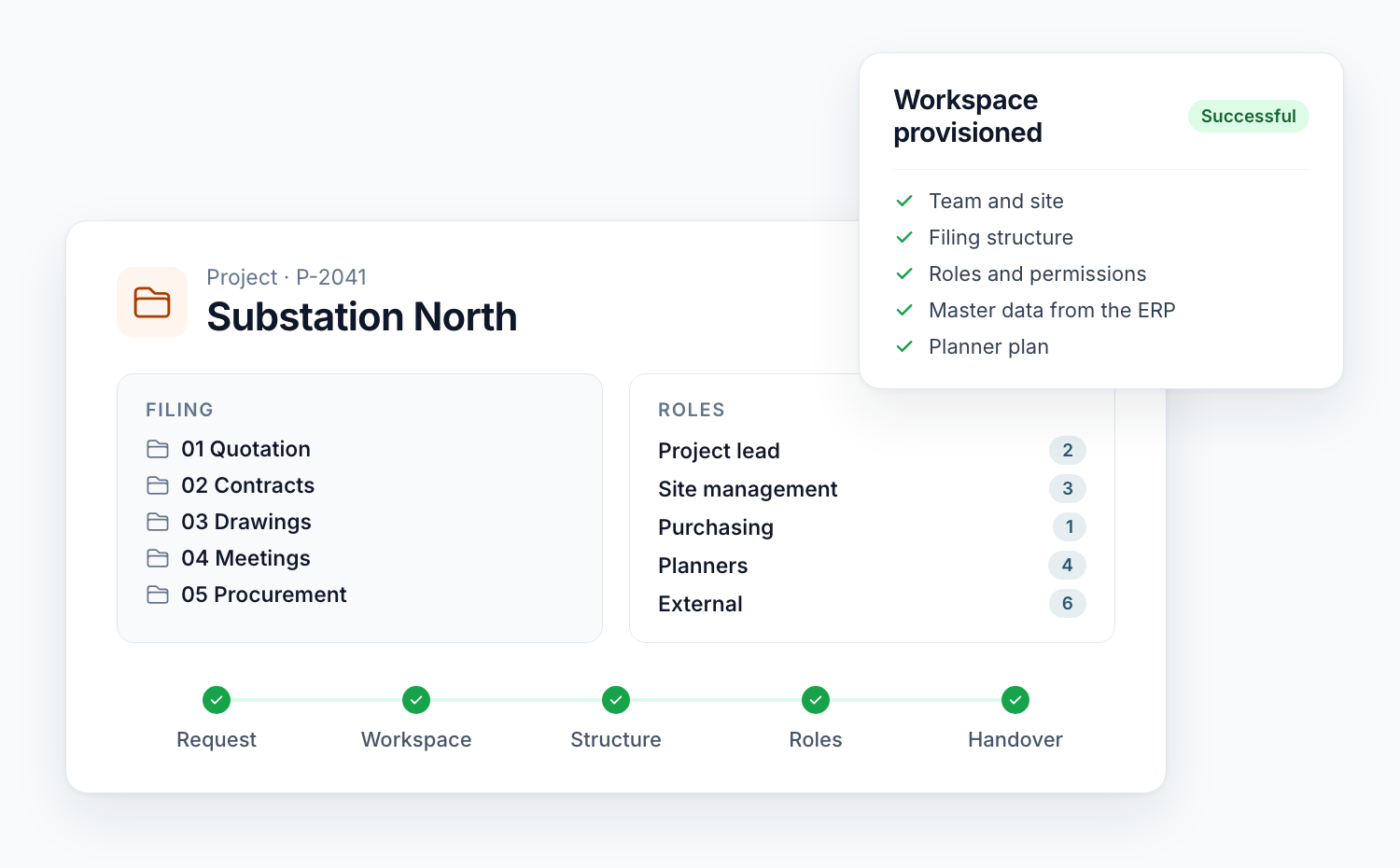
A ready-made workspace for every project: with structure, roles and data.
Smarter Project Portal automatically provisions a workspace in SharePoint or Teams for every project, with your filing structure, your roles and the data from your systems. The core is proven in customer projects, from plant engineering to major rail projects. Templates, role model and integrations are aligned with your project organisation.
The problem
Every new project starts with the same manual work: create a team, copy folders, set permissions, enter master data. After fifty projects, no two workspaces look alike, and nobody knows who has access to what.
Microsoft’s templates create channels, libraries and apps. But they know neither your project number nor your role model, and they do not fetch data from ERP or CRM. If provisioning stops halfway, half a workspace is left behind.
How it works
Five steps that run the same way for every project. What they produce is defined by the template for the project type.
A project is requested in a form or arrives directly from CRM or ERP. If required, a central team approves the request before anything is created.
Result
entry in the project list
The service creates the site or team, named and addressed according to your convention, and associates it with your project hub.
Result
site or team with a fixed address
Libraries, folders, metadata, pages and navigation come from the template. Where needed, a Planner plan with your standard tasks is added.
Result
filing as defined in the template
A group is created per role, with permissions down to library and folder level. Project lead and team come from the request.
Result
permissions per role
The master data is on the workspace, the business systems are linked, the team receives a notification.
Result
notification and status
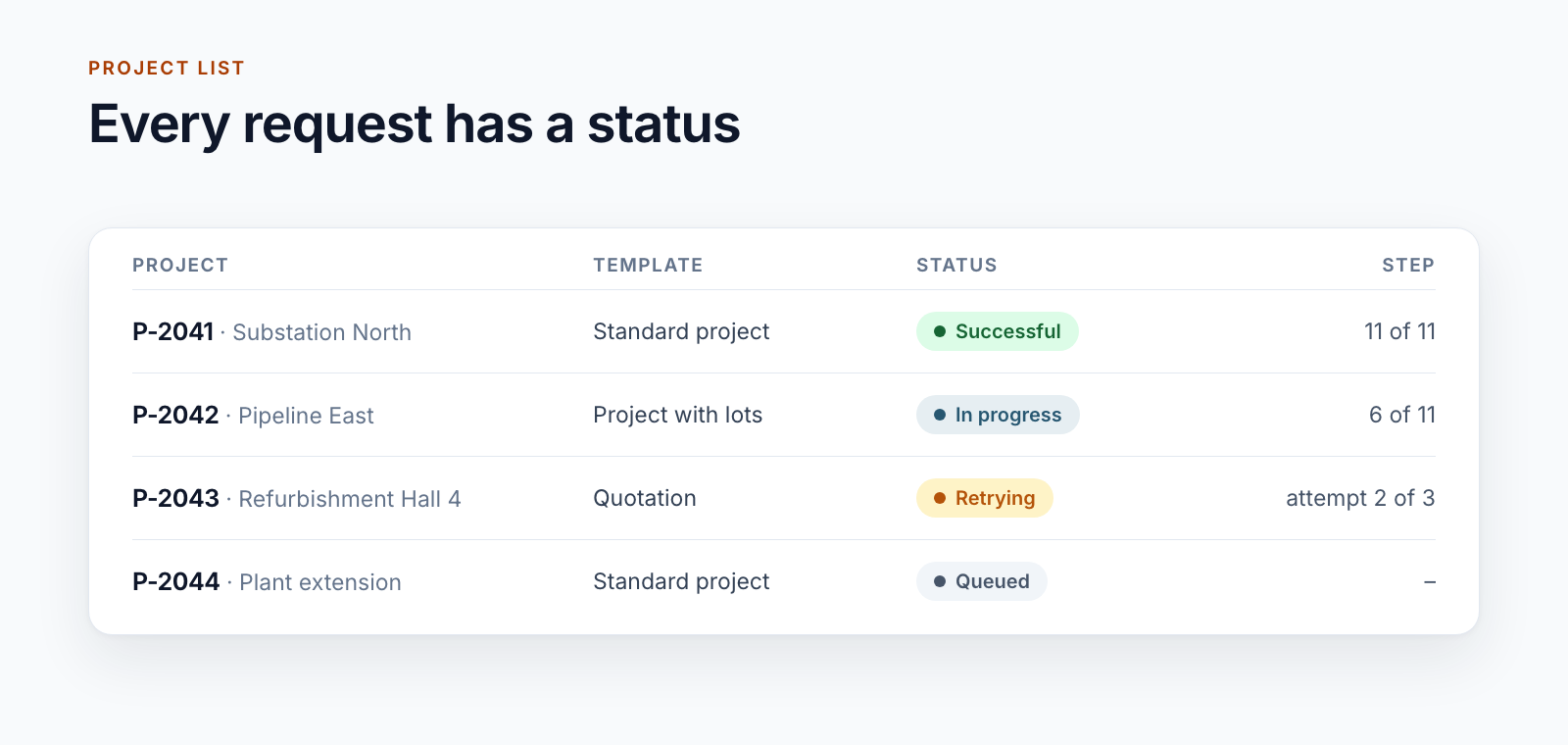
If a step fails, the service retries it. If provisioning gets stuck, the error is on the list entry and the run can be restarted from there.
Building blocks
Every building block runs in production for at least one customer. Which ones you need depends on your projects.
From a lean project filing structure to a filing plan with more than 90 libraries. There is one template per project type, optionally with folders from a reference project.
Project roles as groups, with permissions per library and folder. Construction sections or lots add their own areas and roles.
One team per project with fixed tabs and a Planner plan copied from your template plan, including buckets, tasks and checklists.
Master data from ERP or CRM, documents from SAP, photos and reports from the construction site, handover to a central BIM repository or a signature service.
Project number, phase and filing level are set automatically on every document. Document types can be predefined per library.
Scanned PDFs without a text layer are detected after upload and replaced by a searchable version. Sender, recipients and date are read from filed emails.
All your projects in one list, filtered by phase, division or project lead. Inside the project, tiles show the data from the business systems.
Project phases control navigation and permissions. During the warranty period, only what is still needed remains writable. After closure, data is reduced.
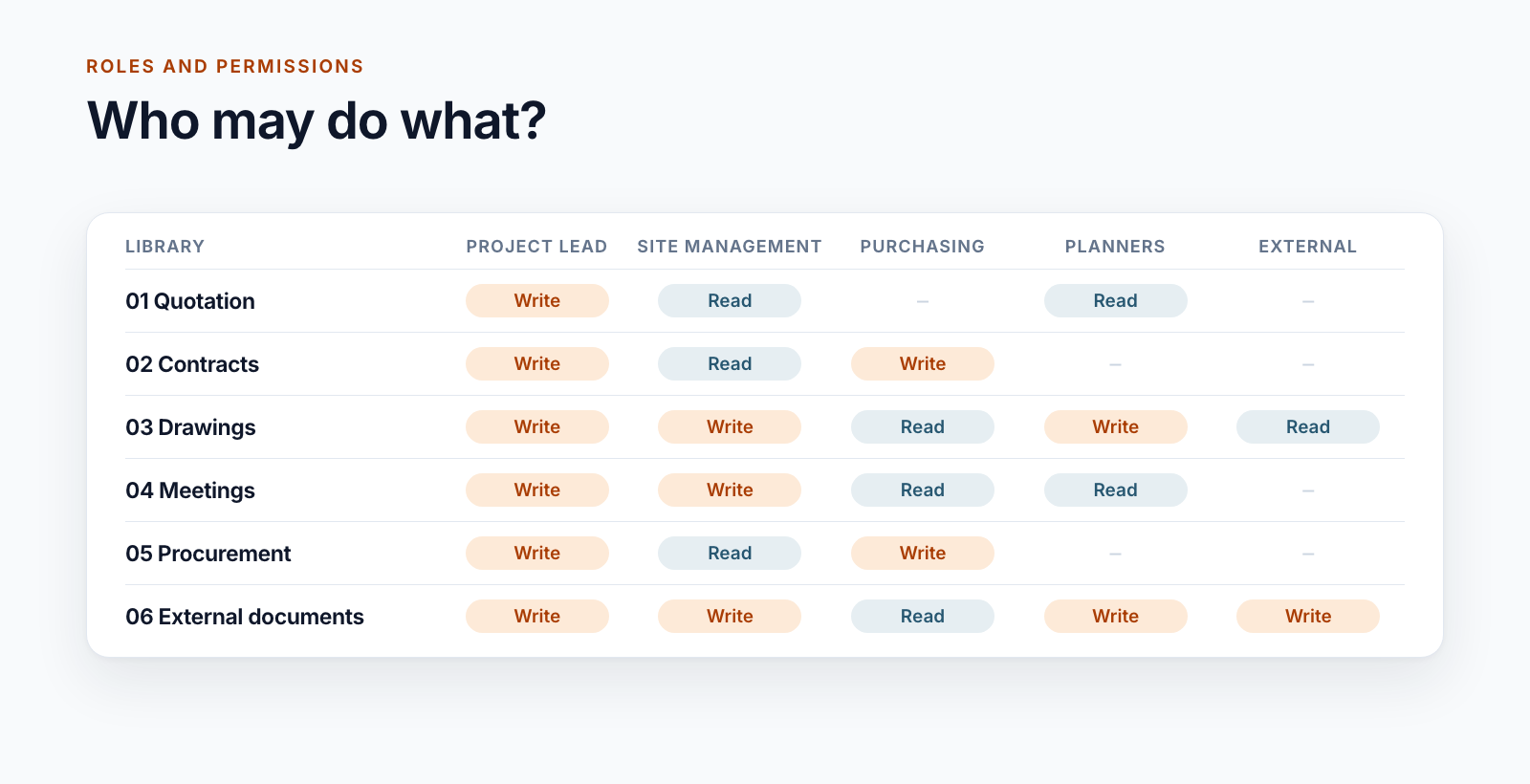
Project leads, site managers, purchasing, planners and external companies all work in a project workspace. Not everyone should see everything. The role model is defined once in the template and applied identically to every project.
In the largest template: 26 role groups and more than 800 permission assignments per project, set identically for every project.
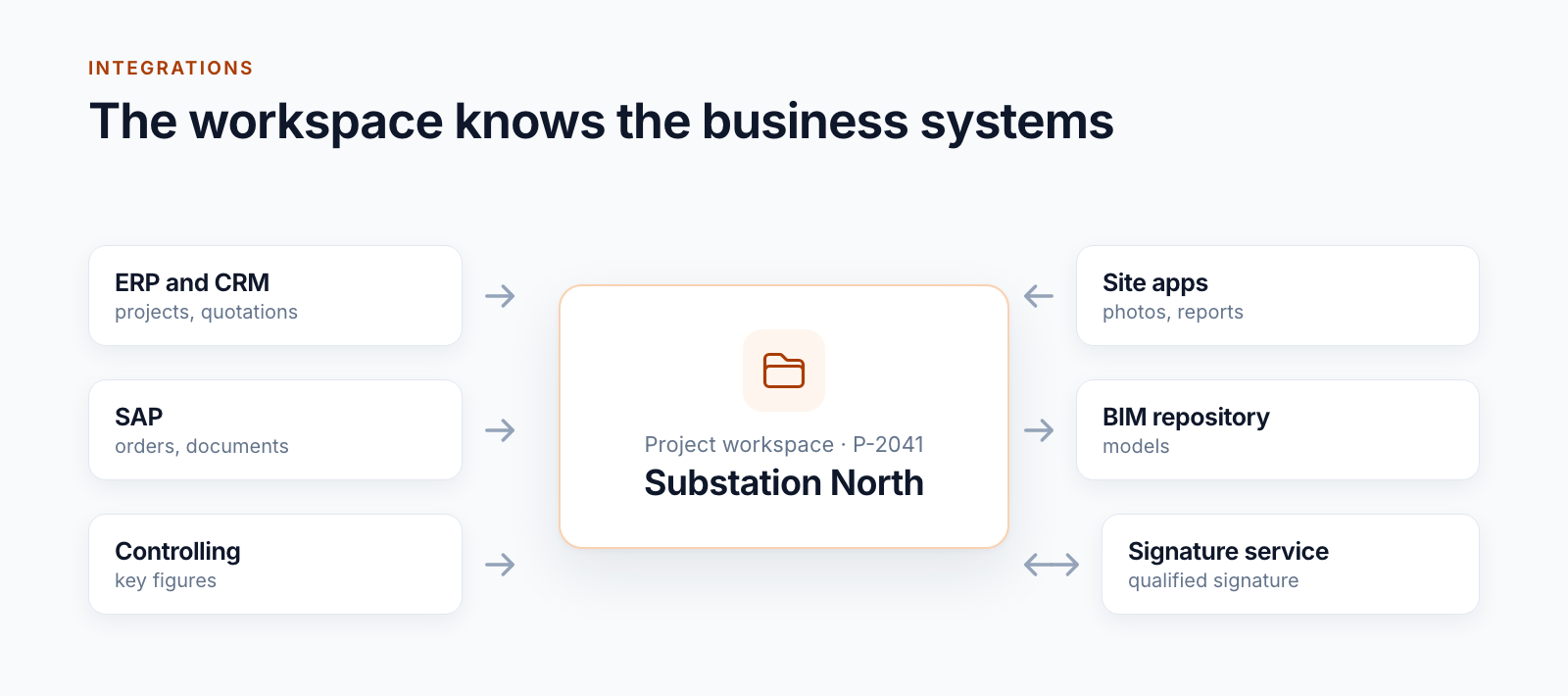
A project workspace is only as good as its connection to everything else. Project number, client and project lead should not be typed in by hand, and orders or site reports belong to the project, not in a second system.
Interfaces depend on your systems. The core provides the patterns: scheduled synchronisation, retries after errors and a visible status per run.
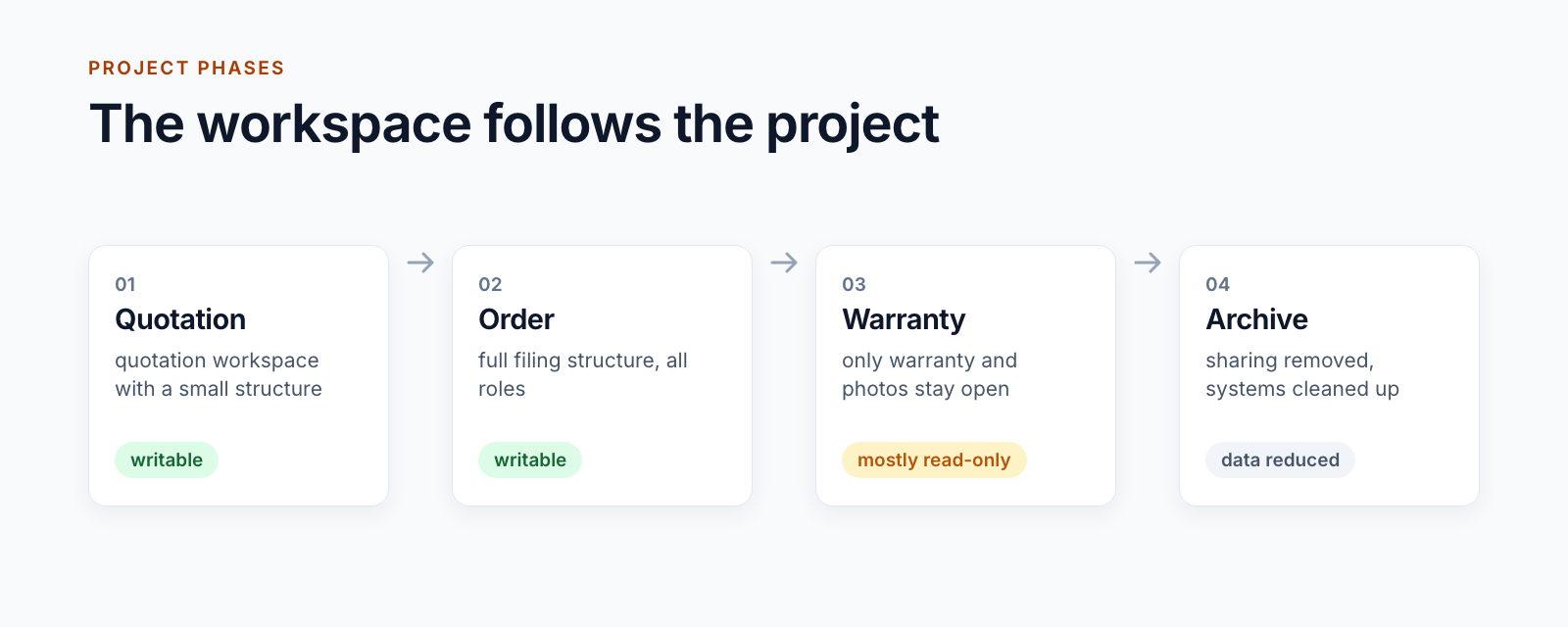
A project changes over its lifetime. A quotation becomes an order, and after handover the warranty period begins. The project workspace follows these phases.
An archive copy of completed projects in the customer’s Azure subscription is being trialled. Our blog series on SharePoint archiving describes the current state.
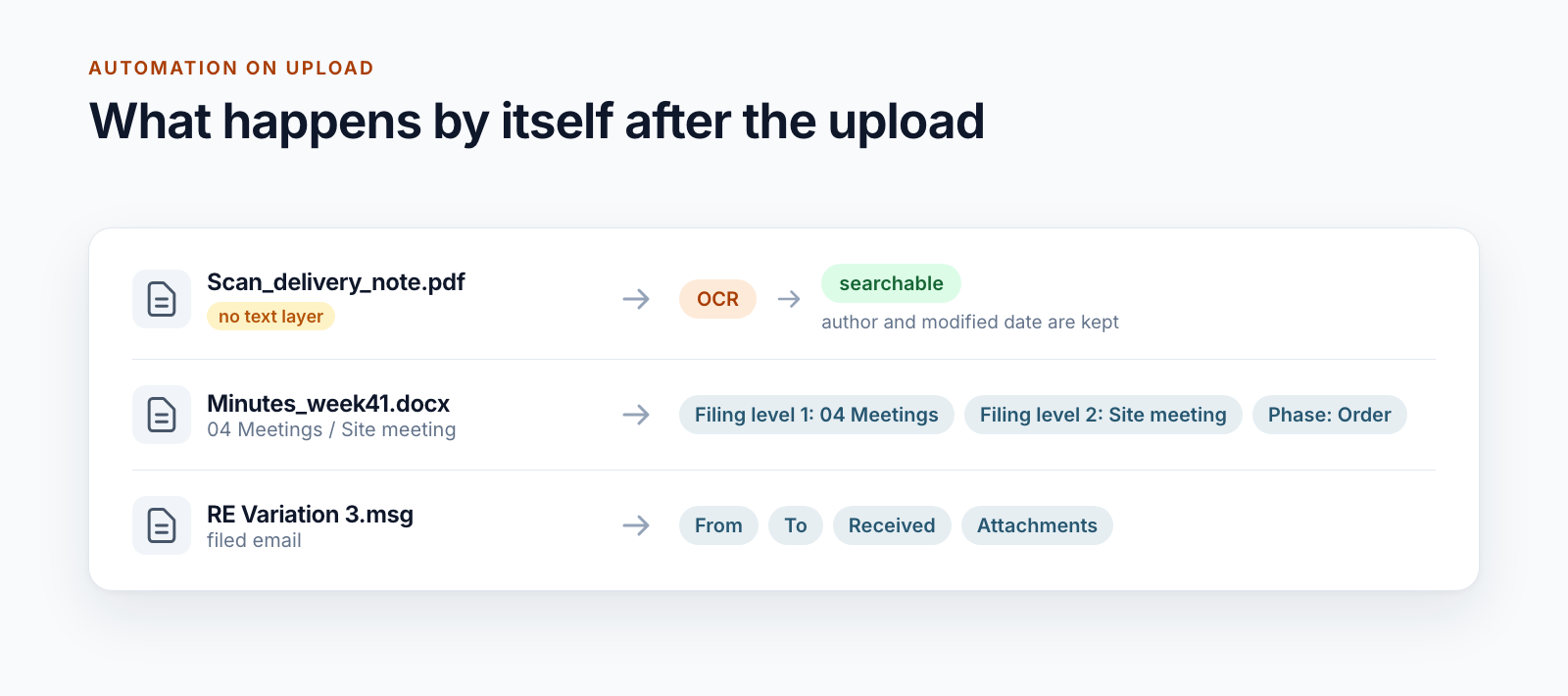
The larger the filing structure, the more it matters what happens automatically on upload. A background service reacts to new files and adds what people do not enter.
For one customer, the service checks around two million files a month. More than 90 per cent need no text recognition and are skipped.
Core and customisation
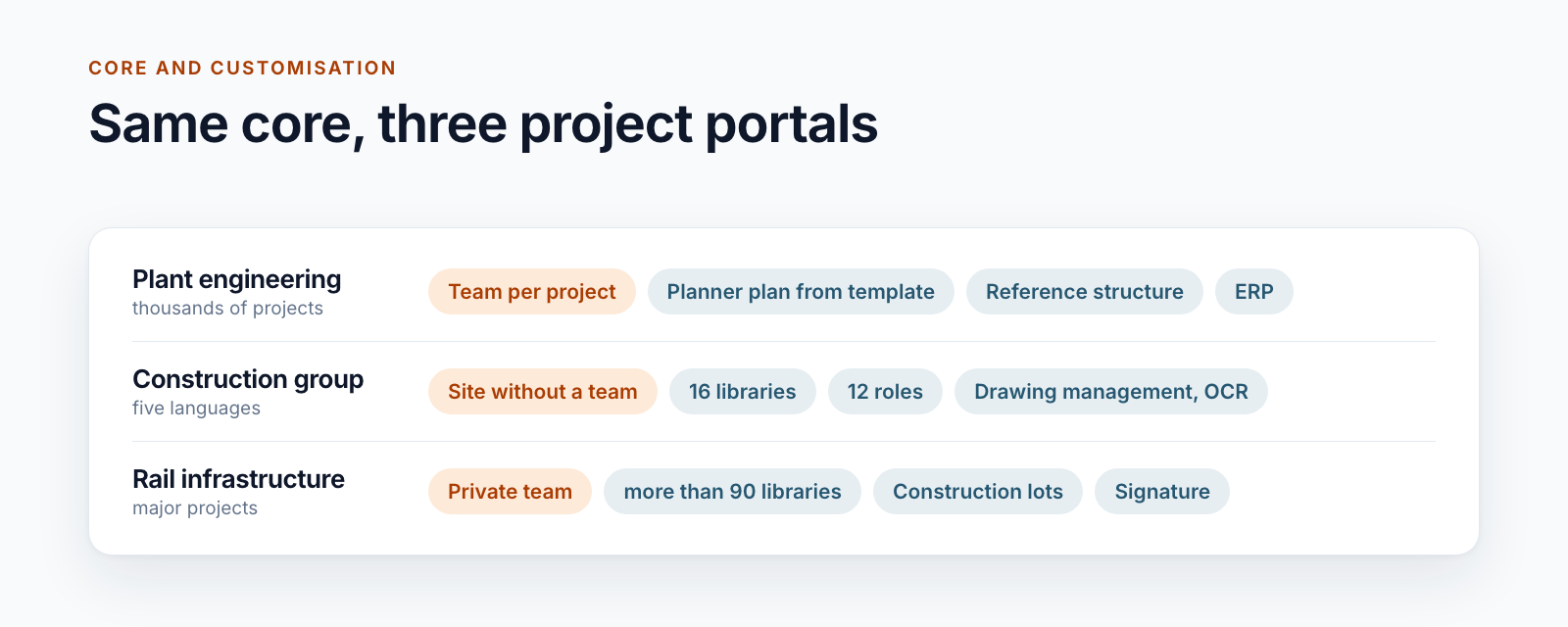
A plant engineering company with thousands of small and medium-sized projects needs something different from an infrastructure project that runs for many years. That is why the project portal is not an off-the-shelf product. The core is in place. Templates, roles and integrations are built with you.
All three are based on the same flow. The differences are in structure, roles and integrations.
Built-in tools or app?
Not every organisation needs a project portal. If you start a few projects a year and one structure is enough, Microsoft’s templates serve you well.
If the left column covers your case, you don’t need an app – you’ve already paid for the built-in tools. Smarter Project Portal exists for everything on the right.
Approach
Which project types exist, who is involved, what is filed, which systems hold the data? The result is a filing plan and a role model.
Structure, pages, navigation and permissions are built as a template in a test environment. A first project is provisioned and reviewed together.
Triggers and synchronisation with ERP, CRM or site apps are added, each with retries and a visible status.
Running projects are retrofitted or migrated into the new structure. The business decides what is archived or deleted.
Templates change. New projects get the new state immediately, existing ones through a reviewed rollout.
Technology
The project workspaces are ordinary SharePoint sites and teams in your tenant. No second platform is added.
Smarter Project Portal is a proven solution core, not an installation package from a store. The provisioning service, the project list with status and the project overview are in place. Filing structure, role model, project types and integrations are built for your organisation in the project.
No. Two of the three examples create a team per project; one deliberately works with SharePoint sites without a team. What fits depends on whether your projects mainly file documents or also collaborate in chat and meetings.
Governance tools regulate for all workspaces who may create a team, what it is called and when it expires. A project portal goes deep into a project: filing plan, roles per library, lots, phases and data from the business systems. Both can run side by side.
New projects get the changed template immediately. Existing projects do not change by themselves, because deviations there were often deliberate. We roll out changes in a targeted way: the template can be re-applied to an existing workspace, and individual adjustments run as a reviewed rollout across all projects.
Yes. Existing workspaces can be added to the project list and retrofitted. Large volumes from older SharePoint environments are a project of their own. A separate blog series describes our experience from a 25 TB migration.
Through dedicated roles and dedicated areas in the workspace, for example a library for external documents. Where guests are allowed, the project lead invites them through a request. Individual files can be shared via a time-limited, logged link. Where the tenant does not allow guests, role groups represent the companies involved.
The effort depends on how many project types, roles and integrations you need and whether existing projects are taken over. After an initial conversation and a look at your project organisation, you receive an assessment of effort and approach.
Further reading
The posts in this series look at individual building blocks, from the folder structure to project closure.
What Teams templates and site templates do for project workspaces, where they end and how provisioning with a project list, status and restart is built.
Read postThree real-world filing structures, from the reference structure to a filing plan with over 90 libraries, and the rules for building them in SharePoint.
Read postTeams templates create channels and apps, but no Planner tasks. How a template plan is copied automatically when the project team is created.
Read postThree role models for project workspaces in SharePoint, from five roles to 26 groups per project, and the rules that keep permissions manageable.
Read postHow SharePoint project workspaces are connected to ERP, CRM, SAP and site apps: four patterns from practice and what keeps them stable in operation.
Read postSharePoint search does not find scanned PDFs without a text layer. How OCR processing on upload is set up and what to bear in mind in operation.
Read postManaging drawings in SharePoint via a drawing code in the file name: metadata from the name, every index a version and where the limits lie.
Read postHow a project workspace follows the phases of a project: from quotation through order and warranty to the clean-up after closure.
Read postShow us a workspace as it looks today and one as it should look. You get an honest assessment of what the core covers and what we would need to adapt.