“Who actually has access to the contracts?” In many project workspaces, nobody can answer that with certainty. Over the years, permissions were granted to individual people, on individual folders, ad hoc. The result can neither be checked nor transferred to the next project.
A permission concept for projects rests on a simple idea: rights are attached to roles and never to names. This post shows three role models from our projects and the rules behind them.
Four principles
1. Roles are groups. For every project role, there is a group in the project workspace: project lead, site management, purchasing, planners. People go into groups, rights belong to groups.
2. Rights are attached to libraries. Who may do what is defined per library, in exceptional cases per folder. Individual files are not given permissions of their own.
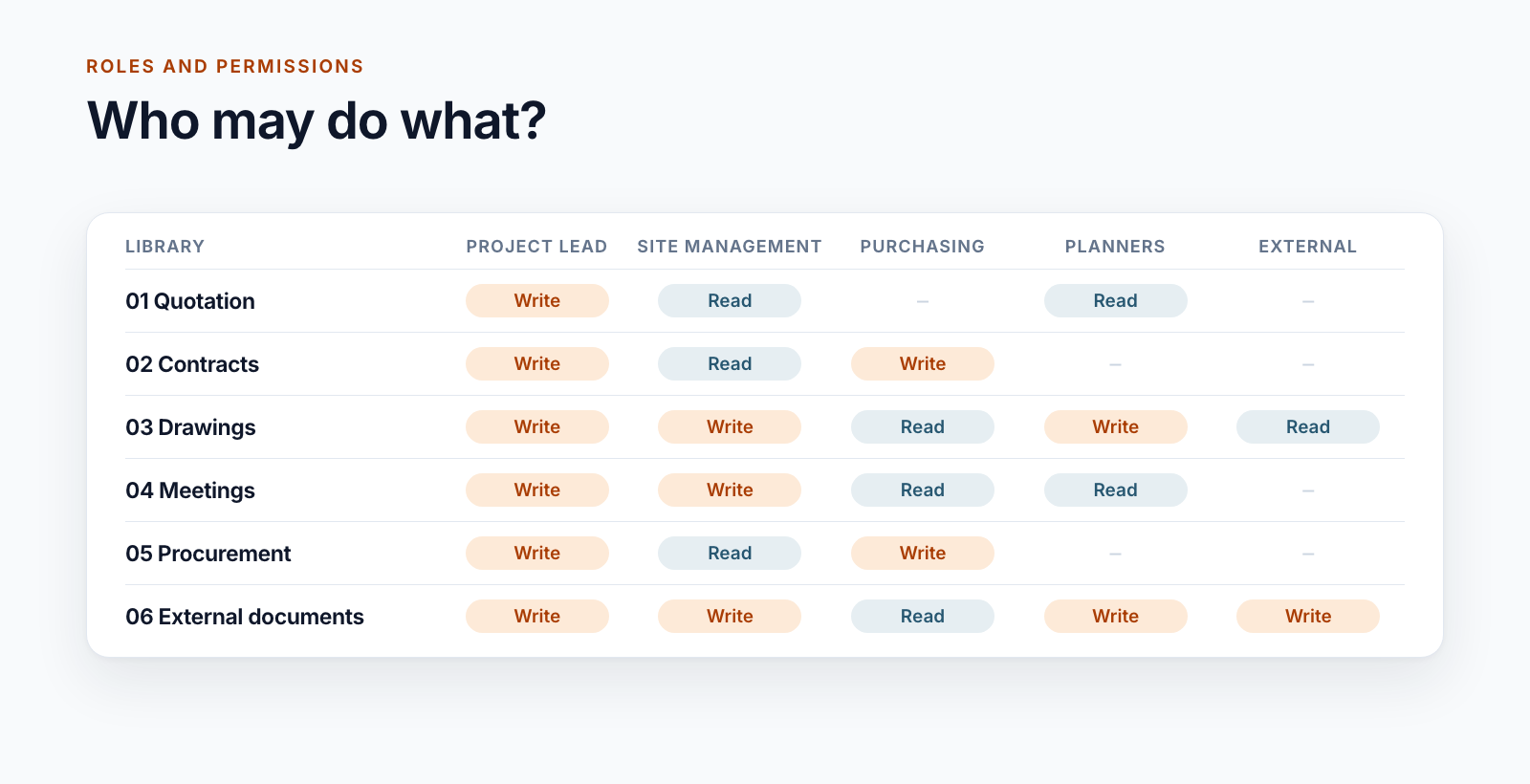
3. The matrix is the source. Which role has read or write access to which library is set out in a table. The template is created from it, and every project workspace is created from the template.
4. Every project is given its permissions in the same way. The rights are set not by a person but by the service that provisions the project workspace. Deviations are possible, but they are exceptions and recognisable as such.
Three real-world models
The lean model: five roles
A plant engineering company with thousands of projects gets by with few roles. The project lead owns the team, the people working on the project are members, further users read. There are two special features on top:
- An External group has access only to the library for external documents, but with write access there.
- The documents for management and the user administration page are reserved for division management and the owners.
The model is small enough that the project lead maintains their members themselves, in a view in the project workspace.
The matrix model: twelve roles
A construction group distinguishes twelve roles, from site management and foreman through estimating and purchasing to external users and external planners. The matrix defines for every library and for individual folders who reads and who writes. In the most extensive template, that amounts to 76 entries.
Two things characterise the model:
- There is a matrix per template. A quotation has different rights from an order.
- The rights change with the phase. During warranty, only two areas remain writable.
The large model: 26 groups and roles per construction lot
In an infrastructure project with more than 90 libraries, every library has its own permissions. The template contains 26 groups, three custom permission levels for read, write and delete and more than 800 assignments of groups to libraries.
Then there are the construction lots. Each lot brings 15 groups of its own, named after role and lot: contractor, construction supervision, planners, reviewers and more. They are given rights to the libraries of their lot and to selected libraries of the overall project.
This could not be maintained by hand. As a template, it is implemented in the same way for every project and every lot.
External companies
External parties are the most delicate part of any concept. Four approaches that are in use:
Separate areas. External parties see only what is intended for them, such as a library for external documents.
Invitation via a request. The project lead enters the external person, a service invites them, and the status is visible: requested, invited, accepted.
Sharing controllable per project. Whether guests are permitted at all can be switched off for groups of projects, controlled by the beginning of the project number.
Sharing individual files. Sometimes a file needs to go to someone who has no access to the project. For two customers, the file is copied to a separate area for this purpose and shared via a link that grants read access only and expires after 30 days at the latest. The share is logged. The project itself remains closed.
Where the tenant does not allow guests, role groups represent the companies involved.
Who maintains the members?
If every change goes through IT, waiting times and workarounds arise. What has proved its worth:
- The project lead maintains the members of their roles themselves, in a view in the project workspace or via a table per project.
- A dedicated group may manage users without otherwise having owner rights.
- Changes are passed on to connected systems. Whoever is site management in the project workspace also has the matching role in the site app.
Limits you should know
SharePoint tolerates many unique permissions, but not an unlimited number. For a library, Microsoft states a supported limit of 50,000 items with unique permissions and recommends staying well below that. Rights on libraries and a few folders keep you far away from it. Rights on individual files lead there.
The second point is duration. Setting hundreds of assignments takes time, and SharePoint throttles services that work too fast. In the largest template, the rights are therefore set in batches.
Checking whether it is still right
A concept is only as good as the checks on it. Three tools from operations:
- An overview of the permissions per project for the people responsible
- A comparison of whether the people entered as responsible for the project and the actual owners of the team match, with a report
- A clean-up at project closure: remove shares, empty administration groups
When a simple model is enough
If everyone in the project may see everything, owners, members and visitors are enough. A role model pays off as soon as clients, planners or subcontractors work in the same project workspace, or when commercial documents are not intended for everyone.
How the rights are set during provisioning is described in the post Provisioning SharePoint project workspaces automatically. Why the library is the right level is explained in the post on the folder structure for projects.
Roles and permissions are one building block of Smarter Project Portal.
Would you like to know who has access to what in your project workspaces? Let’s talk about your role model.
All parts of the series:
- Provisioning SharePoint project workspaces automatically: where templates end
- Folder structure for projects in SharePoint: template, not copy
- Teams template with Planner: project teams with standard tasks
- SharePoint permission concept for projects: roles, not names (this article)
- Project data from ERP and SAP in SharePoint: four patterns
- SharePoint OCR: making scanned PDFs searchable
- Drawing management in SharePoint: drawing code, index and versions
- Project phases in SharePoint: from quotation to project closure
- Smarter Project Portal
- Permissions
- SharePoint Online
- Role model
- Project workspace