A delivery note is scanned on the construction site and filed in the project workspace. Three months later, someone searches for the delivery note number and finds nothing. The file is there. But it consists only of an image, and search finds no text in an image.
This post describes how we make scanned PDFs searchable on upload for one customer and what to bear in mind in operation.
What SharePoint finds on its own
Search in SharePoint searches the text of documents: Word, Excel, PowerPoint and PDFs that have a text layer. A PDF that was exported from Word is found.
A scan is a photo in a PDF wrapper. Without text recognition, OCR for short, its content remains invisible to search. The same applies to photos of rating plates, delivery notes or whiteboards.
Microsoft offers text recognition for Microsoft 365 that is billed by consumption. Whether it covers your file types and volumes and what it costs is best checked against the current documentation. For organisations with occasional scans, this can be the simplest route.
With large volumes and the wish to make the file itself searchable, a setup of your own is worthwhile.
The setup: react, check, replace
1. React to new files. The libraries of the project workspace report changes to a service. SharePoint offers webhooks for this. They expire after 180 days at the latest and are therefore checked and renewed daily.
2. Acknowledge immediately, work later. The service accepts the notification, places it in a queue and responds immediately. The actual work happens afterwards. SharePoint expects the acknowledgement within a few seconds.
3. Filter out duplicates. A file often triggers several notifications, for example on upload and when the metadata is set. A table remembers what has already been processed.
4. Check whether OCR is needed. The service opens the PDF and checks whether it contains text. Most files have a text layer and are skipped.
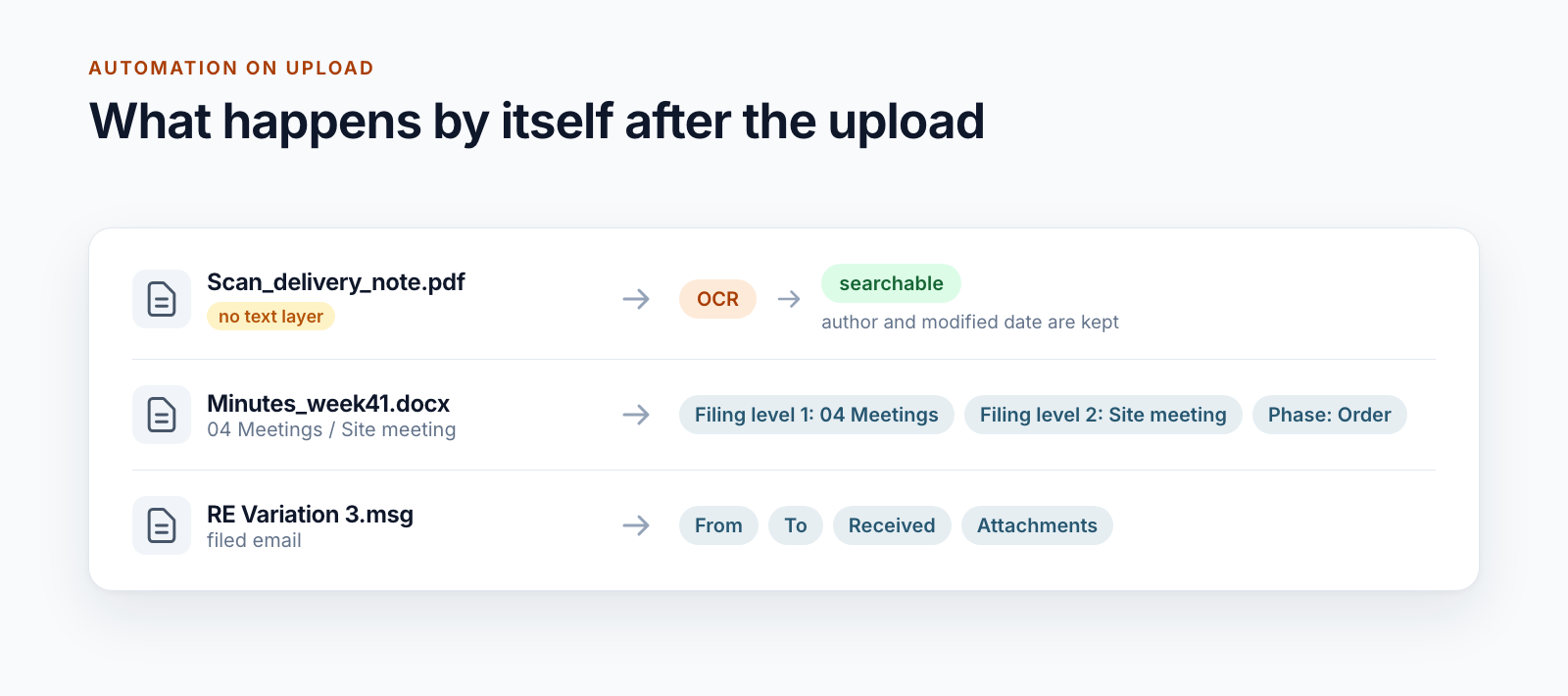
5. Recognise and replace. PDFs without text go through text recognition. The result is a PDF that looks exactly the same but has an invisible text layer. It replaces the original file. Author and editor are preserved.
6. Treat images differently. With photos, the file is not changed. The recognised text ends up in a metadata field and can be found through it.
Figures from operation
For a construction group, the service checked around two million files in 30 days, about 68,000 a day. For 92.8 per cent, no text recognition was needed.
Two things follow from this. The check has to be cheap because it runs for every file. And the actual recognition concerns only a small share, which does, however, need computing time. Handling the two separately keeps the costs within limits.
Seven stumbling blocks
The loop. Replacing the file is itself a change and triggers a new notification. Without protection, the service processes its own results. The table from step 3 and the check from step 4 prevent that.
The versions. Every replacement creates a version. For large scans, that doubles the storage the file requires. Cleaning up old versions is part of the concept.
Who was it? If a service replaces the file, then without precautions the service account appears as the last editor in the library. The details of the original author have to be preserved explicitly.
Protected PDFs. Encrypted and password-protected PDFs cannot be processed. They are skipped.
Making errors visible. Every file carries two fields: processed and processing error. A view shows what has got stuck. Without it, nobody notices that nothing has been recognised for a week.
Drawings. Large-format drawings with little text are demanding for text recognition. It is still worthwhile because title blocks and drawing numbers become findable this way.
Quality of the scan. Text recognition is as good as the original. Skewed photos in poor light produce patchy text. Search then finds some things, but not everything. Users should know that.
What else the same service handles
If you are reacting to every new file anyway, you can do more than recognise text. For the same customer, the service handles two further tasks:
- Filing level and phase. From the file’s storage location, it writes filing levels 1 to 3 and the current project phase as metadata. Why that helps is described in the post on the folder structure for projects.
- Emails. For filed emails, it reads out sender, recipient, date received and attachments and writes them to columns. A library full of emails can then be sorted and filtered by them.
When the setup is worthwhile
- Yes, if scans regularly end up in project workspaces: delivery notes, signed minutes, official notices, as-built documents.
- Yes, if the files are passed on later and should also be searchable outside SharePoint.
- No, if almost all documents are created digitally. Then the text layer is already there.
- Maybe, if only a few scans are involved. Then the scanner itself, which can produce searchable PDFs, is often enough.
Searchable PDFs are one building block of Smarter Project Portal.
Are there scans in your project workspaces that nobody can find again? Write to us and tell us which volumes and document types are involved.
All parts of the series:
- Provisioning SharePoint project workspaces automatically: where templates end
- Folder structure for projects in SharePoint: template, not copy
- Teams template with Planner: project teams with standard tasks
- SharePoint permission concept for projects: roles, not names
- Project data from ERP and SAP in SharePoint: four patterns
- SharePoint OCR: making scanned PDFs searchable (this article)
- Drawing management in SharePoint: drawing code, index and versions
- Project phases in SharePoint: from quotation to project closure
- Smarter Project Portal
- OCR
- SharePoint Online
- Search