The search for the right folder structure for projects often ends at a template to download. The structure itself is rarely the problem. The difficult part is keeping it the same across a hundred projects without anyone copying folders by hand.
This post shows three filing structures that are in use at our customers and the rules that have emerged from them.
Three real-world structures
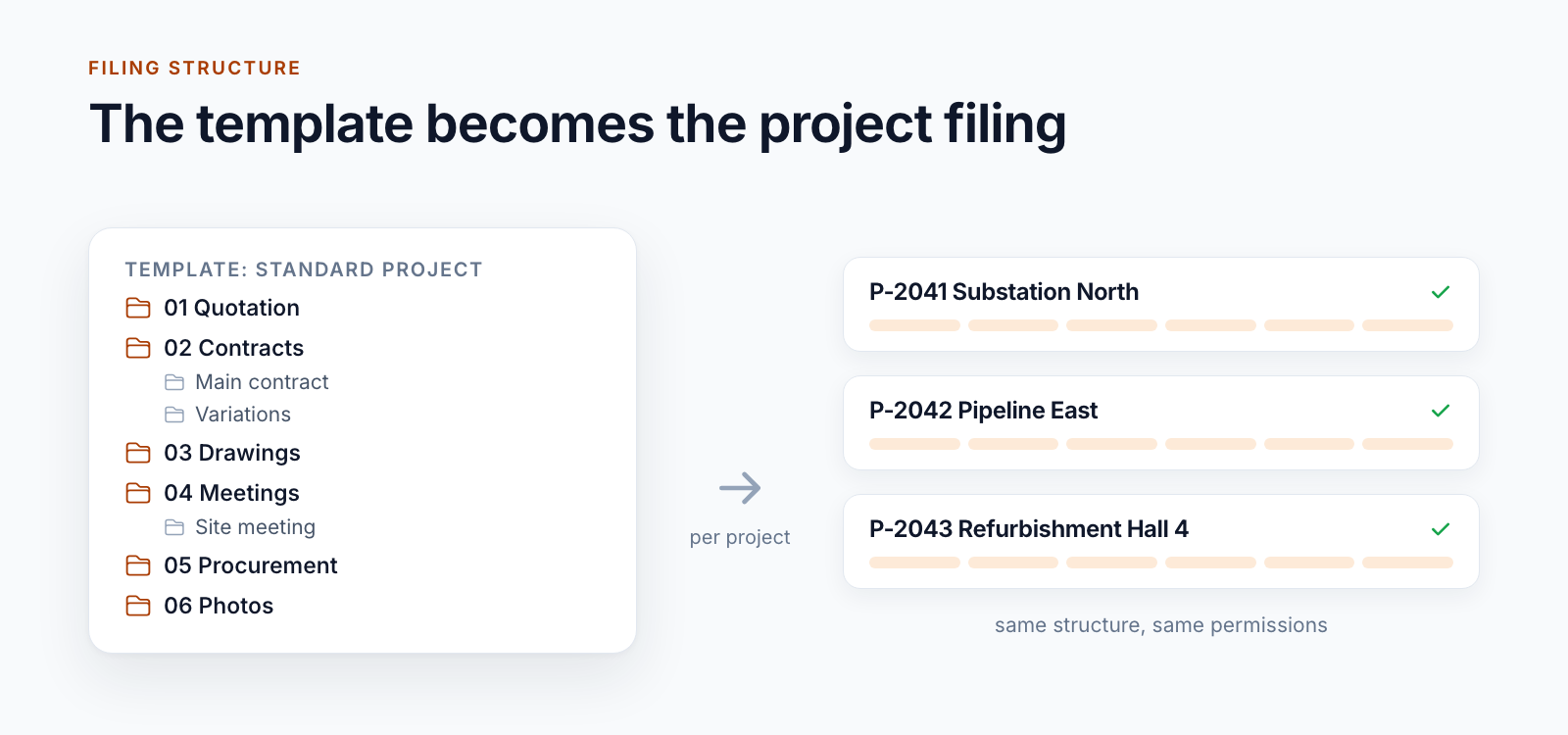
The reference structure. A plant engineering company with thousands of projects keeps its folder structures as template folders in a central library. When a project is created, the project lead chooses one of them, from “none” through a small to a medium-sized structure. The folders are copied into the new project. Anyone who wants to change the structure changes the template folder.
The filing plan with libraries. A construction group works with 16 numbered areas, most of them libraries of their own: quotation, client, project management, meetings, procurement, occupational safety, drawings, warranty, documentation, photos and more. The second level is predefined as folders. The third level can be taken over from a reference project when the project is created.
The large filing plan. An infrastructure project that runs over many years has more than 90 libraries per project, organised by project fundamentals, controlling, communication, project phases and contract management. Each construction lot brings a further 43 libraries, from the construction contract through billing to the daily site reports.
None of the three is the right one. Each fits its organisation.
Library or folder?
This is the most important structural decision in SharePoint. Our rules of thumb:
A separate library if
- an area needs different permissions from the rest,
- different metadata applies, such as drawing code and index for drawings,
- a very large number of files is to be expected. Views with more than 5,000 items run into a SharePoint limit, and libraries with hundreds of thousands of files need care with columns and indexes.
- an area will be treated differently later on, for example remains writable during warranty.
Folders if it is about subdividing an area and the same rules apply. Two to three levels are almost always enough.
Bear the path length in mind: site address, library, folders and file name together must not exceed 400 characters. Deep structures with descriptive folder names reach that sooner than you might think.
Numbers keep things in order
All three structures number their areas: “01 Quotation”, “12 Project management”, “7.2 Construction works”. This has three advantages. The order stays the same in every view. On the phone, the number is enough. And the name behind it can be translated without the order changing. One customer maintains the folder names in five languages.
The structure as metadata
A folder path is only visible where the file is stored. In a search across many projects, it is of little help. That is why, for one customer, a service writes the path to every file as metadata: filing level 1, 2 and 3, plus the project phase at the time of filing. Nobody has to enter that.
The result: a search for “all meeting minutes from the order phase across all projects” is a filter query and not a matter of clicking through folders.
Where document types matter, a second step is worthwhile. In the largest of the three structures, it is defined for each library which document types occur there. Anyone filing a document chooses from a few suitable entries and not from a list of hundreds.
Template, not copy
The difference between a template and a copied structure shows after a year.
With the copy, every project is a one-off. Someone renamed a folder in the third project and merged two in the seventh. Nobody knows which version is the right one.
With the template, there is one source. The structure exists as a file or as a template folder, with libraries, folders, columns, views and permissions. Every new project is created from it, via the automatic provisioning of the project workspace.
This includes the question of what happens to existing projects when the template changes:
- New projects receive the new version immediately.
- Existing projects do not change by themselves. In ongoing projects, people have often deviated deliberately.
- Targeted rollouts apply individual changes retrospectively, such as a new column or an additional library, across all projects and with a log.
Six rules that have proved their worth
- Structure by activity, not by department. Departments change, activities hardly do.
- Number. With gaps, so that something fits in between later.
- Attach permissions to libraries, to folders only in exceptional cases.
- Put up with empty areas. An area that is not needed in this project is less of a nuisance than a structure that is different in every project.
- Several templates instead of one for everything. A quotation does not need the structure of a major project.
- The structure belongs to the business. IT implements what the project organisation defines.
When a simple solution is enough
If you start few projects a year, a site template in SharePoint or a template folder that someone copies is enough. The structure above pays off when many projects, several project types and differing permissions come together.
How structure, roles and integrations work together is shown on the product page for Smarter Project Portal.
Are you revising your project filing structure or newly introducing it in SharePoint? Send us your filing plan. We will tell you what becomes a library, what a folder and what metadata.
All parts of the series:
- Provisioning SharePoint project workspaces automatically: where templates end
- Folder structure for projects in SharePoint: template, not copy (this article)
- Teams template with Planner: project teams with standard tasks
- SharePoint permission concept for projects: roles, not names
- Project data from ERP and SAP in SharePoint: four patterns
- SharePoint OCR: making scanned PDFs searchable
- Drawing management in SharePoint: drawing code, index and versions
- Project phases in SharePoint: from quotation to project closure
- Smarter Project Portal
- Filing structure
- SharePoint Online
- Project filing
- Metadata