
Getting started
From installation and the setup wizard to your next campaign.
View the guideVersion 1.4 of Smarter Engagement Calendar is currently being validated by Microsoft and will be available in the Microsoft Marketplace shortly. Until then the Marketplace installs the previous version; the update follows through the app catalog.

SharePoint & Teams
One door a day – for every topic that needs to land.
The engagement calendar for SharePoint and Microsoft Teams: roll out Copilot, welcome new colleagues or run a security month – and in December it becomes your advent calendar. Behind every door there is a short tip, a quiz or a survey.
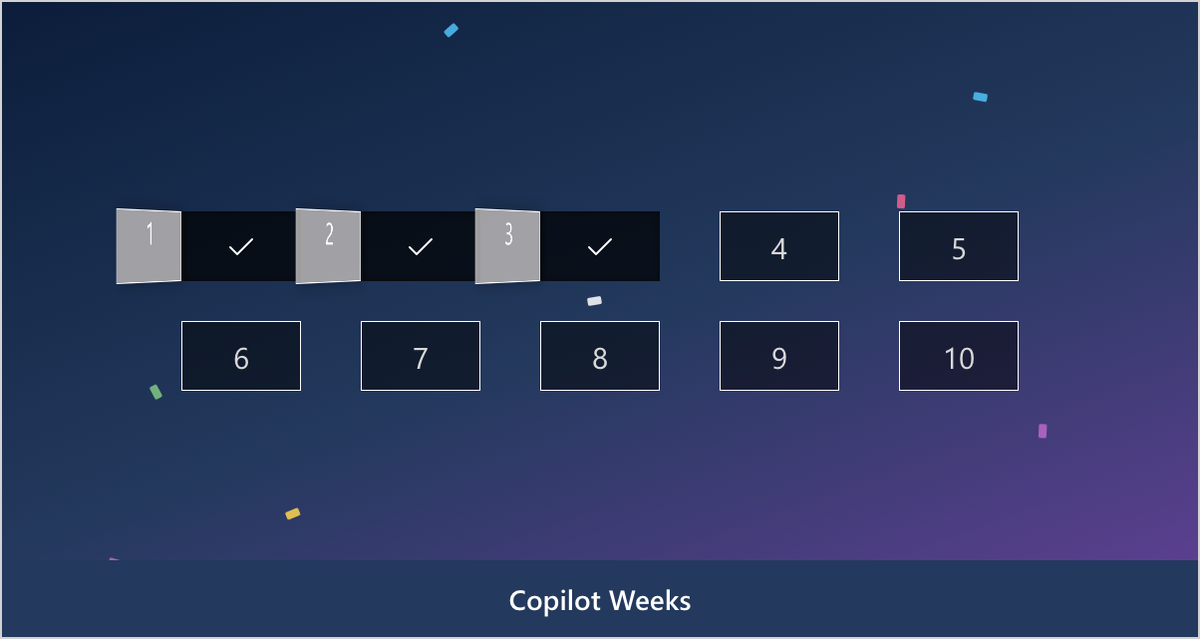
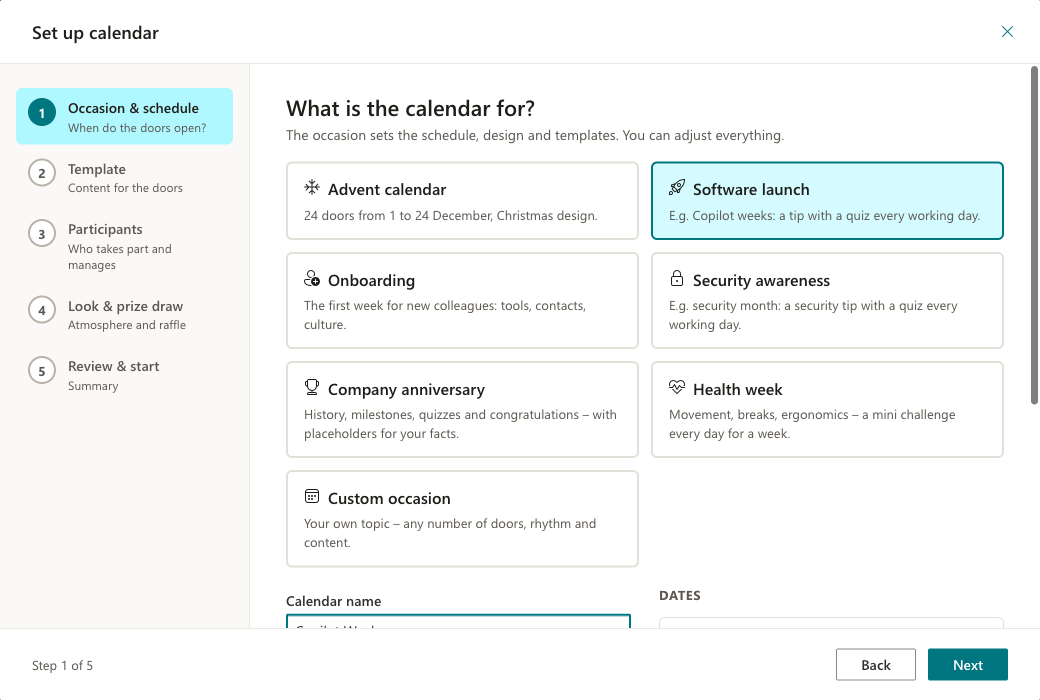
Five short steps take you to a ready campaign. Nothing on your site changes until the very last click.
Advent calendar, software launch, onboarding, security awareness, company anniversary, health week or a custom occasion. 3 to 31 doors, daily, on working days or weekly – with a date preview and a countdown to the start.
Content packs such as “Getting to know Copilot”, “Teams pro”, “Your first week” or “Security month” fill the doors. Every door stays editable.
Decide who takes part and who manages, then choose the design and the raffle rules. A summary shows everything before the calendar is created.
Bite-sized content on working days sticks better than one long training session. That is why Smarter Engagement Calendar brings content for every occasion:
Close a campaign, save participations and winners as CSV and start the next one on the same page. Lists and permissions stay, and so can the door content – Copilot weeks in May, the advent calendar in December.
Quizzes, surveys and a fair prize draw turn reading into taking part – and the report shows what lands.
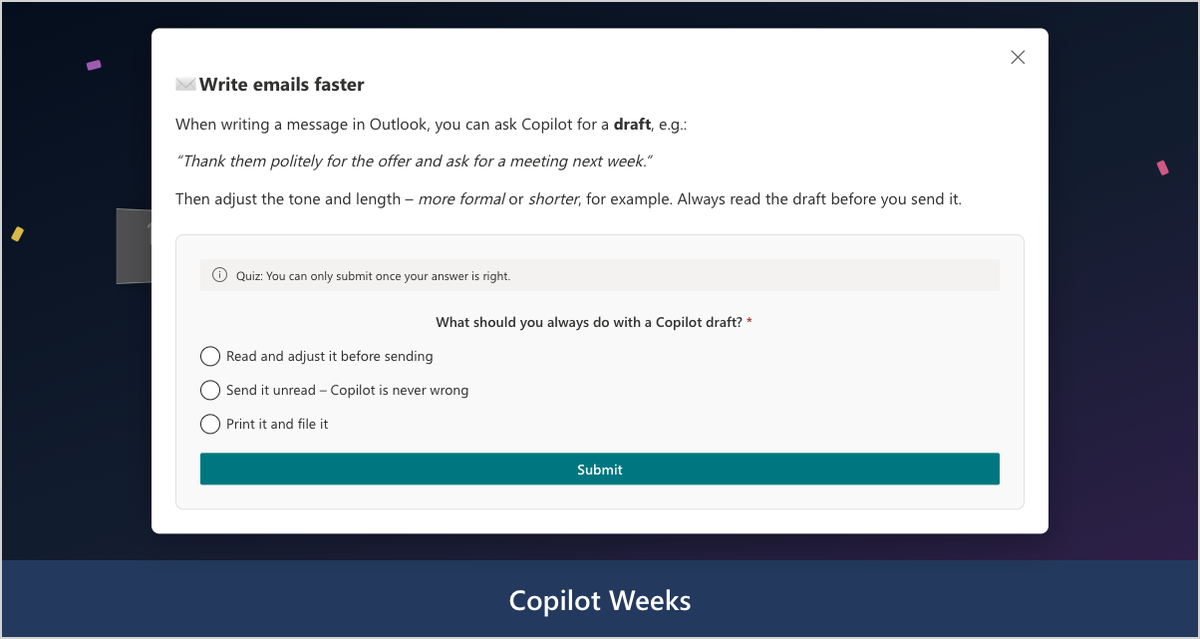
Pick a template for every door. In a quiz only the correct answer can be submitted; surveys and feedback forms are built in the form designer – no technical knowledge needed.
One ticket per person and door, nobody wins twice – both configurable. In the Christmas design Santa draws the winners, in all other designs the raffle drum spins.
Participation per door with its date, the participation rate based on the doors opened so far and the survey results – exported as CSV with one click.
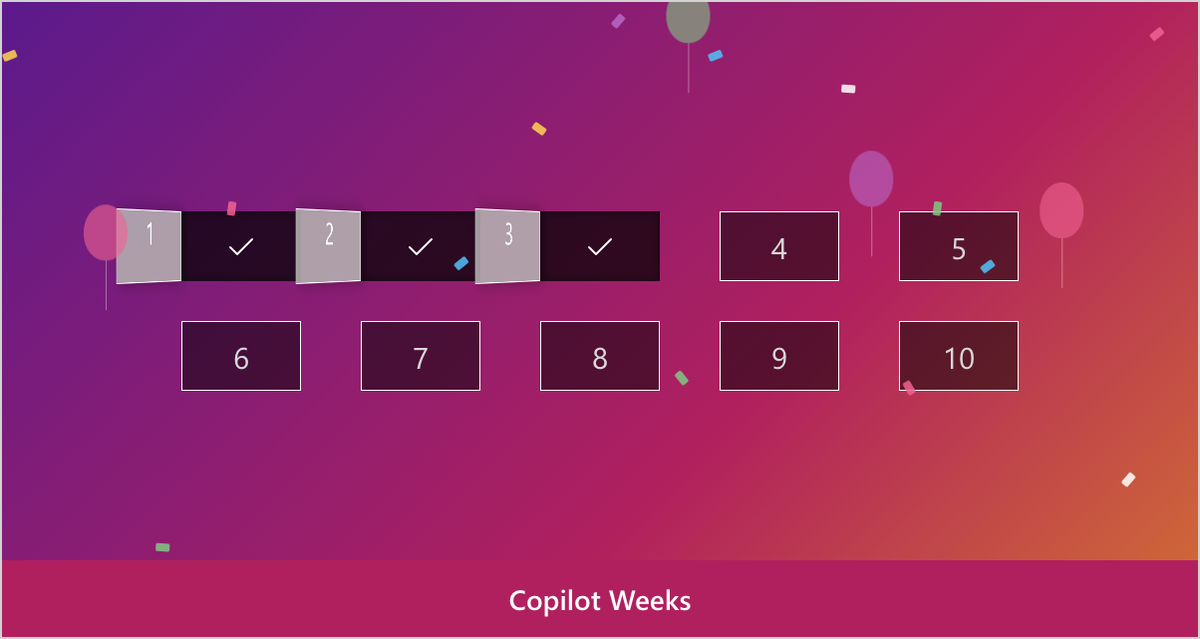
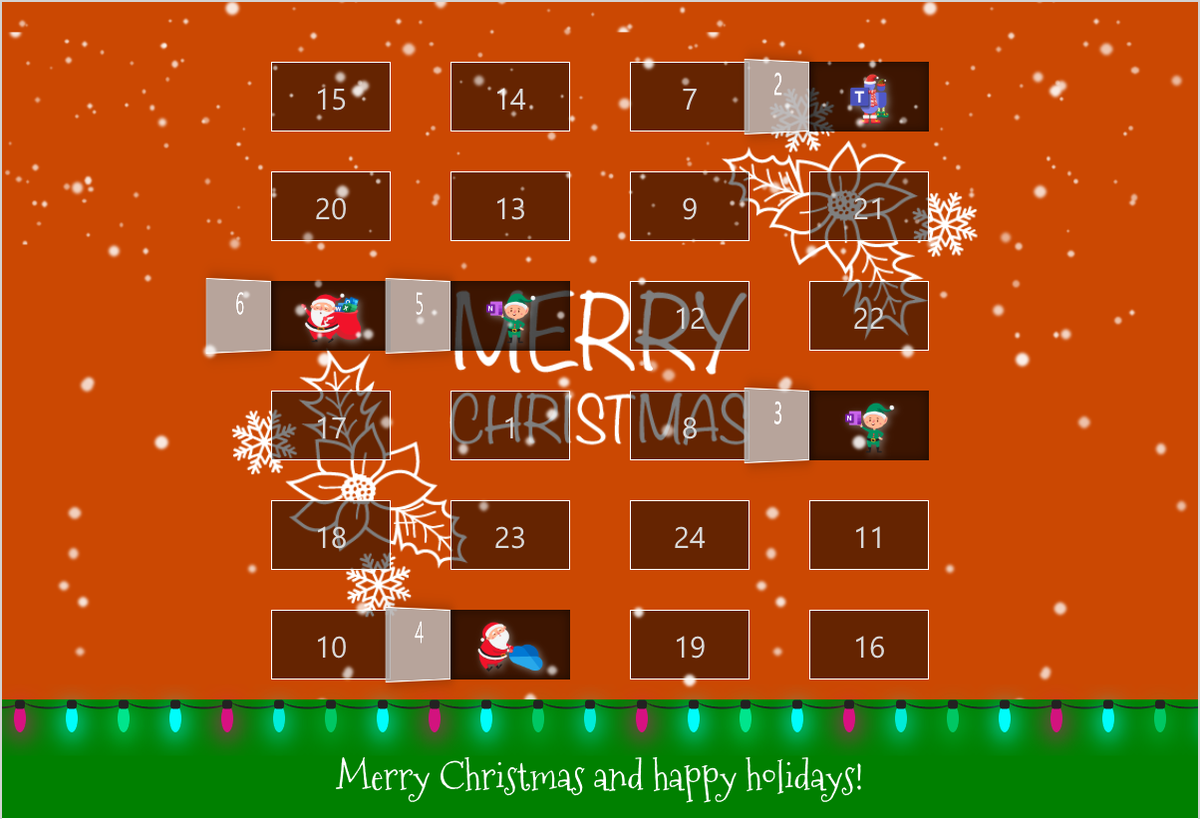
Choose from five designs: Christmas with snow, a light rope and Santa, Neutral in your site's colours, Launch, Celebration and Summer. You can also use your own background image.
No design shows vendor logos. Employees never see licence or setup notes either – those live in the admin bar, which only managers see.
As a tab in a Teams channel, the calendar follows the Teams theme – default, dark and high contrast.
The checklist shows what is still open before the start. “Preview as employee” shows the calendar exactly as your team sees it.
Everything is stored in three SharePoint lists on the site. Participants only see their own entries. No Microsoft Graph permissions are required.
See which doors are opened and which topics land – as a basis for your next campaign.
Built-in tools or app?
You do not need an app for a single announcement. Smarter Engagement Calendar pays off when a topic should land over days or weeks – be it a launch, onboarding or Advent.
If the left column covers your case, you don’t need an app – you’ve already paid for the built-in tools. Smarter Engagement Calendar exists for everything on the right.
Purchase through Microsoft AppSource – with local prices, taxes and central billing.
Every licence includes all features. The licences only differ in where you use the calendar: on one site or on all sites of your tenant.
The trial licence is created on first start and includes all features.
No packages and no feature tiers – every licence can do everything.
For one site (site collection) – for example your central intranet.
For all sites and teams of your organisation – when several departments run their own calendars.
Purchasing & licensing
Microsoft separates the app from its license in the marketplace – that’s why you’ll find Smarter Engagement Calendar listed twice. Getting licensed is still quick:
Install Smarter Engagement Calendar from the Microsoft marketplace into your SharePoint environment for free and try every feature without obligation.
View the app in the marketplacePurchase the license as a subscription directly on Microsoft AppSource. You’ll see the price there in your local currency – including the correct taxes for your country.
See the price in your currencyAssign the license to the site collections where Smarter Engagement Calendar should run. Your data and settings from the trial are preserved.
Buying through AppSource is procurement without the procurement process: the contract runs through the Microsoft account your organization already has.
You buy from Microsoft – no vendor onboarding or supplier checks in your purchasing department.
With the correct VAT for your country, in your local currency.
The license appears on your existing Microsoft 365 invoice – alongside your other subscriptions.
Manage, scale or cancel the subscription at any time in the Microsoft 365 admin center.
Microsoft technically separates the app from its license: you install the app for free in your environment and purchase the license as a separate subscription. Microsoft mandates this split for all SharePoint apps with marketplace licensing. For the purchase, the listing with the “License” suffix is the right one.
Your data lives in your own SharePoint lists and is preserved. Once the license is activated, you continue right where you left off.
Not necessarily. Payment runs through your organization’s billing profile at Microsoft – by credit card or invoice, depending on your configuration.
The purchase is made in your organization’s Microsoft account – usually by someone with permission for marketplace purchases, for example a billing administrator.
Directly in the Microsoft 365 admin center – you manage the license like any other Microsoft subscription.
Questions about the purchase process?Get in touch – we’re happy to guide your IT team through the first purchase.
Guides and legal information for Smarter Engagement Calendar.
From installation and the setup wizard to your next campaign.
View the guideLegal terms and licensing information for using Smarter Engagement Calendar.
Read the termsQuestions? Our support team is happy to help.
Contact usTry Smarter Engagement Calendar for 14 days with all features – we are happy to answer your questions about setup and licensing.