A new project starts, and someone sets up the project workspace: create a team, copy the folders from the last project, set permissions, enter the project number. With the fifth project, that still works well. By the fiftieth, no two project workspaces look the same.
Microsoft 365 comes with templates that take some of this work off your hands. This post shows how far they take you, where they end and how we have built automatic provisioning, shown with three examples from practice.
What Microsoft’s templates do
| Tool | What it creates | What is missing |
|---|---|---|
| Teams templates | Channels, tabs, apps | Files, folders, tasks in Planner, permissions per library |
| Site templates in SharePoint | Libraries, lists, columns, design, navigation | Data from other systems, roles per project |
| Power Automate | Almost anything that can be addressed through an interface | A dependable state when a step fails midway |
| Naming and expiration policies for groups | Consistent names, cleaning up inactive teams | Everything that sits inside the project workspace itself |
For an organisation with few projects a year and a single structure, that is sufficient. A Teams template with fixed channels and a site template for the libraries are set up in an afternoon.
Where things get tight
In our projects, it was always the same five points:
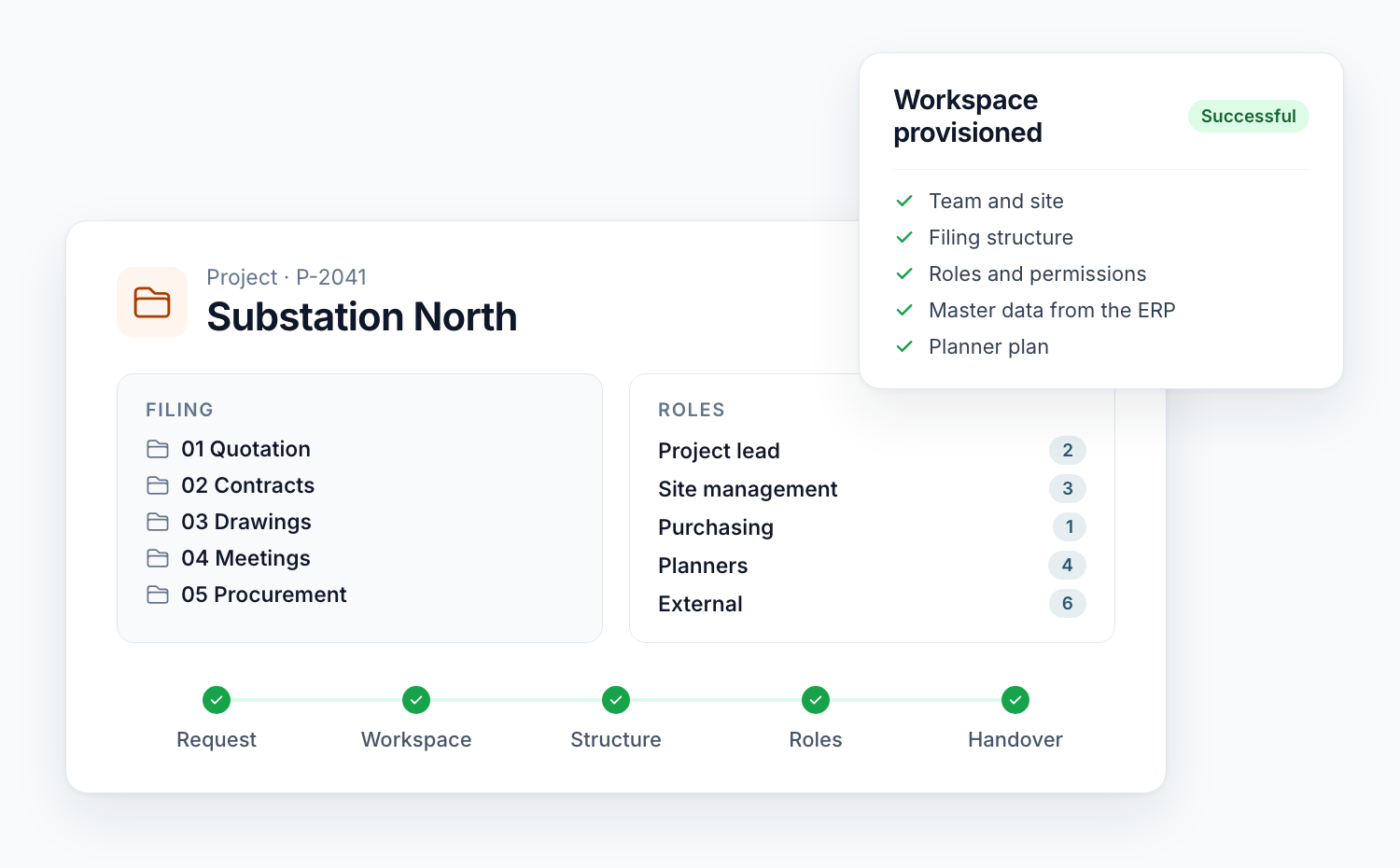
Master data. Project number, client, project lead and phase already exist, in the ERP or in the CRM. A template does not know them. So someone types them in again, and the project workspace ends up with a different name from the project.
Roles. A team has owners, members and guests. A project has a project lead, site management, purchasing, planners and external companies, and not everyone may see everything. That calls for permissions per library, sometimes per folder.
Variants. A quotation needs a different structure from an order, a major project with construction lots a different one from a maintenance contract. One customer works with eight template variants.
Half-finished project workspaces. Provisioning a project workspace consists of many individual steps against services that at times do not respond. If it breaks off after step six, a site without permissions exists, and nobody knows.
Changes. Today’s template is not next year’s. New projects should get the new version, and existing ones should be brought up to date in a controlled way.
The pattern: list, service, status
All three examples follow the same basic structure.
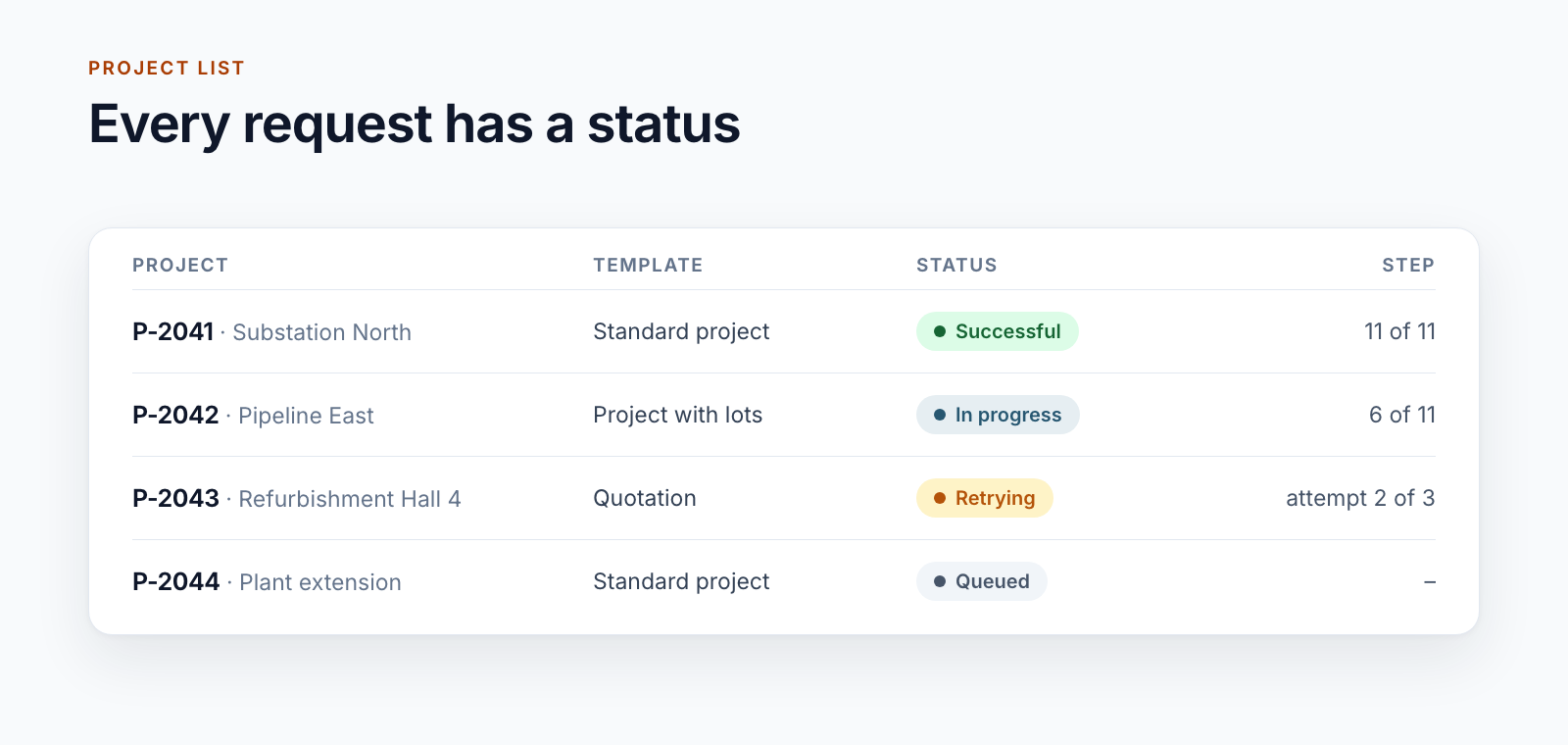
1. The project list is the work order. Each project is an entry in a SharePoint list, with project number, template, people responsible and a status. The entry is created via a form or via an interface of the system of record. For one customer, a central unit approves the request before anything is provisioned.
2. Provisioning runs in the background. In two of the examples, every request lands in a queue, is given the status “Queued” and is picked up by a service. In the third, the form triggers the service directly without waiting for the result. In both cases, the browser window can be closed.
3. The service works through the steps. Create the site or team, associate it with the project hub, apply the template, set permissions, write project properties, enter the people responsible, send a message. For the largest template, there are eleven steps.
4. The status is on the entry. “Create”, “Queued”, “In progress”, “Retrying”, “Successful” or “Failed”, plus the error text and the address of the project workspace. Anyone who wants to know where a request stands looks in the list.
Five decisions that shape operations
What happens after an error? There are two strategies, and both are in use. One cleans up: the half-created site is deleted, and after a pause the run starts again from the beginning, up to three times. The other resumes: a new run recognises the existing site, the existing plan and the existing tabs and adds only what is missing. Cleaning up is easier to understand. Resuming is necessary as soon as work has already been done in the project workspace.
Who restarts? For one customer, there is a button for this directly on the project list. It shows the errors so far and offers two options: provision again or mark as done if the error has been fixed by hand.
How fast can it go? SharePoint throttles requests when a service wants too much at once. With a template of more than 90 libraries, provisioning a project takes 30 to 60 minutes, and the runs follow one after another. The technical points to watch are described in the post Provisioning at enterprise scale.
What is the service allowed to do? It signs in with a certificate. For one customer, the task is split: a small service creates the site and gives the actual provisioning service access to exactly that one site. The service that does most of the work therefore has no rights to the rest of the tenant.
Who is told? At the end, a message goes to the people responsible for the project with the link to the project workspace. If the failure is final, it goes to the unit responsible for support.
Team or site?
This question is often debated as a matter of principle. In practice, it depends on the way of working:
- A team per project if the project team also works together in chat and meetings. Two of the examples work this way. One of them creates private teams in which members can change neither channels nor apps.
- A site without a team if it is mainly about filing and communication happens by other means. The third example deliberately works this way.
The automation is the same in both cases. Only the second step differs.
When the effort pays off
A simple calculation: how many project workspaces are created each year, and how long does someone need to do it by hand? With ten projects and one hour per project, automation is not worthwhile. With a few hundred projects, several project types and roles that have to be right, things look different. One of our customers manages well over a thousand project workspaces.
The structure described is the core of Smarter Project Portal. That page also sets out what is added around provisioning: roles, integrations, phases and the filing itself.
Do you currently set up project workspaces by hand? Show us one. We will tell you what can be solved with Microsoft’s templates and where provisioning makes sense.
All parts of the series:
- Provisioning SharePoint project workspaces automatically: where templates end (this article)
- Folder structure for projects in SharePoint: template, not copy
- Teams template with Planner: project teams with standard tasks
- SharePoint permission concept for projects: roles, not names
- Project data from ERP and SAP in SharePoint: four patterns
- SharePoint OCR: making scanned PDFs searchable
- Drawing management in SharePoint: drawing code, index and versions
- Project phases in SharePoint: from quotation to project closure
- Smarter Project Portal
- Provisioning
- SharePoint Online
- Microsoft Teams
- Project workspace