A contract, an acceptance report, an approved drawing: some documents need a signature that is equivalent to a handwritten one. Printing, signing and scanning holds the process up and separates the document from where it is filed.
In 2021, we showed here how documents in SharePoint can be signed with the Austrian mobile phone signature. A few things have changed since then. The mobile phone signature was replaced by ID Austria at the end of 2023. Microsoft has given SharePoint its own signature feature. And in a major project, our solution has become a service that also signs thirty documents in one pass. This post describes where things stand in 2026.
Which signature do you need?
The European eIDAS Regulation defines three levels:
- Simple electronic signature. A name under an email or a click on “Agree”. It is enough for many things but proves little.
- Advanced electronic signature. It is linked to one person and makes subsequent changes detectable.
- Qualified electronic signature. It is based on a qualified certificate from a trust service provider. Only this level has the same legal effect as a handwritten signature.
In Austria, ID Austria is the common means for the qualified signature. Whether a document requires the written form is a legal question for your legal department.
Simply proving that someone has read a document does not require a signature. That is what documented acknowledgement is for.
What SharePoint itself provides
Microsoft 365 now includes SharePoint eSignature. From a PDF or Word file in the library, a signature request can be sent to internal and external people. Billing is usage-based through an Azure subscription. Adobe Acrobat Sign and Docusign can be integrated as providers.
Microsoft’s own service works with simple electronic signatures. For purchase orders, internal agreements and documents without formal requirements, that is a good route because nothing has to be developed. Where a qualified signature is required, a trust service provider is needed.
Qualified signing from the library
In an infrastructure project, the qualified signature is part of the project workspace. Signing is done through the group’s central signature service. Three commands are available in every library for this: sign, add to batch and open batch.
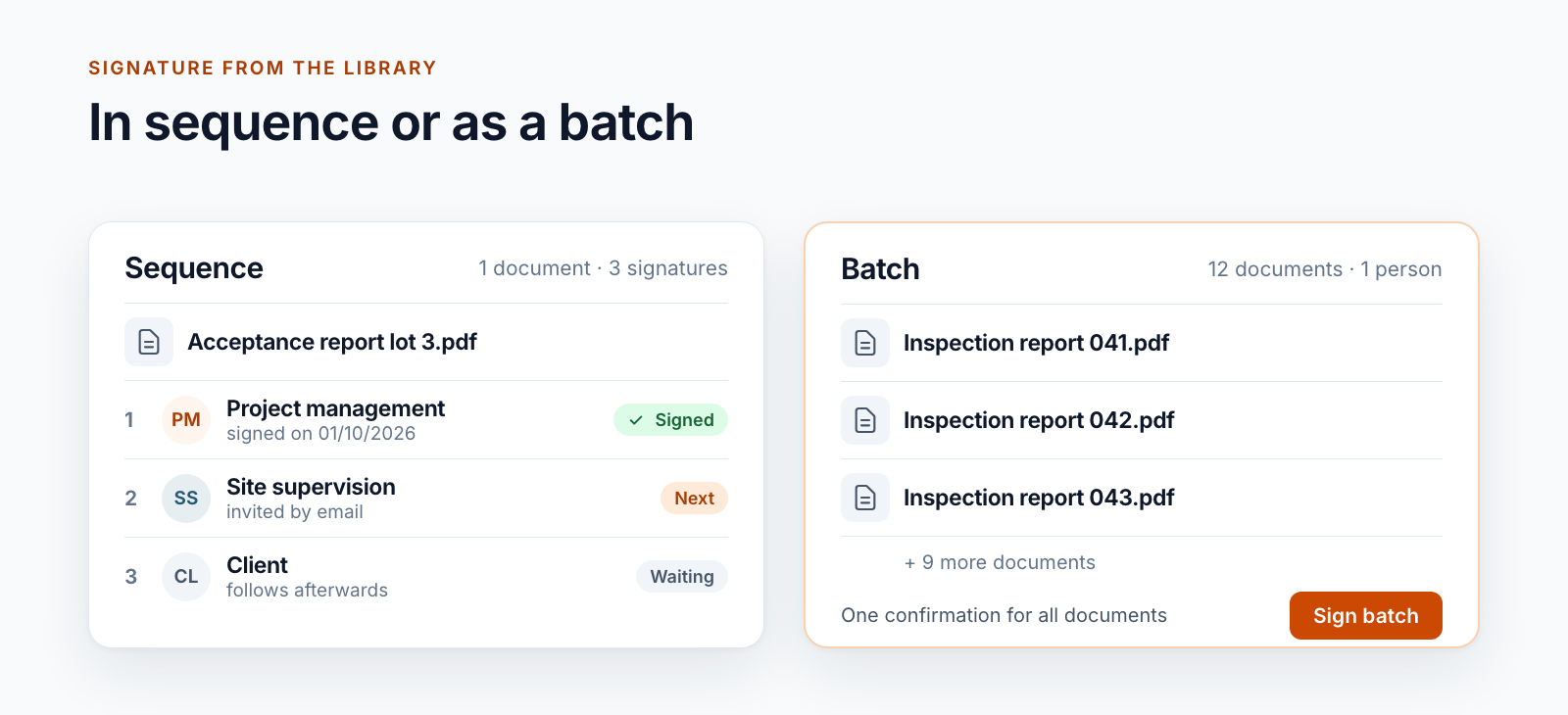
One document, one signature. The command is active when exactly one PDF is selected. The person is redirected to the signature service, confirms there with their signature and then returns to the library.
One document, several signatures. Whoever starts the process defines the signers and their order. After each signature, the next person is invited by email. The person whose turn it is can sign, decline or delegate to someone else. The process can be cancelled. If a person does not yet have access to the document, they are granted it as the first step.
Many documents, one pass. This is the batch signature. Documents are added to a batch from the library. The batch can be started from five documents. No more than thirty documents go to the service per signature process; larger batches are split. Both limits are configurable. The person confirms once per process and thereby signs all documents in it.
What happens to the document
Check-out. The document is checked out at the start. Nobody changes it while the signature is in progress.
New version. The signed PDF comes back to the library as a new version. The version comment names the process and the person.
A separate place for processes. The state of a signature process is kept in a library of its own and not in columns on the document. The document itself stays what it was, with one more version.
The position of the signature. In the 2021 solution, signers clicked the position in a preview. How that worked is described in the post Specify the position of a digital signature in PDFs. Today, a signature profile of the service determines where and how the signature appears. For the batch, the profile can be selected. That is less flexible but practicable for thirty documents.
The technical path
The commands in the library are an extension built with the SharePoint Framework. It calls a service in Azure that hands the document over to the signature service, redirects the person there, collects the result and writes it back to the library.
The 2021 solution still ran as an add-in. Microsoft has retired this model for SharePoint Online. Anyone running an older signature solution on this basis has to replace it.
Limits and prerequisites
- PDF only, up to 50 MB per file. Other formats have to be available as PDF beforehand.
- A signature protects exactly this state. Any later change invalidates it, including a conversion to PDF/A. Signed documents therefore go to an archive unchanged. More on this in the post Connecting SharePoint and LiveLink.
- Signing requires a means of signature. Every person who signs with a qualified signature needs their own, for example ID Austria.
- The batch requires care. Anyone who signs thirty documents with one confirmation has to know what is in the batch. The batch can therefore be opened and reviewed before it is started.
Which route when
| Requirement | Route |
|---|---|
| Internal approval without formal requirements | Approval workflow or SharePoint eSignature |
| Agreement with external parties, simple signature is enough | SharePoint eSignature, with Adobe Acrobat Sign or Docusign if needed |
| Written form or high evidential value | Qualified signature through a trust service provider |
| Many similar documents, one person | Batch signature |
| Proof that someone has read a document | Acknowledgement instead of a signature |
Five questions before you start
- Which documents require a qualified signature, and for which is a simple one enough?
- Who signs: only employees or external parties as well?
- Is there a signature service in the company, or is a contract with a trust service provider needed?
- How many documents does one person sign in a day?
- Where do signed documents go afterwards, and do they stay unchanged there?
Signing from the library is a building block we use with Smarter Project Portal. The posts from 2021 show the starting point: the workflow for several signers and the architecture for SharePoint Online.
Are you still signing on paper, or running a signature solution that has to be replaced? Let us talk about which signature your documents need.
- Digital signature
- Batch signature
- SharePoint Online
- Workflow