Affordable storage
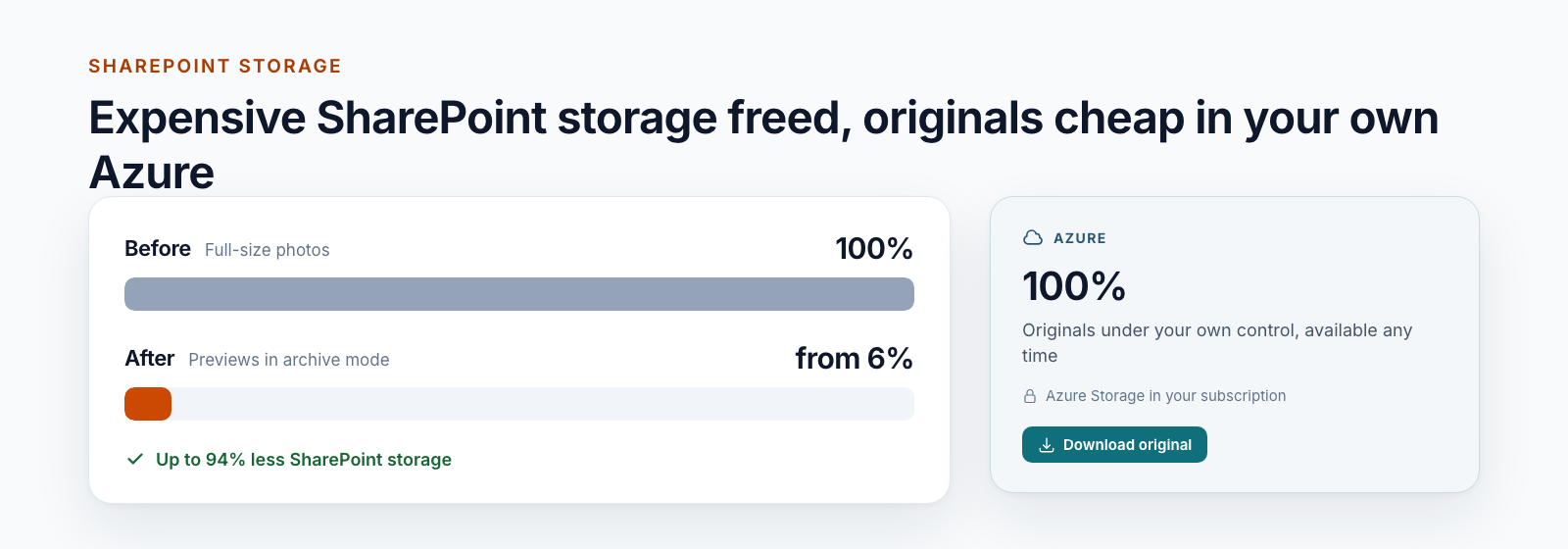
Originals are stored privately in Azure Storage in your subscription. SharePoint keeps a preview of at most 1,600 pixels.

Photos in SharePoint Online
Use up to 94% less SharePoint storage for your photos. Keep the originals in your Azure subscription and download them with one click.
SharePoint storage is expensive, and photos fill it fastest. Smarter Photos stores every verified original in Azure Storage in your own subscription and leaves a preview in SharePoint. Anyone who needs the original downloads it with one click. On top, the date taken, camera and location of every photo sit in dedicated columns, and all photos appear on a map.
The problem
Your tenant has 1 TB plus 10 GB per licence. Anything beyond that you buy as extra storage, monthly and per gigabyte. Photos from current smartphones take 5 to 10 MB, and construction sites, inspections or damage reports produce thousands of them.
Deleting is not an option: photos document what happened and must stay available in full quality. And what the photo knows, when, where and with which camera, goes unused in SharePoint.
Flow
You upload photos as usual, through the browser, Explorer, Teams or an app. Smarter Photos does the rest in the background.
Photos go into the SharePoint library as usual. Nothing changes in the way your teams work.
Result
No new tool
SharePoint notifies Smarter Photos about every change. The service records each job before it acknowledges it.
Result
No upload gets lost
In your Azure subscription, EXIF, IPTC and XMP data is read: date taken, camera, lens, exposure, location, author, copyright, keywords.
Result
26 selectable metadata fields
The values then sit in dedicated columns. Modified and Modified By stay untouched, and no new file version is created.
Result
Filter, sort, search
In archive mode, the verified original goes to your Azure. SharePoint keeps a preview of at most 1,600 pixels on the long edge.
Result
SharePoint storage freed
If a photo fails, for example because the file is damaged, you see it right on the photo in the library. All other photos continue, and single jobs can be retried from the admin page.
Building blocks
Three web parts in SharePoint and one service in your Azure. You decide which libraries and fields to use.
Originals are stored privately in Azure Storage in your subscription. SharePoint keeps a preview of at most 1,600 pixels.
“Download original” returns the unchanged file. Every download checks whether the person can open the photo in SharePoint.
EXIF, IPTC and XMP from JPEG and PNG: date taken, camera, lens, exposure, GPS, title, description, author, copyright and keywords.
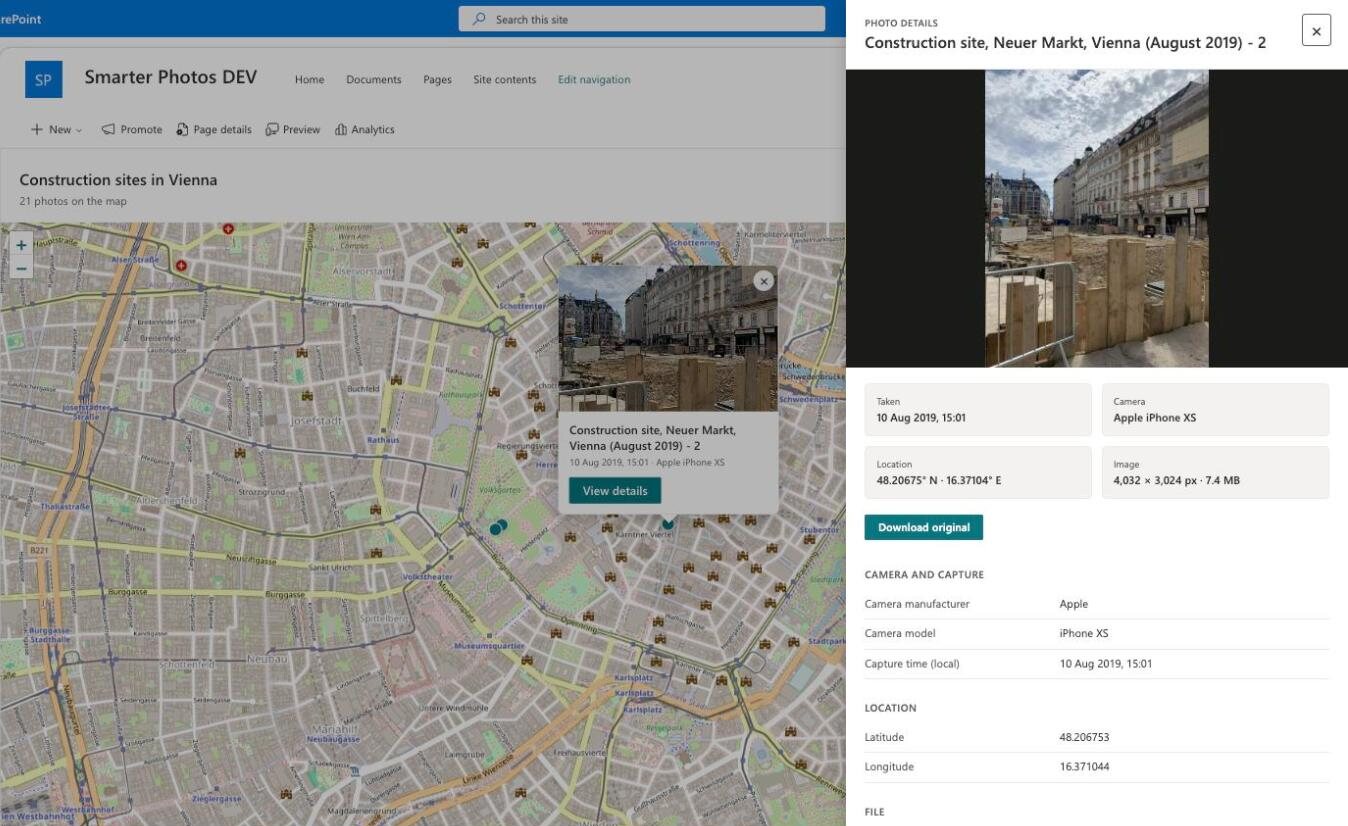
A web part for SharePoint pages, full width if you like. The photo list sits inside the map, one click shows preview and details.
Select a photo in the library and choose “Photo details”: when, which camera, where and how large at a glance, every value below.
Twelve key fields are preselected. Add more centrally. Your selection applies to future transfers. Existing values are kept.
When you activate a library, the photos already in it are processed too. The service renews its webhooks on its own.
Status per library, jobs, errors and targeted retries in one web part. Alert e-mails through Azure Monitor.
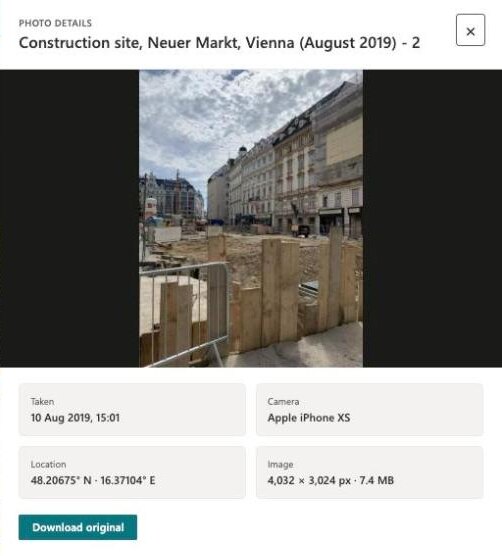
The originals sit in a storage account in your own Azure subscription, not with us and not in Microsoft 365. You decide on region, redundancy, retention and access. In SharePoint, “Photo details” opens any photo, and “Download original” returns the unchanged file, byte-identical to the upload.
The originals belong to you: your IT can reach them in your own storage account at any time, even without Smarter Photos.
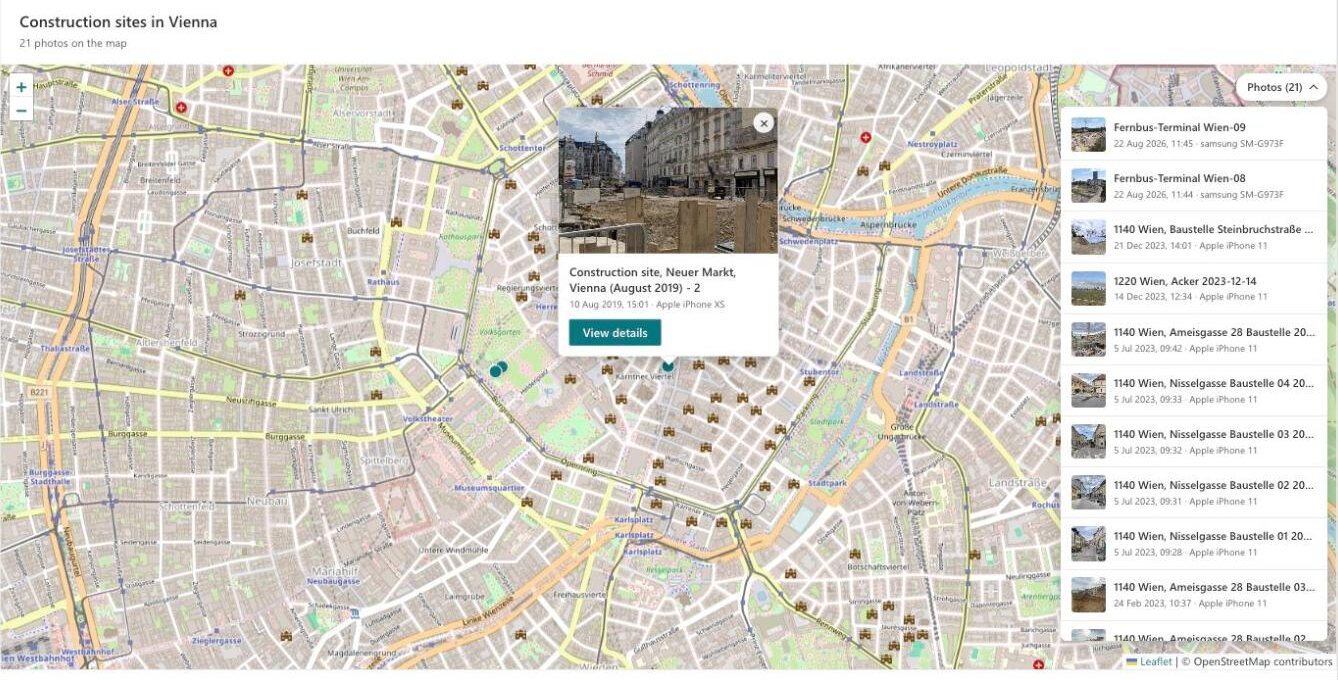
The photo map shows every photo with a location where it was taken. The photo list sits inside the map, so the map keeps its full height. Clicking an entry jumps to the photo and opens the preview, date taken and camera.
Put the map on the home page of a project or site. Anyone who opens it sees at once where the latest photos were taken.
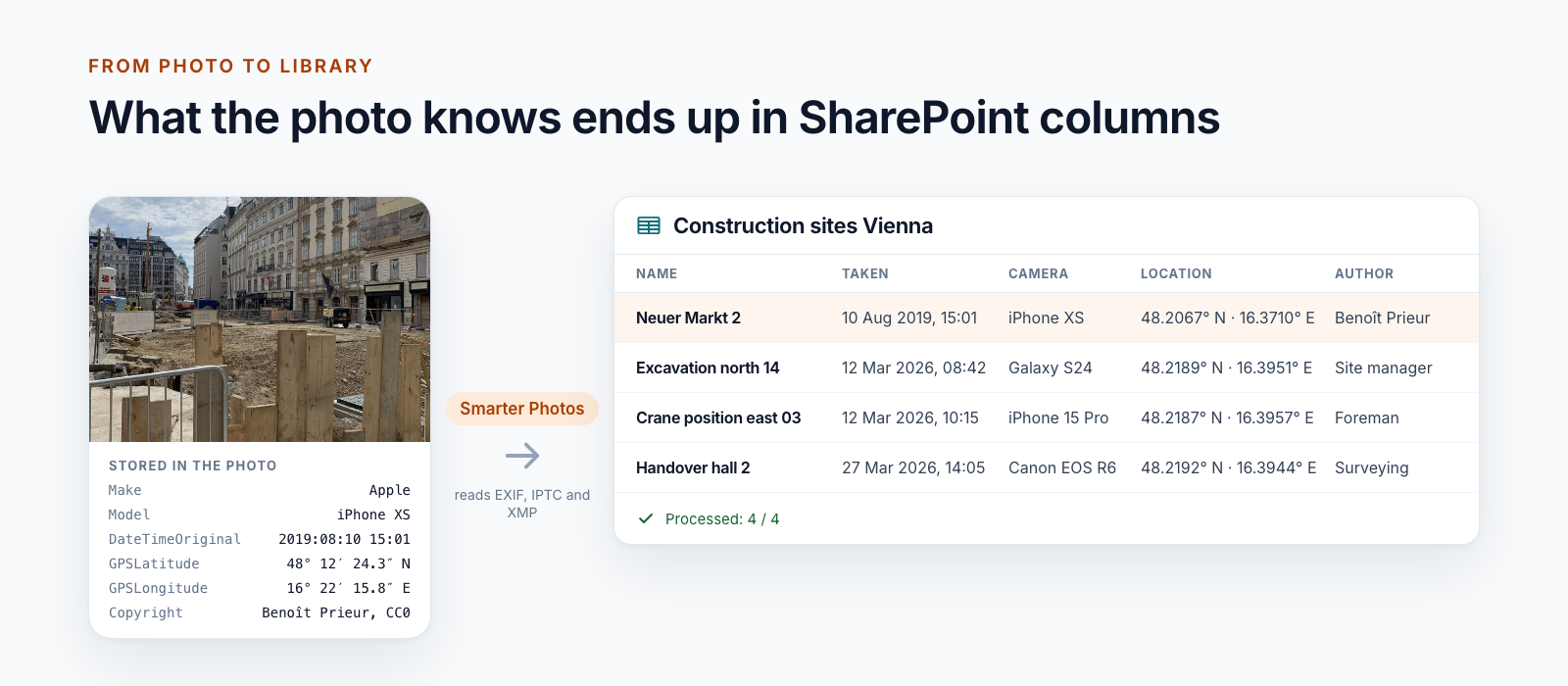
SharePoint Online does not copy the camera’s information to the library. Smarter Photos reads EXIF, IPTC and XMP and writes the values to dedicated columns, without changing Modified, Modified By or the version. You can filter and sort photos by date, place or author.
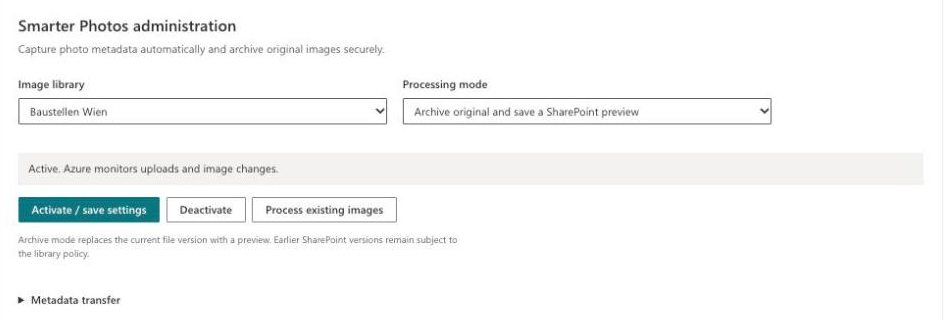
You activate libraries in a web part in SharePoint: choose the library, choose the mode, save. Smarter Photos adds the columns, registers the change notifications and processes existing photos. Status, open jobs and errors are on the same page.
Running and updating Smarter Photos needs no custom script in SharePoint.
Two modes
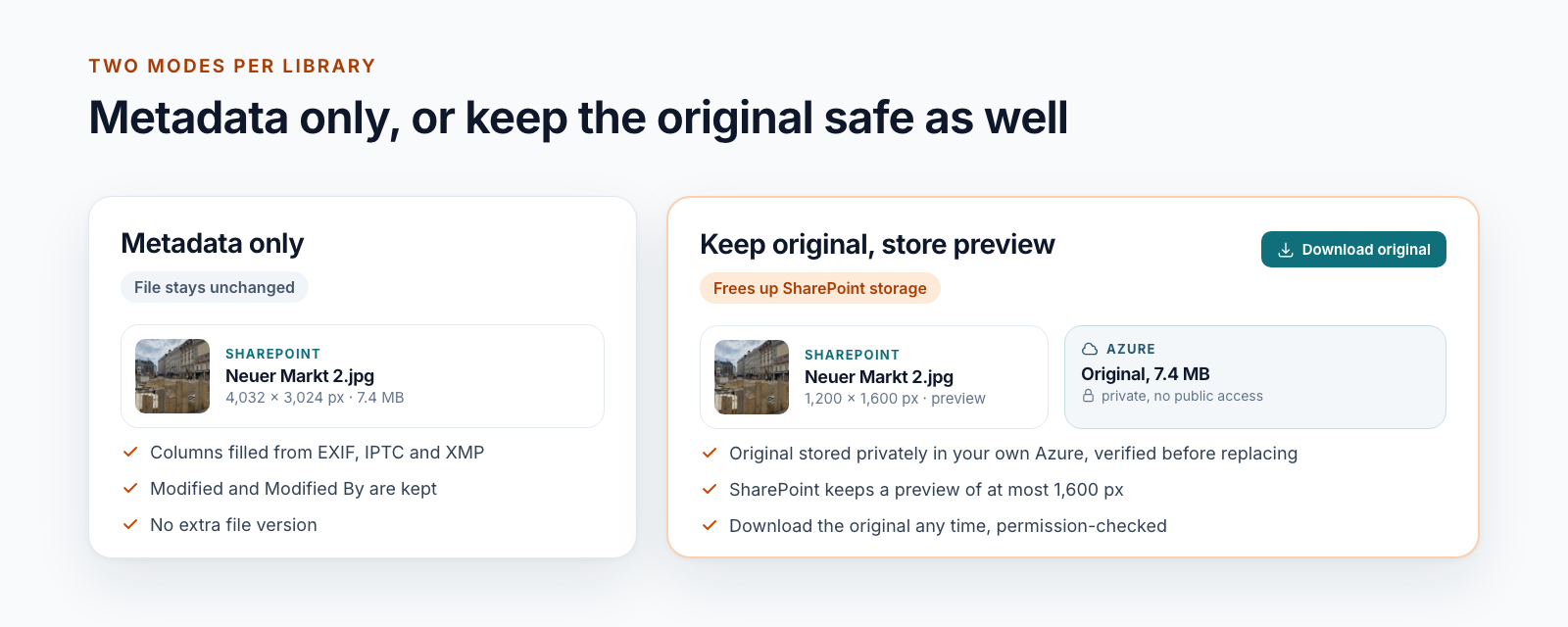
You choose the mode per library. Both modes fill the same columns and show the photos on the map.
Wherever photos document when and where something happened.
Built-in tools or app?
SharePoint stores photos reliably. Extra storage, however, costs a monthly fee per gigabyte, and the information inside the photo goes unused.
If the left column covers your case, you don’t need an app – you’ve already paid for the built-in tools. Smarter Photos exists for everything on the right.
Approach
The service is rolled out to your Azure subscription from a template, the SPFx package to your app catalog.
A first library in “Metadata only” mode. Smarter Photos adds the columns and processes existing photos.
Together we decide which values your teams need as columns.
The photo map goes on the pages where your teams work.
Where storage is tight, switch single libraries to archive mode.
Technology
Smarter Photos runs in your Azure subscription. Your originals and metadata are stored in your Azure subscription.
Archive mode can cut SharePoint storage for your photos by up to 94%. Savings depend on image size and format. Older versions of a photo that already exist stay in SharePoint until you clean them up.
Yes. The originals sit in a storage account in your own subscription. Your IT can reach them at any time through the Azure portal or Azure Storage Explorer.
SharePoint image libraries used to copy metadata to columns on upload. In SharePoint Online this no longer works reliably, and Microsoft offers no replacement. Smarter Photos closes that gap.
JPEG and PNG up to 25 MB and 80 megapixels. HEIC and RAW are planned.
When you activate a library, Smarter Photos processes the existing photos too. New and changed photos follow automatically after upload.
Not in “Metadata only” mode. Columns are filled without changing Modified, Modified By or the version number. Only in archive mode does a preview replace the file content, after the original has been verified in Azure.
Anyone who can currently open the photo in SharePoint. Permissions are checked on every download, not when a link is created.
You decide which fields appear as columns. You can turn off GPS field updates. The map provider receives requests for the area on screen. The photo map only shows photos the person can see anyway. The original itself still contains everything the camera recorded.
No. Smarter Photos consists of SPFx components and a service in your Azure. Installation and updates work without custom script.
Smarter-Exif-Export was a SharePoint add-in. Microsoft has retired SharePoint add-ins in SharePoint Online. Smarter Photos is its successor on SPFx and Azure; we can take over your existing columns.
Smarter Photos is available now. We set it up in your Microsoft 365 and your Azure subscription and activate the first libraries with you. After that it runs in the background, and new photos are processed automatically.
Deep dive
Why SharePoint Online no longer imports image metadata, and how Smarter Photos solves it.
SharePoint Online no longer copies EXIF data to library columns. Here is how to fill date taken, camera and GPS automatically and show your photos on a map.
Read the postWe work out with you what Smarter Photos saves in your tenant and show it with real construction site photos.