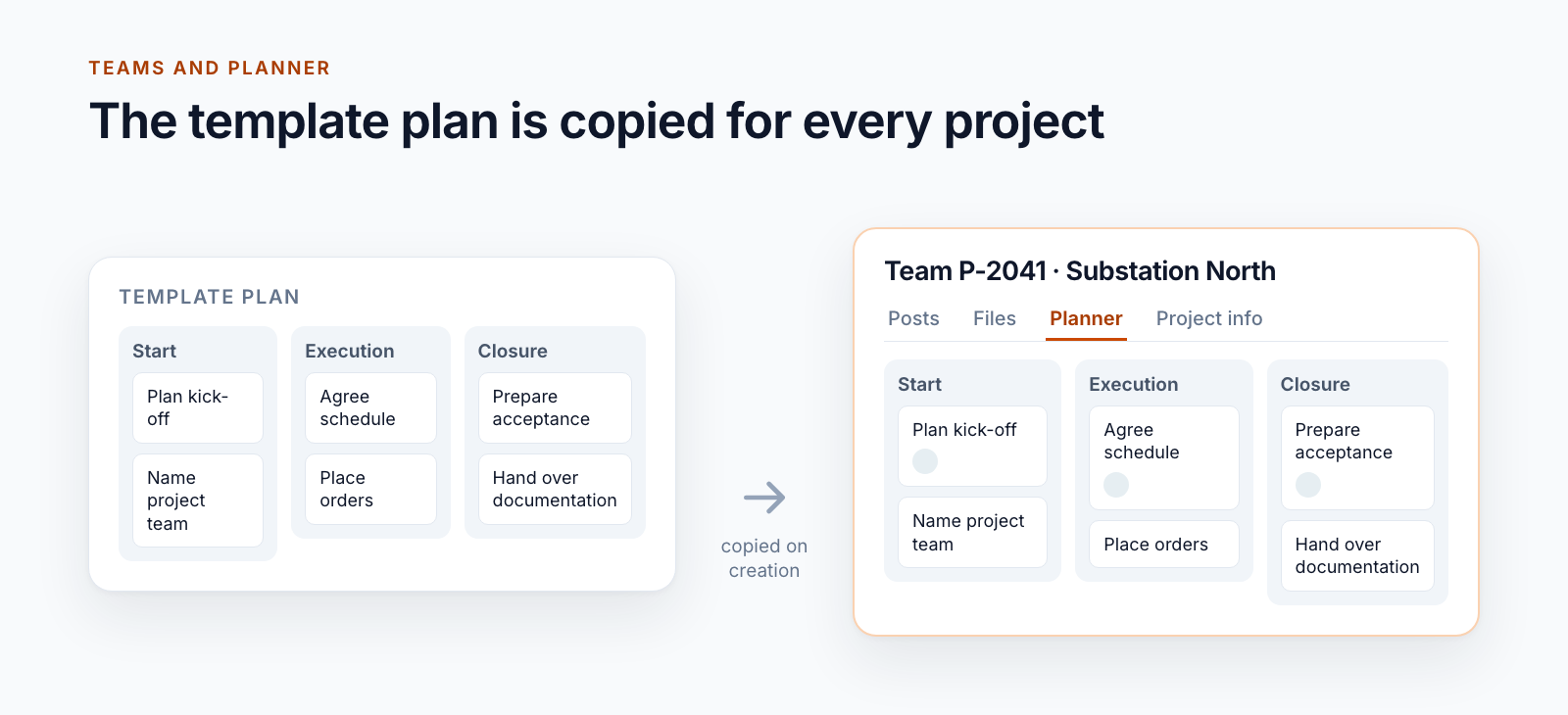
Every project begins with the same tasks: plan the kick-off, name the project team, agree the schedule, prepare the handover. They can be mapped well in Microsoft Planner. The question is how they get into every new project team without someone typing them in.
This post shows what Teams templates and Planner can do out of the box and how we create project teams with a ready-made plan for a customer with well over a thousand projects.
What a Teams template contains
With a custom Teams template, you define which channels a new team has and which apps and tabs are in them. That is useful: every project team has the same channels, and the tab for Planner is already there.
What a Teams template does not include:
- Files and folders in the channels
- Tasks, buckets and labels in Planner
- Members
- Permissions that go beyond owner and member
So the Planner tab is there, but the plan behind it is empty.
What Planner itself can do
Planner has a “Copy plan” function. It carries buckets and tasks over into a new plan, optionally with checklists, labels and attachments. For a department that starts a project a few times a year, this is the right way: maintain a template plan, copy it when needed.
With Power Automate, this can be taken a step further. How tasks are created from a template by a flow is shown in our older post Using Microsoft Planner efficiently with templates.
Both assume that someone remembers to do it. With many projects, the plan will then be missing in some of the teams and out of date in others.
The plan as part of provisioning
For a plant engineering company, the plan is created together with the project team. The process:
- The project lead triggers the provisioning of the project in the form. The master data comes from the ERP.
- The service creates the team and site, with name and address following a fixed convention.
- It creates a new plan in the team’s group.
- From a template plan, it copies labels, buckets, tasks with assignments and checklists.
- In the “General” channel, fixed tabs are created, including Planner and the pages with the project data.
The template plan is an ordinary plan in Planner. Anyone who wants to change the standard tasks changes it there. No administration tool is needed for that.
What matters in implementation
Repeatability. Provisioning a team consists of many steps, and Planner does not always respond immediately. If the service runs a second time, a second plan must not be created. The ID of the created plan is therefore stored on the project and reused in the next run. The same applies to the tabs.
Sequence. A freshly created team is not complete straight away. The site behind it takes some time before it can be reached. The service waits for it and tries again at fixed intervals instead of giving up at the first error.
What is copied. Title, bucket, labels, assignments and checklists are carried over. Dates are not included. They depend on the start of the project in question.
Basic plans. The approach described works with Planner’s basic plans. Plans with advanced features such as dependencies or milestones are a topic of their own.
More than a plan: what else is fixed in the team
The plan is only one part. For the same customer, every project team comes with:
- Fixed tabs in the “General” channel for project data, purchase orders, site reports and documents for management
- A folder structure that is chosen from several reference structures at creation. More on this in the post on the folder structure for projects.
- A notebook for the project
- Roles: the project lead becomes the owner, the people working on the project become members, further users are given read access
- Project properties on the site, through which the project is found in the overview of all projects
Two variants that are often asked for
One team for several projects. Small orders for the same customer do not each need a team of their own. In an umbrella project, each project number gets its own channel with its own folder.
Closed teams. For another customer, project teams are private, and members can change neither channels nor apps or tabs. In major projects with many participants, the structure thus remains stable for years.
When the built-in tools are enough
- You start few projects a year: Teams template plus “Copy plan”.
- The tasks differ greatly from project to project: a template plan is of little help.
- It is about recurring processes and not about projects: Power Automate with a task list.
Automatic provisioning pays off when every project team is to have the same starting point and there are many of them. How provisioning is built overall is described in the post Provisioning SharePoint project workspaces automatically.
Teams and Planner are one of the building blocks of Smarter Project Portal.
Would you like every project team to start with the same tasks? Show us your template plan.
All parts of the series:
- Provisioning SharePoint project workspaces automatically: where templates end
- Folder structure for projects in SharePoint: template, not copy
- Teams template with Planner: project teams with standard tasks (this article)
- SharePoint permission concept for projects: roles, not names
- Project data from ERP and SAP in SharePoint: four patterns
- SharePoint OCR: making scanned PDFs searchable
- Drawing management in SharePoint: drawing code, index and versions
- Project phases in SharePoint: from quotation to project closure
- Smarter Project Portal
- Microsoft Teams
- Microsoft Planner
- Templates
- Provisioning