A project workspace with ninety libraries and two dozen role groups has a permission matrix with several hundred entries. In SharePoint you maintain it library by library, folder by folder, through dialogs nobody can keep track of after the third click. For the project workspaces of Smarter Project Portal, we put the matrix where people read tables: in Excel.
When a matrix is worth it
Nobody needs Excel for a team site with three libraries and the default groups. The matrix is worth it when the structure is so complex that SharePoint’s dialogs lose track:
- many libraries and folders with their own permissions, such as a filing plan with ninety libraries,
- many roles that differ per library: project management, site management, planners, reviewers, externals,
- recurring substructures such as construction lots, each bringing its own libraries and role groups,
- frequent changes during the project as companies join or leave,
- record-keeping obligations about who received which access and when.
Where these come together, the question “who may do what here?” can hardly be answered in SharePoint itself anymore. In a table it is one row.
The matrix
Every project workspace has a workbook in its administration library. Opening it starts the add-in, which reads the project workspace.
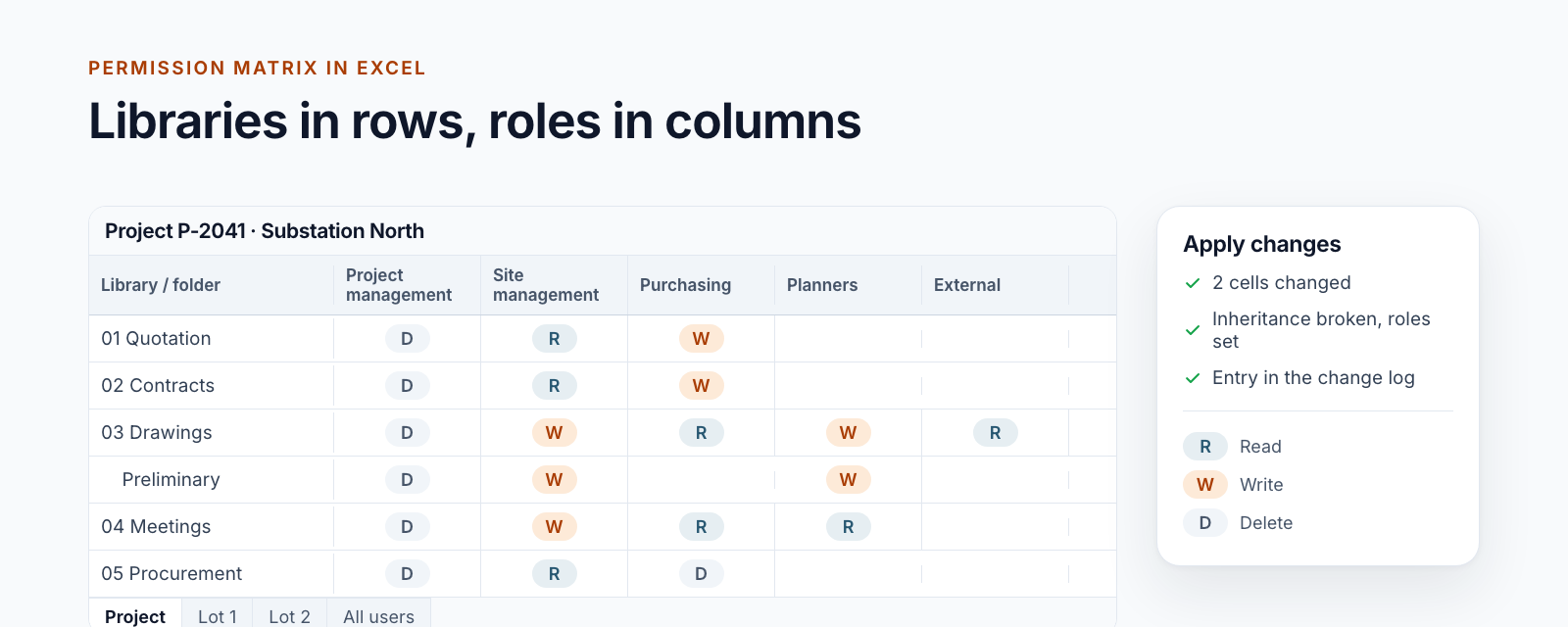
- One sheet per area: the project itself, each construction lot, plus a sheet for users.
- Rows are libraries and, if wanted, folders down to a configured depth, indented as in Explorer.
- Columns are the project’s role groups: project management, site management, purchasing, planners, externals and whatever else the role model provides.
- Cells hold R, W or D: read, write, delete. Empty means no access.
- The user sheet shows people against groups, one X per membership.
The matrix is not a copy but the state of the project workspace. Anyone who changes R to W and applies it changes the permission in SharePoint.
What happens on apply
The add-in compares the cells with the state it read and sends only the differences to a service. For each cell, the service does what takes several steps in SharePoint:
- Inheritance of the library or folder is broken if it still exists.
- The group’s previous roles on this object are removed and the new ones set.
- Lookup lists the library refers to receive the matching read permissions so that forms keep working.
- Every change is recorded with person, time and object in a change log in the project workspace.
Excel itself holds no SharePoint permission. The add-in talks to the service, and the service signs in to SharePoint with a certificate.
Where the columns come from
Which role groups exist, which libraries belong to the project and how deep folders are loaded is defined in the configuration of the project workspace, the same file from which provisioning builds the structure. The matrix therefore shows exactly the roles the project workspace knows, and nothing else. When the project moves to another phase, the configuration changes and the matrix follows.
This makes the tool a building block of the portal and not a general permissions editor: without the structure that provisioning creates, it has nothing to read.
What matters in operation
The first build is expensive. Reading a project workspace with construction lots in full took a few minutes in the first version; for large projects it ran into the service’s time limit. Today the service keeps a snapshot of the structure per project workspace, checks it against SharePoint’s change log and rebuilds it only when something has changed. According to internal measurements, a project workspace now opens in under a second instead of several seconds, and large ones no longer hit the timeout.
One person per project. If two people edit the same matrix at the same time, the tool does not reliably detect that today. The rule in the project is therefore: project administration maintains the permissions, one person at a time.
Desktop Excel. The add-in runs in Excel for Windows. Excel in the browser and on the Mac are not supported.
Every change leaves a trace. The log matters more for audits and for the question “since when can the planner see the contracts?” than any function in the matrix itself.
Since 2020
The tool started in 2020 as the Excel add-in “Management 4 SharePoint” for SharePoint projects; the posts from back then describe the idea, how permissions are represented and the timeout problem of large project structures. Today it is a building block of the project portals, with a service of its own per customer and the snapshot that solves this timeout problem.
Status
The tool is set up at the three project portals from our series and in production at the rail infrastructure portal with its construction lots and more than 800 permission assignments per project. Each customer runs a service of its own; the role models differ, the matrix stays the same. Two functions of the predecessor solution, the assignment of service groups and a calendar, have not been rebuilt yet.
How roles and permissions in the project workspaces are structured in general is described in the post SharePoint permission concept for projects: roles instead of names. The permission matrix is a building block of Smarter Project Portal.
All parts of the series:
- Provisioning SharePoint project workspaces automatically: where templates end
- Folder structure for projects in SharePoint: template, not copy
- Teams template with Planner: project teams with standard tasks
- SharePoint permission concept for projects: roles, not names
- Project data from ERP and SAP in SharePoint: four patterns
- SharePoint OCR: making scanned PDFs searchable
- Drawing management in SharePoint: drawing code, index and versions
- Project phases in SharePoint: from quotation to project closure
- Managing SharePoint permissions in Excel: the permission matrix of a project workspace (this article)
- Smarter Project Portal
- Permissions
- Excel
- SharePoint Online
- Project workspace