A project workspace that knows nothing about the other systems is a second filing location alongside the actual work. The project number is retyped, purchase orders sit in the ERP, photos in an app, and half of it is missing from the project workspace.
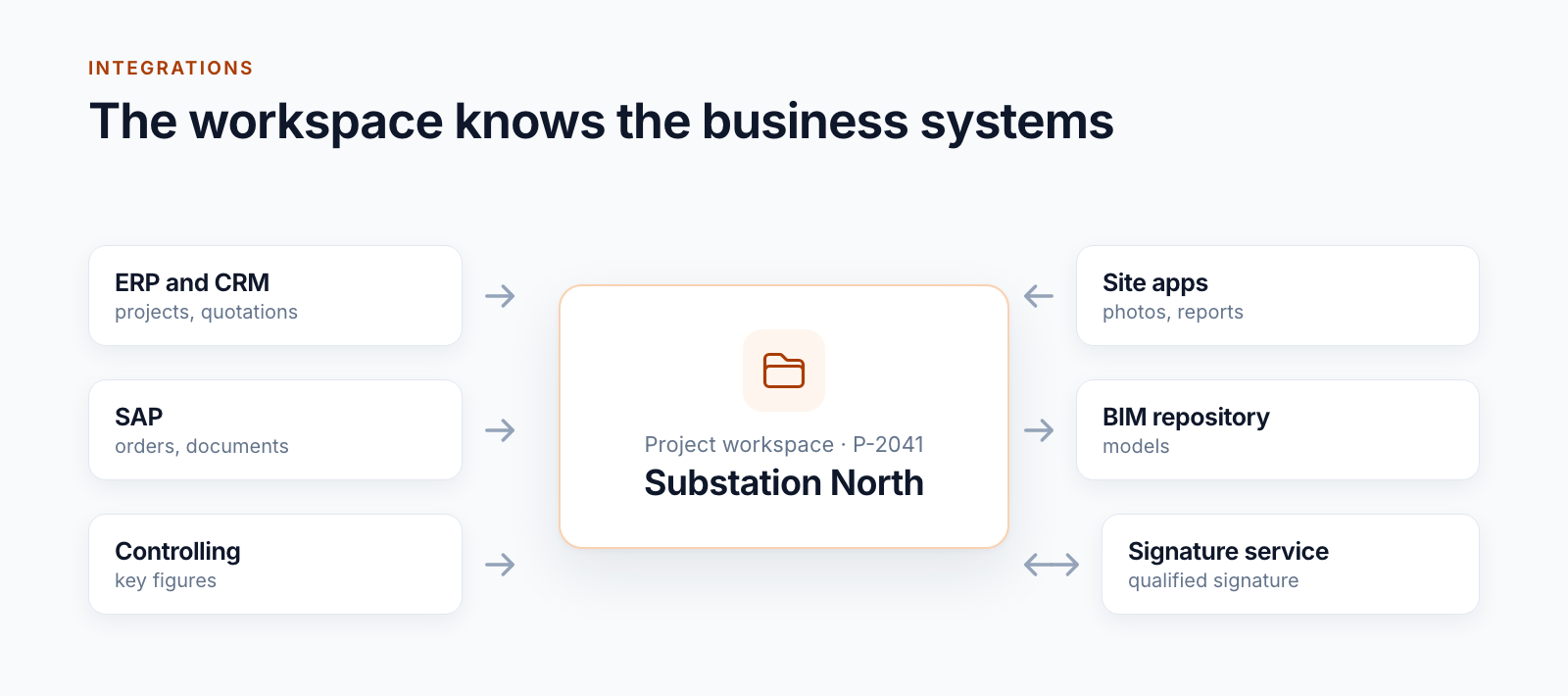
In our projects, the project workspaces are connected to the systems of record. The systems are different for every customer. The patterns repeat. This post describes four of them.
Pattern 1: master data triggers the project workspace
The project originates where it is managed commercially. The project workspace follows.
API variant. At a construction group, the CRM calls an API as soon as a project is created there. It creates an entry in the project list with project number, title, template, people responsible, phase, country and language. If the project number already exists, the API rejects the call. The rest is handled by the automatic provisioning of the project workspace.
Synchronisation variant. At a plant engineering company, projects and quotations come from the ERP into a central list, every six hours and once a week in full. The project lead looks up their project in the form, adds the team and folder structure and starts provisioning. Nobody has to type in the project number, name or project lead.
In both cases, a unique key is important. The project number from the system of record is stored on the project workspace as a searchable property, and for two customers also in its address.
Pattern 2: documents come to the project
Purchase orders, order confirmations and documents originate in the commercial system. They are needed in the project.
Purchase orders from the ERP. Every 30 minutes, a service fetches new purchase orders and order confirmations as PDFs and files them with metadata in the library of the respective project.
SAP documents. For another customer, documents from SAP are made available in a handover list. A service reads them every 30 minutes, assigns them to the right folder based on the document type, sets the file name and writes the SAP fields as metadata. The path runs in one direction only: from SAP into the project.
Two things have proved their worth:
- Reconciliation instead of hope. A control run compares how many documents the source system knows for a project and how many are in the project workspace. Discrepancies become visible before a user notices them.
- Catching up at the push of a button. The library has a button that triggers the synchronisation for this project again, in full or only for changes.
Pattern 3: display key figures instead of copying them
Not everything has to be copied to SharePoint. Costs, revenue and contribution margin change constantly. A copy would always be out of date.
For one customer, a tile on the project’s home page displays the figures from controlling directly. Only four values are transferred to the project list daily so that projects can be filtered by them in the overview.
The rule behind it: what is to be filed, searched or filtered in the project is copied. Everything else is displayed.
Pattern 4: the project workspace reports back
An integration is rarely a one-way street. Three examples:
- Roles. Anyone assigned to a role in the project workspace also receives it in the CRM and in the site app. Member management in the project workspace is the one place where roles are maintained.
- Phases. When a project changes from acquisition to order in the CRM, the project workspace adapts: new libraries, different permissions.
- Master data for apps. Trades and locations maintained in the project workspace are available as options in the photo app.
Construction site, models, signature
Four further integrations show how broad the field is:
Photos from the construction site. Every ten minutes, a service transfers new photos from the site app to the project’s photo library, into folders by date. Contractor, trade, location, keywords and geographic position come along as metadata. A map in the project workspace shows the photos at the place where they were taken.
Reports and checklists. Daily site reports and checklists from a construction documentation system land in the project libraries overnight.
Models and signatures. In an infrastructure project, model files are handed over to the central BIM repository after an approval. Documents can be signed with a qualified electronic signature directly from the library, individually or in batches. How this works is described in the post Signing documents in SharePoint.
Handover to the operator. Construction documents of an infrastructure project go to the operator’s asset documentation and from there to the archive. This pattern has a post of its own: Connecting SharePoint and LiveLink.
What keeps integrations stable in operation
Interfaces fail, deliver twice or deliver too late. Five precautions that we take in every integration:
- Repeatable. The same call may arrive twice without anything being created twice.
- Changes and full synchronisation. The regular run fetches only what is new. An infrequent full run catches what was lost along the way.
- Patience with the other side. If a system does not respond or throttles, the service waits and tries again.
- Visible state. Every run leaves a record of what it did. Errors are in a list that someone looks at.
- Maintenance switch. The provisioning of new projects can be blocked while a source system is being changed over.
What remains open
Each of these integrations is project work. There is no ready-made SAP interface for SharePoint that fits everywhere. How SAP provides the documents is decided on the SAP side. Which fields come along is decided by the business department. The core supplies the patterns and the parts that repeat.
Which integrations are worthwhile for your projects is usually shown by one question: which piece of information does someone retype today, and which document does someone look for in two systems?
Integrations are one building block of Smarter Project Portal.
Would you like to connect project workspaces to ERP, CRM or SAP? Describe your systems to us. We will assess which pattern fits.
All parts of the series:
- Provisioning SharePoint project workspaces automatically: where templates end
- Folder structure for projects in SharePoint: template, not copy
- Teams template with Planner: project teams with standard tasks
- SharePoint permission concept for projects: roles, not names
- Project data from ERP and SAP in SharePoint: four patterns (this article)
- SharePoint OCR: making scanned PDFs searchable
- Drawing management in SharePoint: drawing code, index and versions
- Project phases in SharePoint: from quotation to project closure
- Smarter Project Portal
- Integration
- SharePoint Online
- SAP
- ERP