Project workspaces are created with care and then left to themselves. After five years, there are hundreds of them. For most of them, nobody knows whether the project is still running, who still has access and whether the documents are still needed.
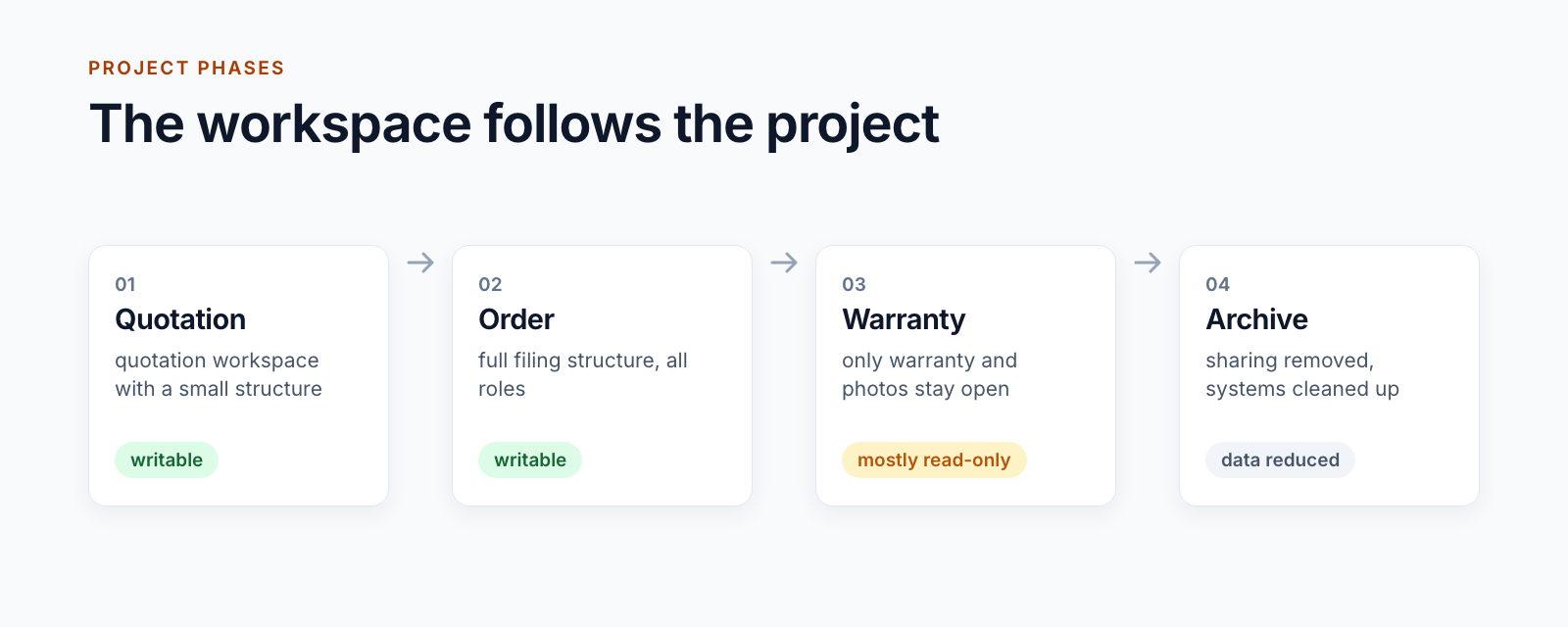
A project has phases, and the project workspace should follow them. This post shows how that is implemented in our projects, from the quotation to the clean-up after closure.
The phase as a property
Every project workspace carries its phase as a property. It is stored in the project list and on the site itself and is therefore visible and filterable in the overview of all projects.
Which phases exist is defined by the organisation. Two examples:
- A plant engineering company uses seven phases from A to G. A quotation starts in the Quotation phase, a project in the Start-up phase.
- A construction group distinguishes Acquisition, Order, No order, Cancelled, Warranty, Archive and Long-term archive. Which transitions are permitted is firmly defined.
The phase is more than a label. Structure, navigation and permissions depend on it.
From quotation to order
Most projects begin as a quotation. A quotation needs a small project workspace: costing, correspondence, tender documents. If it becomes an order, the rest is added.
Two approaches are in use:
The workspace grows. The project workspace of the quotation becomes the project workspace of the order. When the phase changes, a service applies the template for the new phase: further libraries, an extended navigation, different permissions. The change runs in the background, and at the end the people responsible receive a message.
The workspace is carried over. The project workspace of the quotation continues to be used for the project. The documents from the quotation phase move to a folder of their own and are retained.
The same applies in both cases: nobody creates a second project workspace for the order and copies documents across.
If the quotation does not become an order, the workspace ends in the phase “No order”. It stays as it is and can be recognised in the overview by its phase.
Navigation and permissions follow the phase
For one customer, the navigation of the project workspace depends on the phase. Areas that play no role in the Acquisition phase only appear in the Order phase.
The permissions are more important. There are separate permission templates for the phases. The phase change applies them. How roles and permissions are structured is described in the post on the SharePoint permission concept for projects.
Warranty
After handover, the project is finished but not over. Defects are reported, photos document how they are remedied and correspondence is added.
In the Warranty phase, exactly two areas therefore remain writable: the library for the warranty and the photos. Everything else is read-only. The project documents can no longer be changed by accident, and ongoing work is still possible.
After closure: cleaning up
Six months after the change to the Archive phase, a nightly service runs over the project for one customer:
- The project mailbox is filed in a library of the project workspace.
- Copies of SAP documents are removed. SAP remains the source.
- The project in the photo app is archived.
- The entries from defect management are filed as PDF, and the project there is deleted.
- Sharing with externals is removed and the admin groups are emptied.
- The recycle bins are emptied.
A project workspace that contains no files is marked for deletion.
This step is often forgotten. A project ends not only in SharePoint but in every system attached to it. Otherwise, licences in site apps and sharing with externals keep running for years.
What remains open
An honest account includes what has not yet been solved.
Long-term archive is so far a status. The phase exists; a dedicated storage location behind it does not yet. The project workspaces remain in SharePoint.
Locking the site is not part of the process. Protection comes from permissions and not from a technical lock on the entire site.
Handover to a corporate archive is a route of its own. Where documents have to be kept for decades, they go to the operator’s archive system. What such a handover looks like is described in the post Connecting SharePoint and LiveLink.
An archive outside SharePoint is being trialled. For one customer, an archive copy of completed projects is being created in its own Azure subscription, with a checksum per file. Requirements, technology and acceptance are described in our series, beginning with A customer-controlled SharePoint archive in Azure.
What Microsoft 365 itself offers
- Archive team. An archived team is read-only and can be restored. For projects without special requirements, that is a workable form of closure.
- Expiration policies for Microsoft 365 groups. Teams without activity are presented for renewal after a set period and are otherwise deleted. That helps against sprawl but knows nothing of project phases.
- Retention in Microsoft Purview. For statutory periods, this is the right place.
- Microsoft 365 Archive. Rarely used sites can be moved to cheaper storage.
These tools answer what happens to the storage. When a project changes to which phase, and what then happens to permissions, sharing and connected systems, they do not answer.
What helps to keep track
Two inconspicuous functions do a lot in operation:
- A nightly report writes the last change, the number of files and the size for each project workspace to the project list. Project workspaces in which nothing has happened for a year stand out immediately.
- The clean-up of old versions keeps storage within limits and can be switched on and off per project workspace.
Five questions for your concept
- Which phases does a project have in your organisation, and who triggers the change?
- What changes in structure and permissions per phase?
- What remains writable during warranty?
- Which connected systems have to be cleaned up at the end?
- How long do completed projects remain accessible, and where are they kept afterwards?
Phases and project closure are one building block of Smarter Project Portal. How a project workspace is created is described in the post Provisioning SharePoint project workspaces automatically.
Are project workspaces piling up in your organisation whose state nobody knows? Let’s talk about what phases and project closure should look like for you.
All parts of the series:
- Provisioning SharePoint project workspaces automatically: where templates end
- Folder structure for projects in SharePoint: template, not copy
- Teams template with Planner: project teams with standard tasks
- SharePoint permission concept for projects: roles, not names
- Project data from ERP and SAP in SharePoint: four patterns
- SharePoint OCR: making scanned PDFs searchable
- Drawing management in SharePoint: drawing code, index and versions
- Project phases in SharePoint: from quotation to project closure (this article)
- Smarter Project Portal
- Project phases
- SharePoint Online
- Archiving
- Lifecycle