
Getting started
Step-by-step guide to installing and setting up the web part.
View the guide
SPFx web part
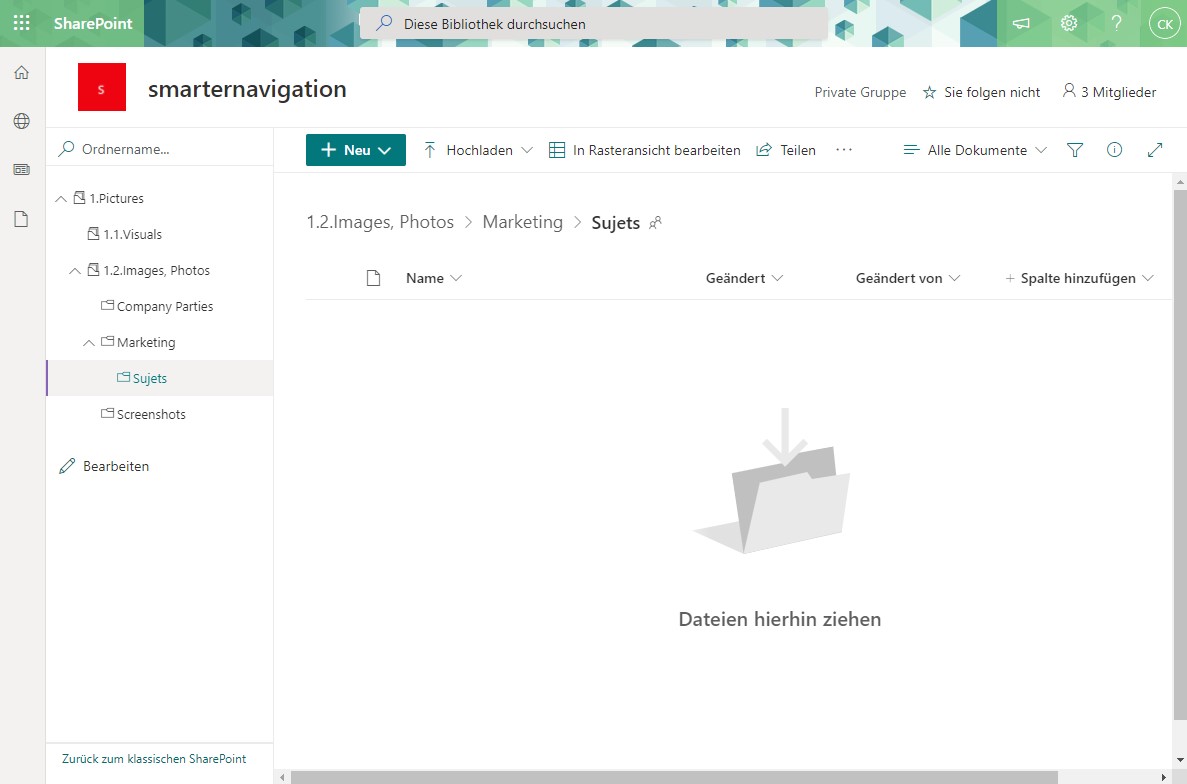
SharePoint navigation as a tree structure, familiar from the file explorer.
The web part displays lists and folders of your SharePoint sites as a hierarchical navigation tree – with search, automatically expanded paths and personal favorites.

Install Smarter Navigation from Microsoft AppSource and add the web part to your page – the tree navigation is ready to use.
Navigate SharePoint lists and folders in a familiar tree structure – intuitive and without a learning curve.
The search finds matching folders and automatically expands the corresponding path. No more clicking through deep structures.
Save important lists and folders as favorites and access them with a single click.
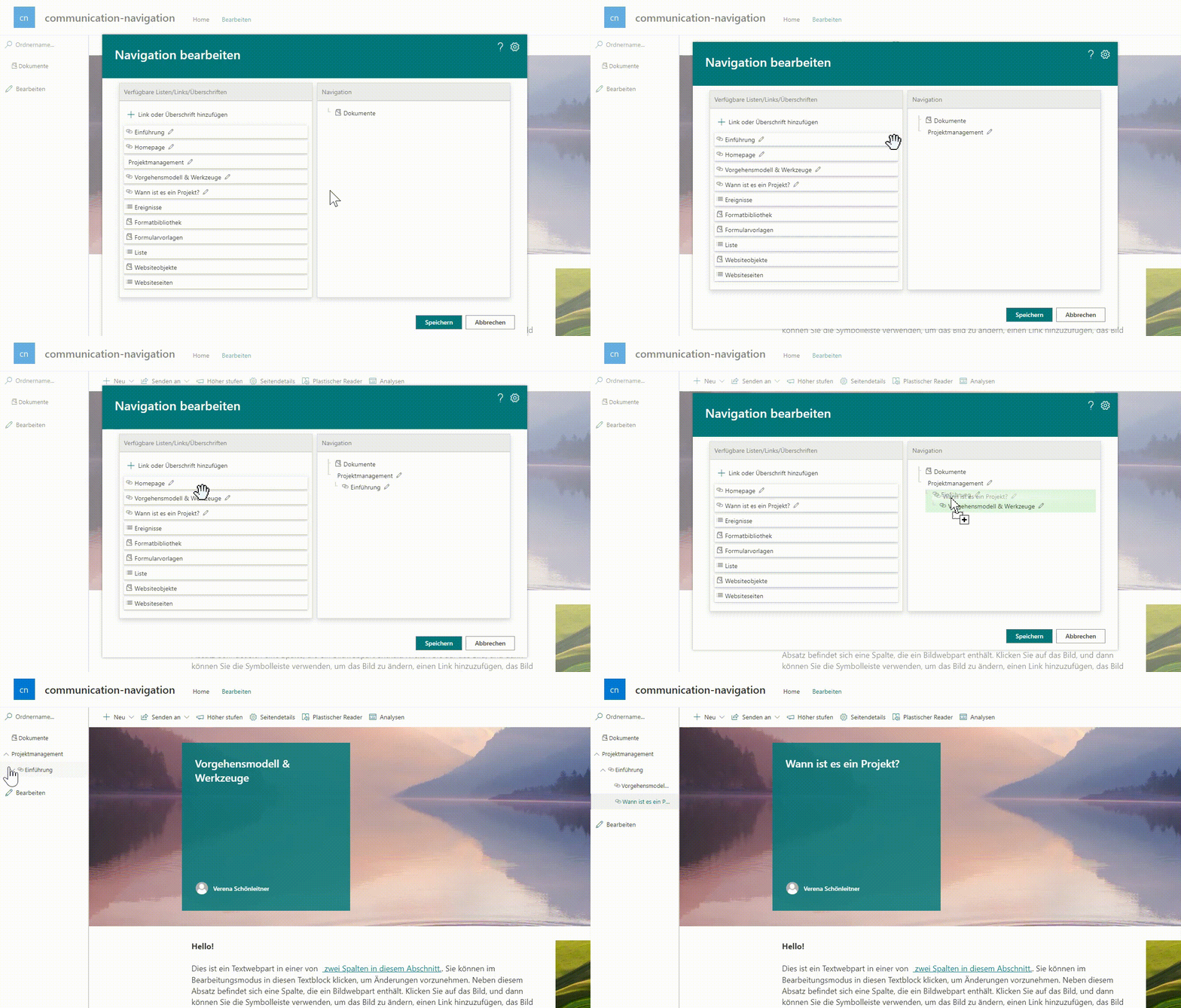
Smarter Navigation works on team sites and on communication sites. This gives communication sites a vertical navigation as well – suitable for wiki structures and multi-level information architectures.
Build structured knowledge bases with multiple hierarchy levels without running into the limits of the standard SharePoint navigation.
Organize communication sites as a multi-level knowledge base – the tree navigation keeps even extensive structures easy to scan.
Not just on team sites: communication sites get a vertical tree navigation too, for wikis and filing structures.
The web part installs directly from Microsoft AppSource – no elaborate configuration required.
Smarter Navigation works with SharePoint Online and Microsoft Teams and fits into modern SharePoint pages.
Built-in tools or app?
SharePoint’s standard navigation covers flat structures well. Smarter Navigation starts where intranets grow bigger.
If the left column covers your case, you don’t need an app – you’ve already paid for the built-in tools. Smarter Navigation exists for everything on the right.
Procurement through Microsoft AppSource – with local pricing, taxes and centralized billing.
You only pay for the site collections where Smarter Navigation is actually deployed – no bundle pricing, no hidden costs.
Only deployed site collections are licensed.
No functional restrictions.
Purchasing & licensing
Microsoft separates the app from its license in the marketplace – that’s why you’ll find Smarter Navigation listed twice. Getting licensed is still quick:
Install Smarter Navigation from the Microsoft marketplace into your SharePoint environment for free and try every feature without obligation.
View the app in the marketplacePurchase the license as a subscription directly on Microsoft AppSource. You’ll see the price there in your local currency – including the correct taxes for your country.
See the price in your currencyAssign the license to the site collections where Smarter Navigation should run. Your data and settings from the trial are preserved.
Buying through AppSource is procurement without the procurement process: the contract runs through the Microsoft account your organization already has.
You buy from Microsoft – no vendor onboarding or supplier checks in your purchasing department.
With the correct VAT for your country, in your local currency.
The license appears on your existing Microsoft 365 invoice – alongside your other subscriptions.
Manage, scale or cancel the subscription at any time in the Microsoft 365 admin center.
Microsoft technically separates the app from its license: you install the app for free in your environment and purchase the license as a separate subscription. Microsoft mandates this split for all SharePoint apps with marketplace licensing. For the purchase, the listing with the “License” suffix is the right one.
Your data lives in your own SharePoint lists and is preserved. Once the license is activated, you continue right where you left off.
Not necessarily. Payment runs through your organization’s billing profile at Microsoft – by credit card or invoice, depending on your configuration.
The purchase is made in your organization’s Microsoft account – usually by someone with permission for marketplace purchases, for example a billing administrator.
Directly in the Microsoft 365 admin center – you manage the license like any other Microsoft subscription.
Questions about the purchase process?Get in touch – we’re happy to guide your IT team through the first purchase.
Guides and legal information for Smarter Navigation.
Step-by-step guide to installing and setting up the web part.
View the guideLegal terms for using Smarter Navigation.
Read the termsQuestions about using Smarter Navigation? Our team is happy to help.
Contact supportTry the web part free for 30 days – we are happy to answer your questions about deployment and licensing.