A new travel policy, changed house rules, a data protection notice: some information should not only be distributed but demonstrably acknowledged. Many companies still do this with a sign-off sheet at reception, an email asking for a reply or a read receipt in Outlook. All three share the same problem: in the end, nobody knows who is missing.
For an insurance company, we moved this into the intranet. This post describes how it works and what it takes.
Why the usual routes are not enough
- The sign-off sheet is binding but tied to a place. Anyone in the field, working from home or on holiday does not sign, and counting is manual work.
- The email asking for a reply reaches everyone, but the replies end up in one mailbox. Finding who is missing means comparing them with the distribution list.
- The read receipt in Outlook says that a message was opened, not that it was read. Many people switch it off.
- A “like” on the news page is voluntary and cannot be matched to an obligation.
What is missing is one list per piece of information: who should, who has, who has not yet.
How it works
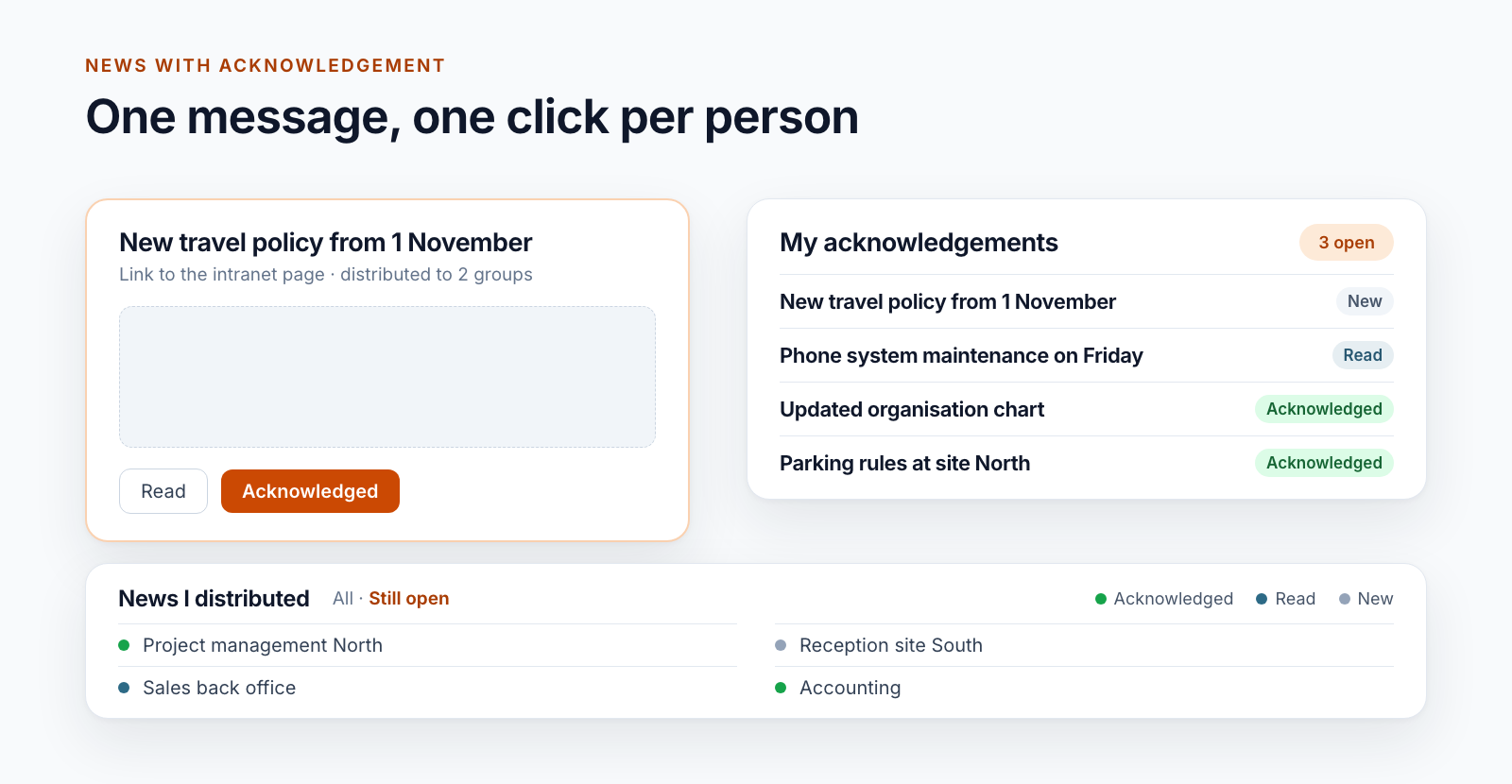
An acknowledgement consists of a title, a description, a link to the intranet page or document and a distribution list. The list contains people and security groups; groups are resolved into their members when the acknowledgement is created. Each person gets an entry of their own with the status “New”.
The employee sees a counter with her open acknowledgements on an intranet page. One click opens the information: on the left the linked page or document, on the right the description, below two buttons, “Read” and “Acknowledged”.
The sender sees all recipients with status for each piece of information under “News I distributed” and can switch to “Still open”. She can add or remove people afterwards. The information counts as completed when nobody is left on “New”.
From the document centre, an acknowledgement takes two clicks: the command “News for acknowledgement” on a selected document opens the form with the link filled in.
Adapted to your processes
The example shows one variant, not a fixed product. What triggers an acknowledgement and what it looks like is set up to fit your processes:
- The trigger: a news item in the intranet, a document in the document centre, an entry in a list or a page.
- The notification: the insurance company deliberately did not want emails; the counter in the intranet is enough. Where the intranet is not opened daily, a notification by email or in Teams belongs with it.
- The distribution list: individual people, security groups or groups from your master data.
- The confirmation: one or two steps, with your own labels.
- The evaluation: the sender’s view, an overview for HR or an export.
Technology
- The form, lists and counters are SharePoint Framework web parts. Reading happens directly from SharePoint in the context of the signed-in person.
- Writing goes through an Azure Function with a certificate or managed identity. It creates the entries per person and resolves groups through Microsoft Graph.
- Two SharePoint lists hold the data: one per piece of information, one per person and piece of information. No Power Automate, no data store outside your tenant.
- Distribution lists made of several large groups with many hundred people are resolved completely; the entries are created in batches.
What we learned
The distribution list is a snapshot. Anyone who joins a group after sending does not receive the information automatically. For policies that also concern new employees, you need to know that.
Two buttons need a rule. “Read” and “Acknowledged” differ in status; both end the obligation. Whether the distinction serves a purpose is for the organisation to decide.
And for controlled documents?
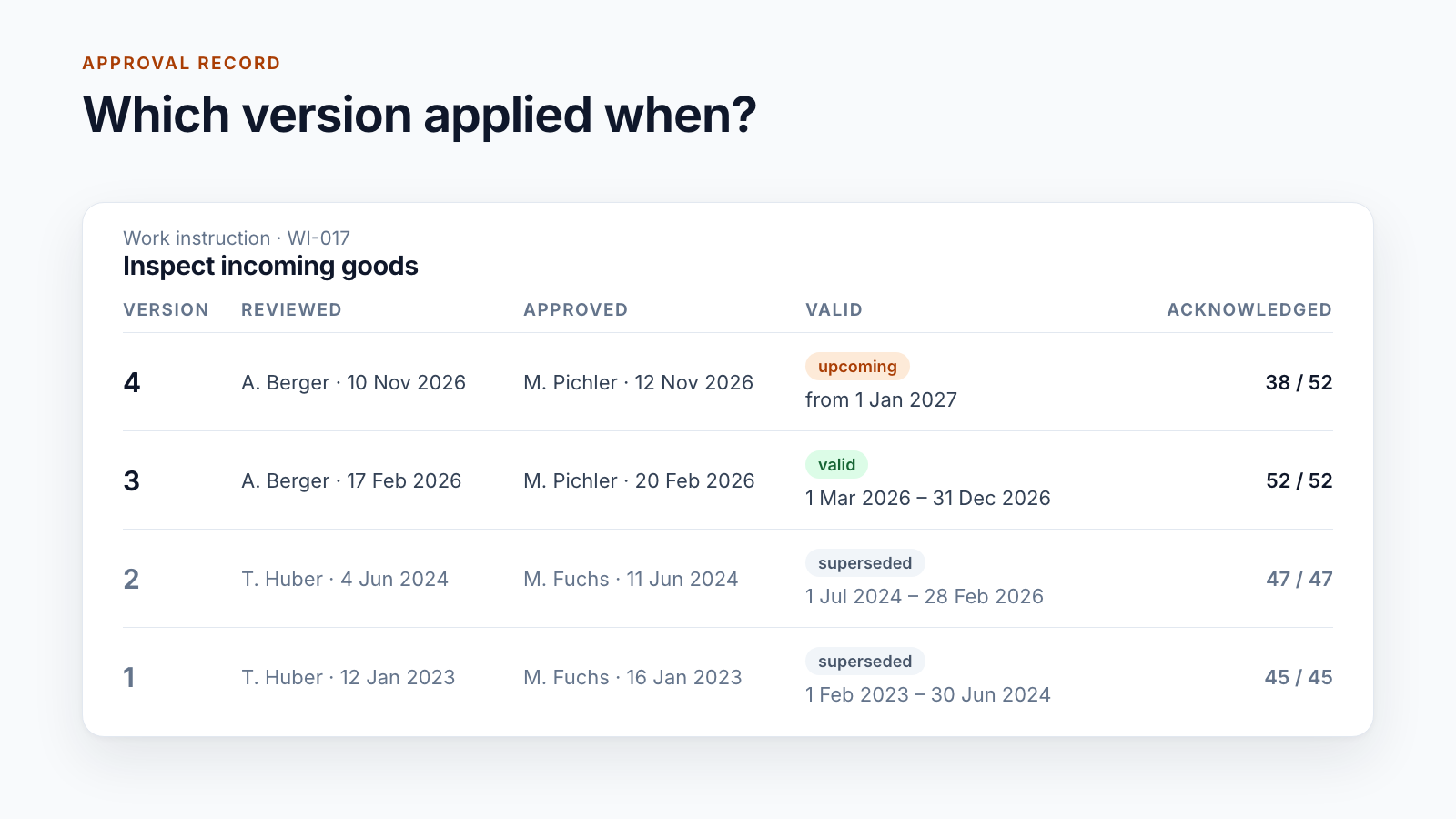
For work instructions, procedures and other governing documents, one click on a message is not enough. There, the acknowledgement has to be tied to a specific version, have a deadline, remind and escalate, and be renewed with every change in content. That is part of document control; what it looks like is described in the post Read confirmation in SharePoint: proving acknowledgement, and the solution for it is Smarter DMS.
For staff information, policies and notices, the lean route is enough.
Four questions before you start
- Which information has to be demonstrably acknowledged, and who sends it?
- How large are the distribution lists, and do the groups change often?
- Is a counter in the intranet enough, or is a notification needed?
- Who may see who has confirmed, and how long is that kept?
- Acknowledgement
- Intranet
- SharePoint Online
- SPFx
- Staff information