A work instruction has served its purpose when people at the workplace work to the valid version. The road there is longer than the document itself suggests: write, coordinate, approve, distribute, keep up to date and, at some point, retire.
In many businesses, this runs on a Word template, a folder on a network drive and printouts at the machine. That works until someone asks which of the three printouts is valid. This post walks through the journey of a work instruction and shows what can be controlled digitally.
1. Writing: Word stays Word
Authors should work in the tool they are used to. The work instruction is created as a Word file in an editing library, with check-out and draft versions. Several people can work on it one after another or in a feedback round before approval begins.
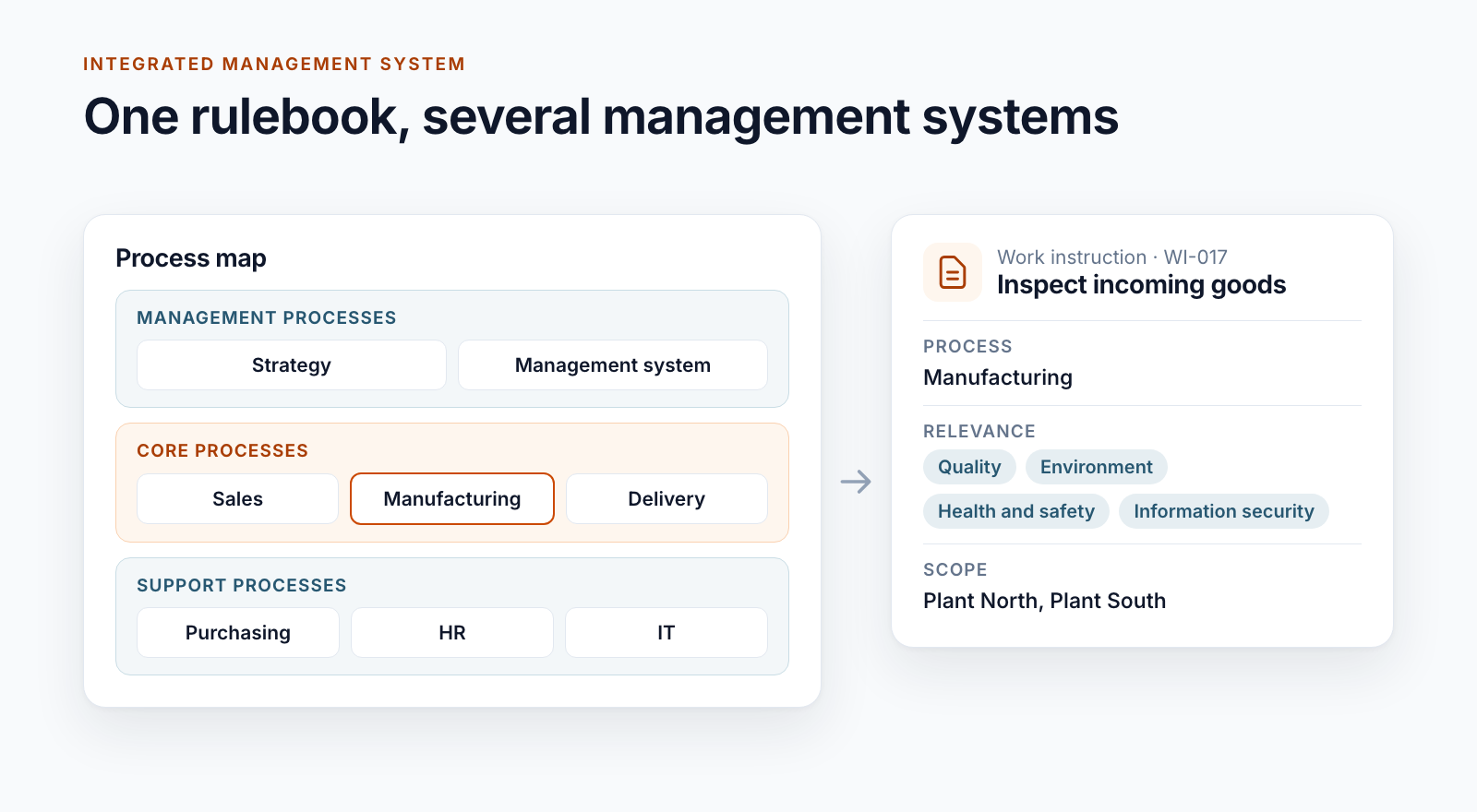
When the document is created, the details that later control everything are captured: document type, process, responsible unit, scope, valid from and valid until, distribution list. Anything missing here comes to light at the latest when approval is started. The system checks the mandatory fields before it assigns tasks.
2. Numbering: a scheme that fits the organisation
A meaningful number helps on the phone and in an audit. Two schemes from practice:
- Type and counter: an abbreviation for the document type and a sequential number. The number is assigned at the first approval and stays.
- Process and counter: main process, sub-process, sequential number and a suffix for appendices. The number shows where the document belongs.
In both cases, the system ensures that a number occurs only once and is not reassigned even after archiving.
3. Approving: who reviews is defined
The approval goes as a task to the people in charge. Who is in charge follows from the responsible unit or the process. How different these workflows look is described in the post SharePoint document approval workflow: five real-world examples.
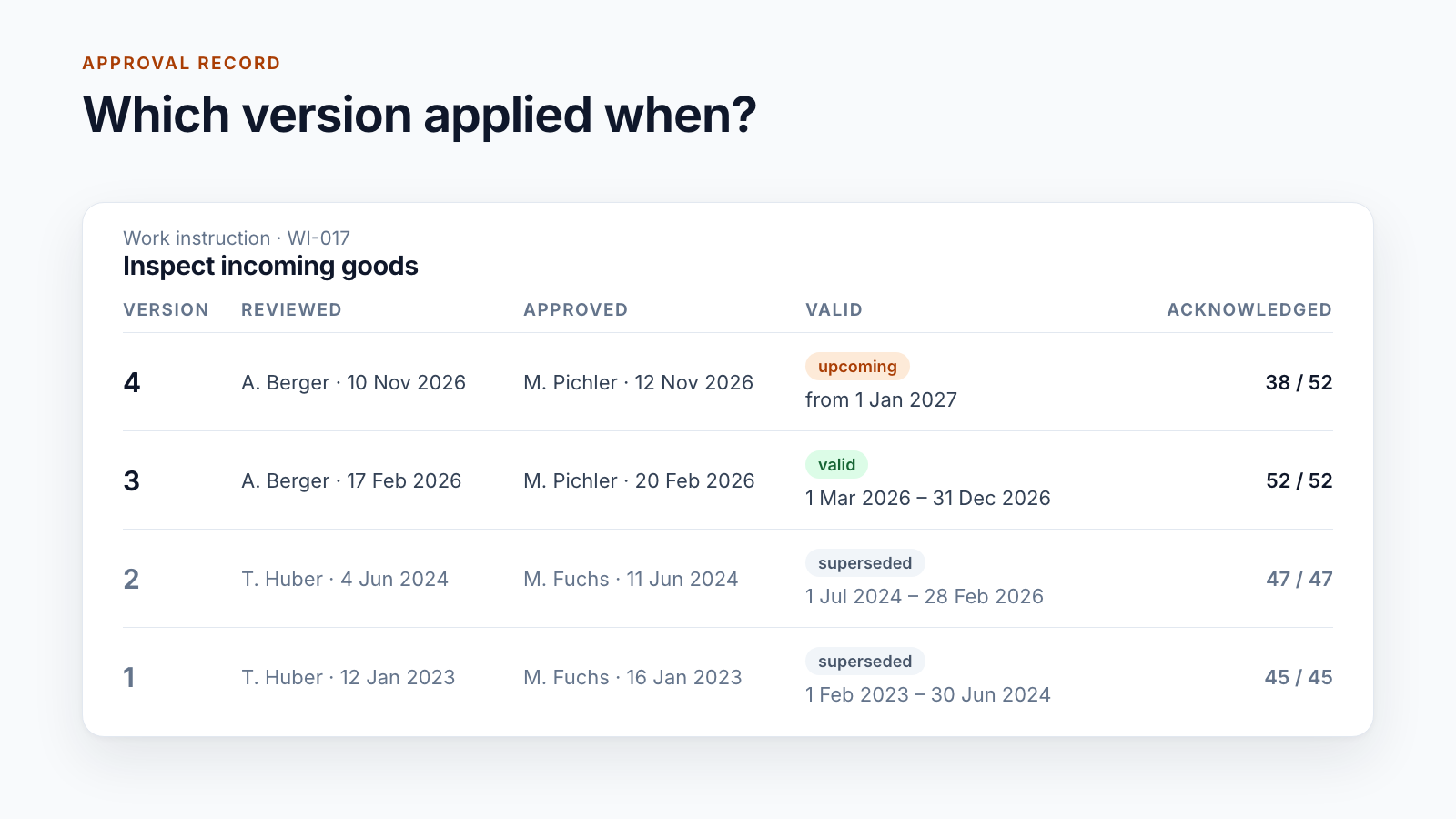
For work instructions, one detail is important: the change comment. Whoever starts the approval describes in one or two sentences what has changed. This text accompanies the version through approval and later appears in the version history. Anyone who wants to know why there is a version 4 finds the answer there.
4. Converting: readers receive a PDF
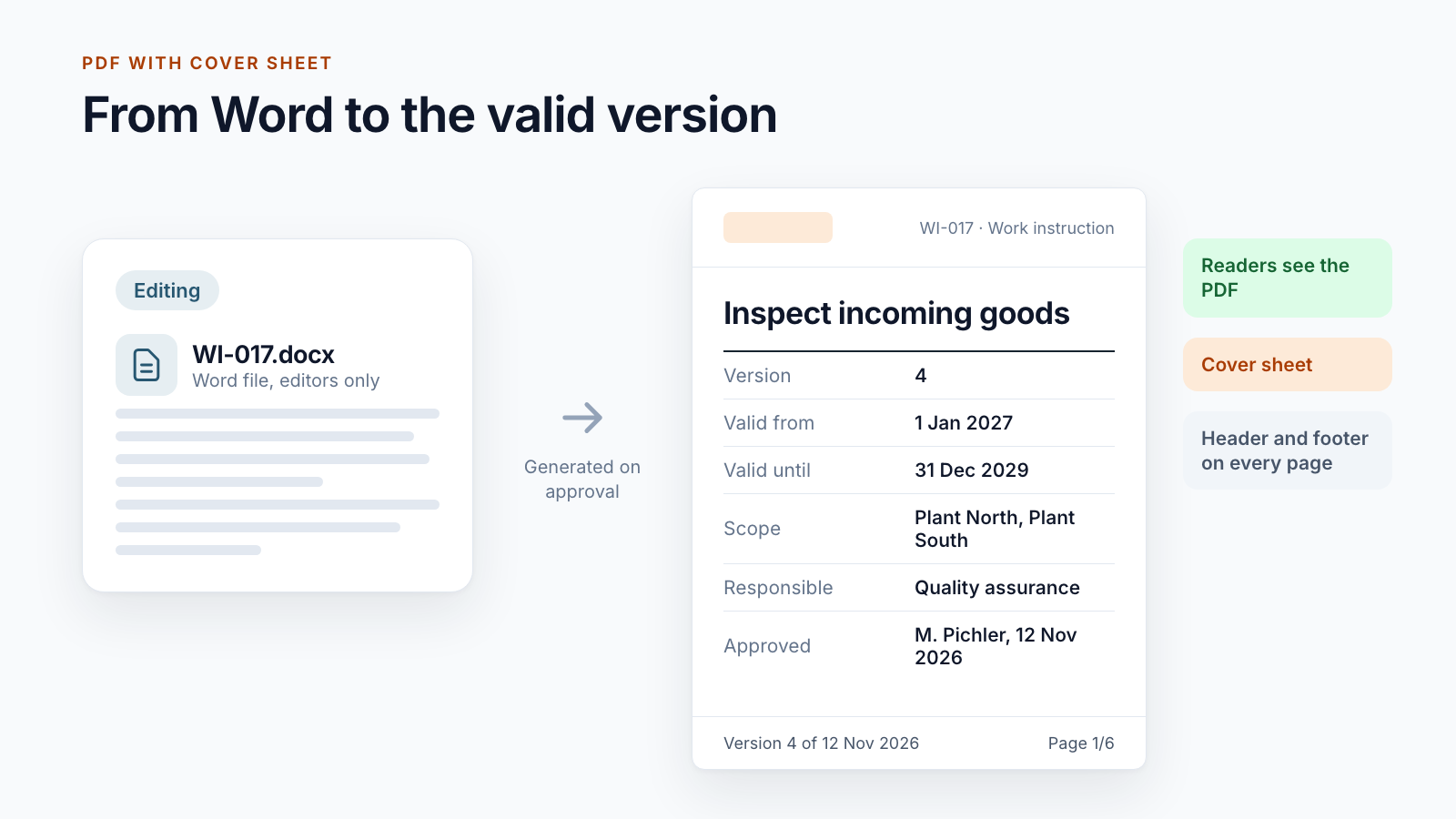
On approval, the system generates a PDF from the Word file. The source stays in the editing area; the PDF is the version for everyone else. This has three advantages: it cannot be changed by accident, it looks the same on every device, and it carries the document control details within it.
What appears on the cover sheet comes from the metadata and not from the document text: title, document type, version, purpose, scope, responsible unit, valid from and valid until.
The footer of every page shows the version, approval date and page number. Anyone who finds a single printed page can tell where it belongs.
Two things have proved their worth:
- The cover sheet and the header and footer can be switched off per document. A form that is filled in does not need a cover sheet.
- Files whose function a PDF would destroy stay in their original format. An Excel calculation, a Visio drawing or a CAD file is not converted.
Before approval, a preview shows the finished PDF so that page breaks and the cover sheet can be checked.
5. Distributing: a link that is always right
The valid version is kept in a separate library that contains only valid documents. The crucial point is that a document’s address stays the same when the version changes. A link in the shift log, on the intranet page or as a QR code at the machine points to the new version after the next approval without anyone adjusting it.
If the new version only applies from an effective date, it sits in a separate station until then and can already be read there. This is described in the post Valid from: distributing documents before the effective date.
If employees have to confirm the change, an acknowledgement task is created for each person. How this serves as evidence is covered in the post on read confirmation in SharePoint.
6. Printouts: allowed, but marked
Paper does not disappear from the shop floor. But it can be put in context. The first page can carry a note that printed and downloaded copies are not subject to change control. Together with the version and approval date in the footer, anyone can check whether a printout is still current.
7. Changing: showing what is new
With a twelve-page work instruction in which one line has changed, nobody rereads all twelve pages. A change comparison sets the old and new versions side by side and highlights the differences. It is generated automatically when approval is started and is available to reviewers and readers as a separate PDF.
For purely formal corrections, one customer has a fast lane. The version number shows the difference: a change in content turns 4a into version 5a, a formal one into 4b.
8. Keeping up to date: valid until is not a decorative field
A work instruction that nobody has looked at for years is a risk. Three variants from live operation:
- Periodic review: Before expiry, the person responsible receives a task and confirms that the document is still correct, or initiates a revision. The result is recorded.
- Limited validity: Validity ends after one year at the latest and is extended in a short workflow. Reminders arrive 42 and 7 days beforehand.
- Automatic archive: When the valid-until date passes, the document moves to the archive and disappears from the reader view.
9. Retiring: withdraw instead of delete
If an activity is discontinued, the work instruction is withdrawn. That is a far-reaching decision and therefore runs, for most customers, as a separate workflow with a justification and approval. The document goes to the archive and remains traceable for authorised users.
When the effort is worthwhile
For twenty work instructions in one team, a well-maintained SharePoint library is enough. The workflow described here pays off when several hundred documents, several sites or shifts and an obligation to provide evidence come together.
All the steps in this post are building blocks of Smarter DMS.
Would you like to move your work instructions out of network drives and folders and into a controlled workflow? Write to us, ideally with an example.
All parts of the series:
- SharePoint as a DMS: where major and minor versions end
- Valid from: distributing documents before the effective date
- SharePoint document approval workflow: five real-world examples
- Read confirmation in SharePoint: proving acknowledgement
- ISO 9001 document control with SharePoint
- Building an integrated management system in Microsoft 365
- Controlled digital work instructions: from Word to the valid PDF (this article)
- Is SharePoint audit-proof? What a DMS must prove
- Smarter DMS
- Document control
- SharePoint Online
- Work instructions