Every tender starts with the same search: which reference projects fit, and where is the current reference list? The information exists. It sits in the project list, in a Word template for the reference sheet, in a sales spreadsheet and in the site managers’ photo folders. Just not in one place.
In one of our projects, for a group of companies in plant engineering, this became a reference database in SharePoint. This article shows how it is built. All screenshots show the application with invented demo data. The interface is German.
Reference lists in Word and Excel: where it breaks down
The points from the conversations before the project will sound familiar to many construction companies:
- The bid team needs “three hospitals above five million from the last five years” and phones around for them.
- Project volume, handover date and project manager are in the project list and are retyped for every reference sheet.
- Nobody knows for certain whether the client agreed to be named as a reference, or where that approval is.
- Marketing, sales and engineering keep their own reference lists, which drift apart.
Reference projects in one place
The reference database is a dedicated SharePoint site with one application for list, filters and editing. The data lives in a SharePoint list and a document library. Permissions, versions and search therefore come from Microsoft 365.
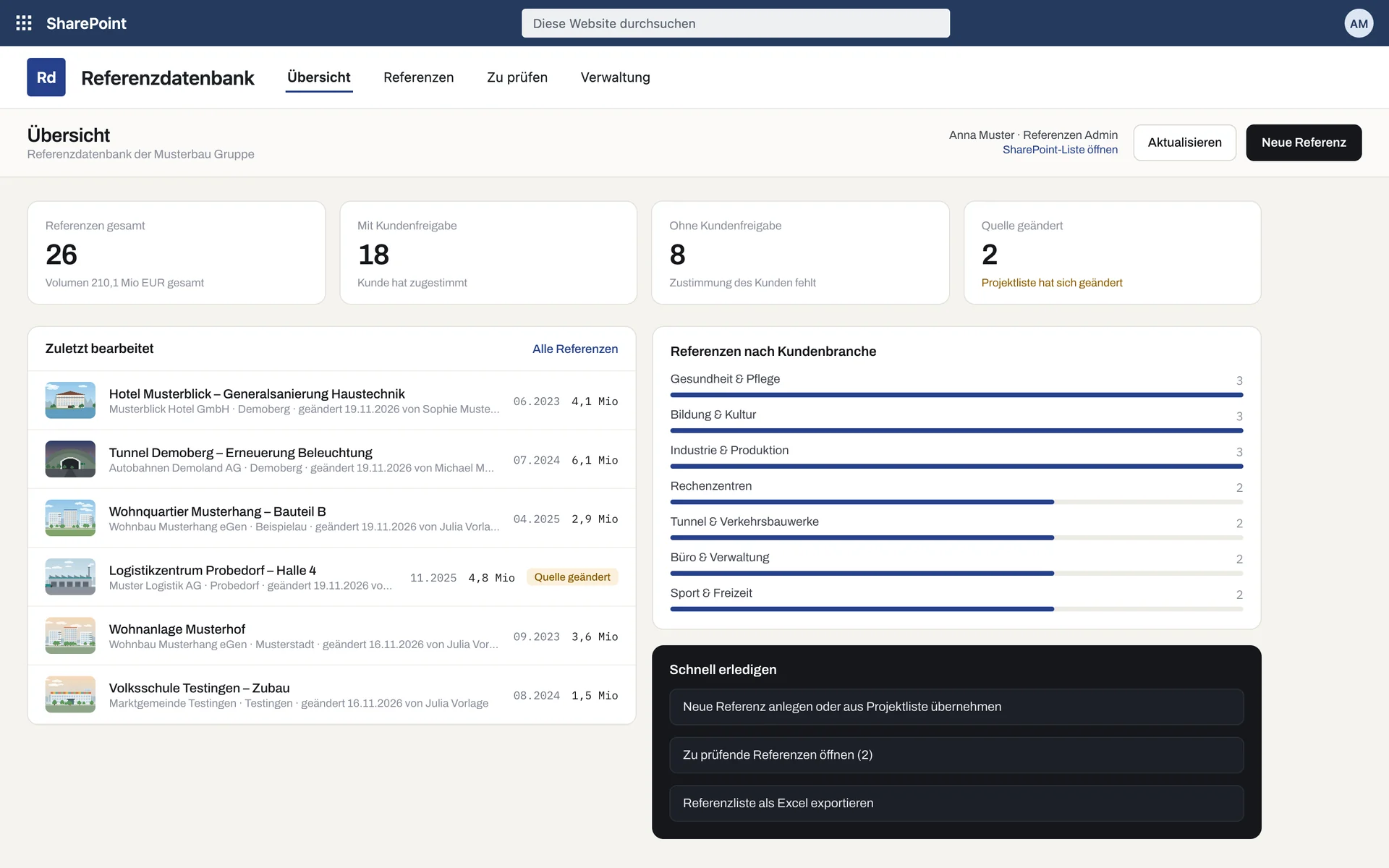
The overview: number of references, status of client approvals and deviations from the project list.
Finding references for tenders
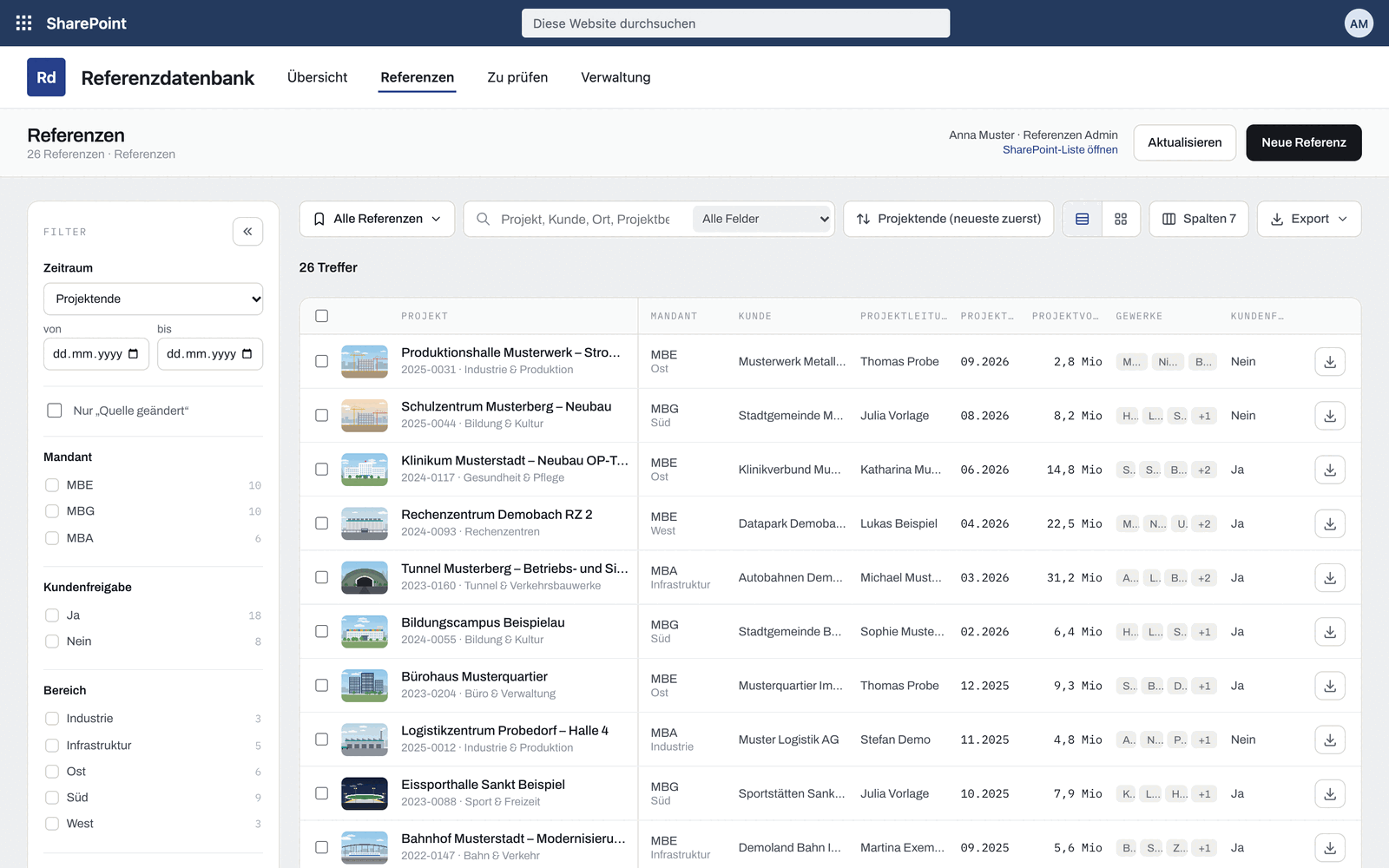
For the proof of references in a tender, what counts is finding the right projects quickly. The list can be filtered by company, client sector, trades, period and client approval, and searched in full text. Frequent queries are saved as views; columns can be shown, hidden and reordered. The results go out as an Excel list, for example as the basis for the reference list in a bid.
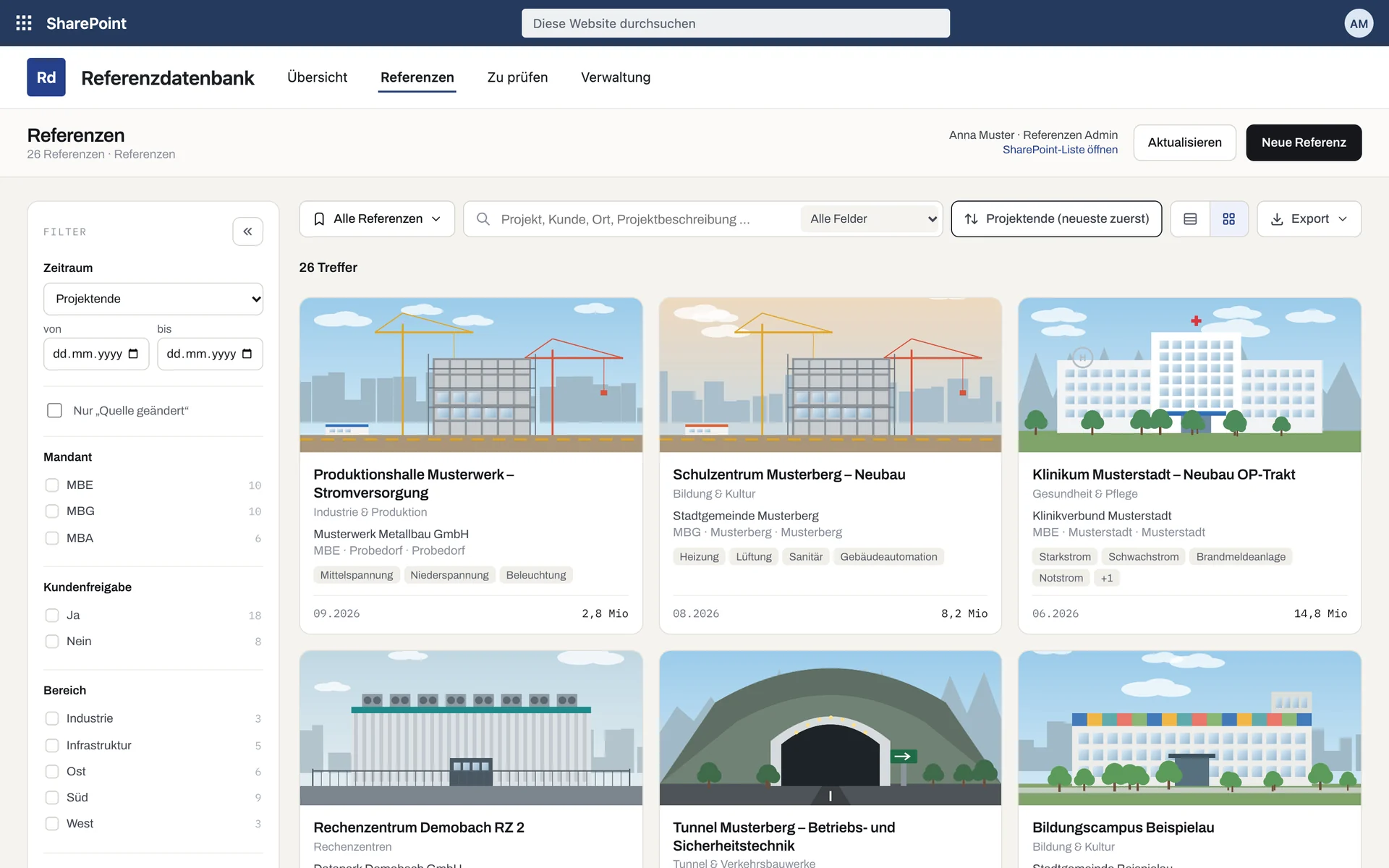
The same results as a gallery, for everyone who recognises projects by the picture, not the number.
Taken from the project list, not retyped
Most references start as a project. When creating a reference, you therefore search by project number or title. Master data, classification and project image come from the existing project list. References without a project, for instance from legacy holdings, can still be created by hand.
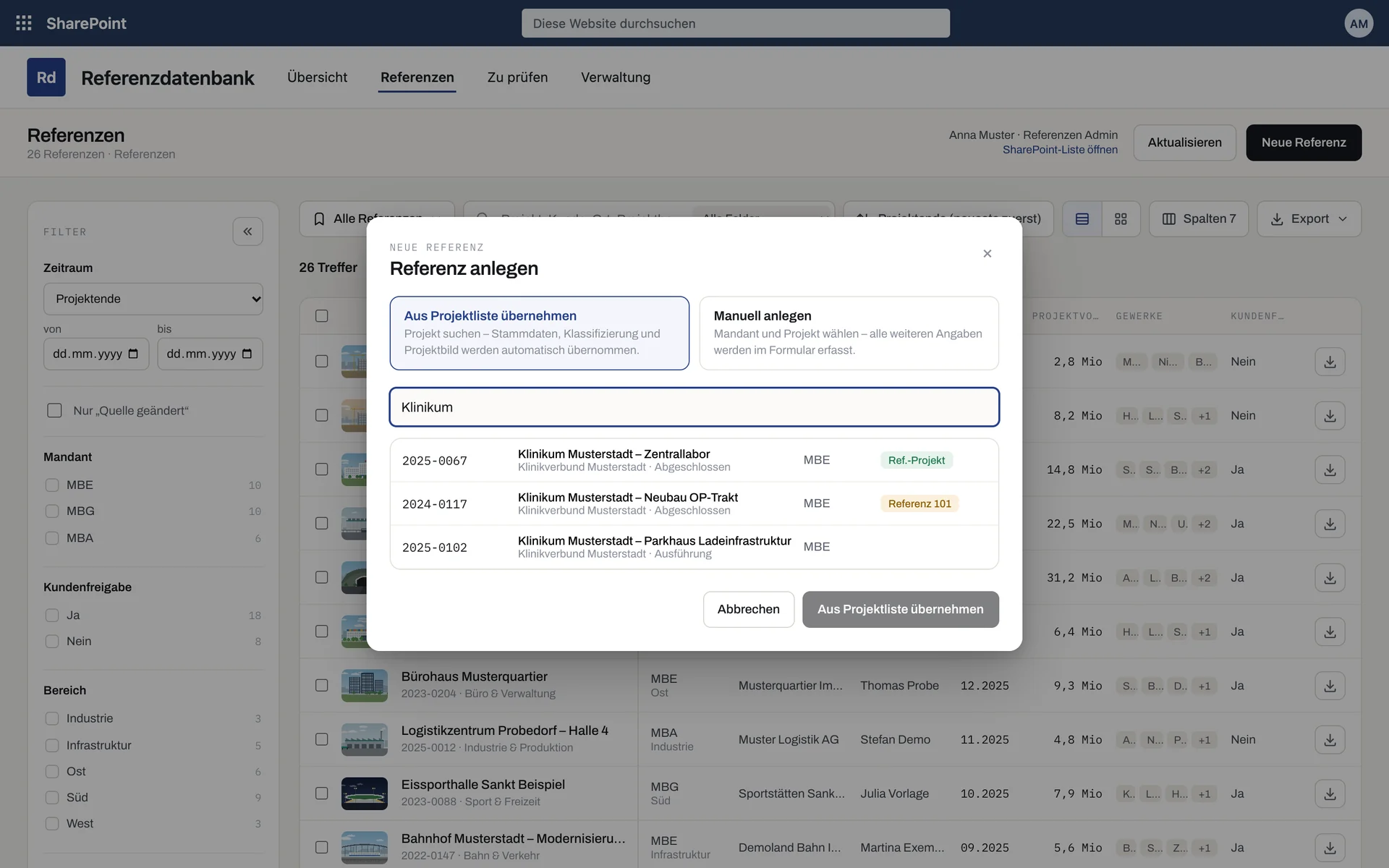
The search also shows whether a reference already exists for a project.
The reference remains a record of its own. The texts for a reference sheet differ from the figures in controlling, and a published reference should not change silently. If something changes in the project list later, the reference shows the difference field by field. What is taken over is decided by the editors.
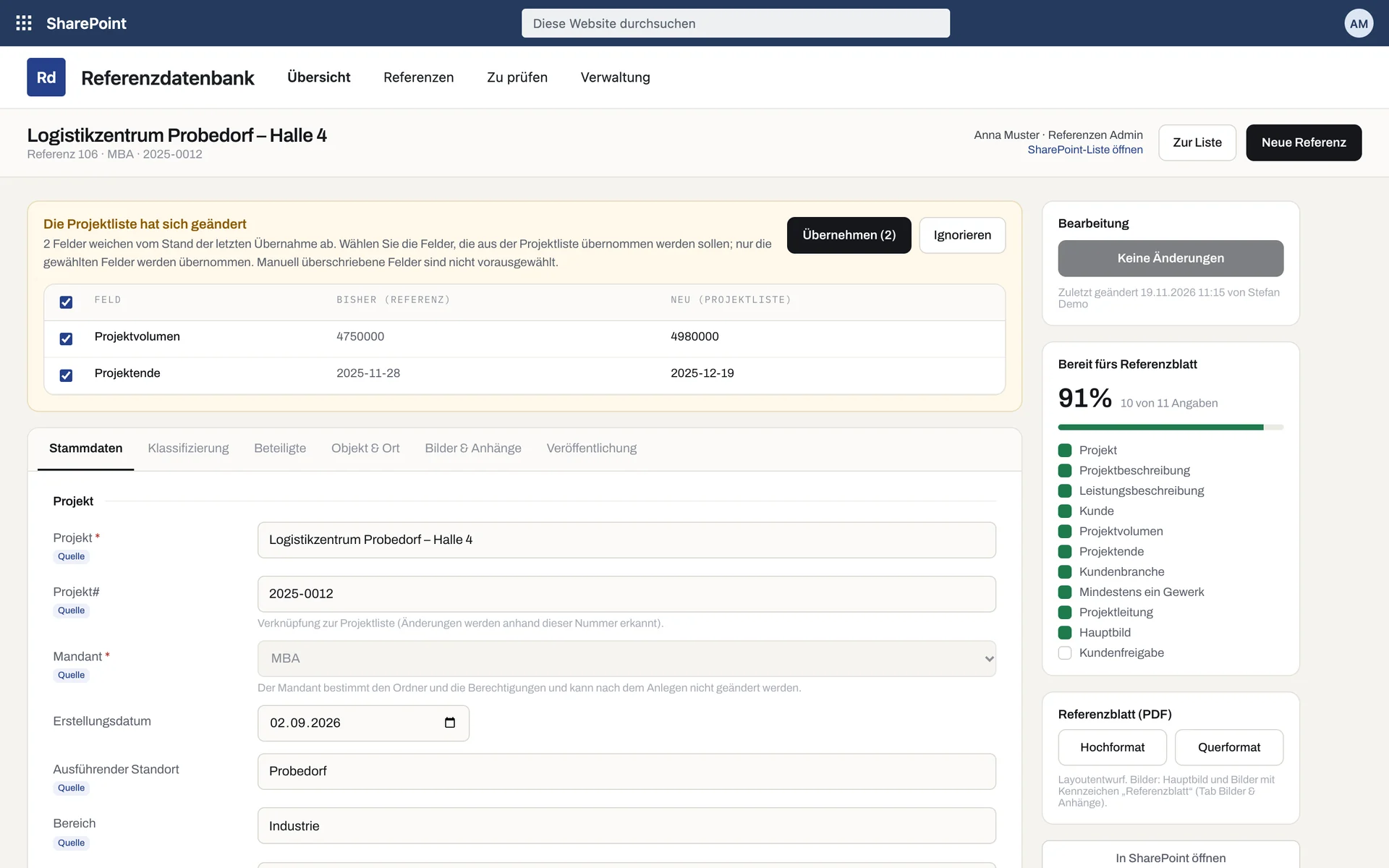
Deviations from the project list are displayed and never applied automatically.
Images, usage rights and client approval
Every reference has images and attachments. For each image the database records what it may be used for (internet, intranet, print), who holds the copyright and whether it goes on the reference sheet. An indicator at the side shows which details are still missing for a complete reference sheet.
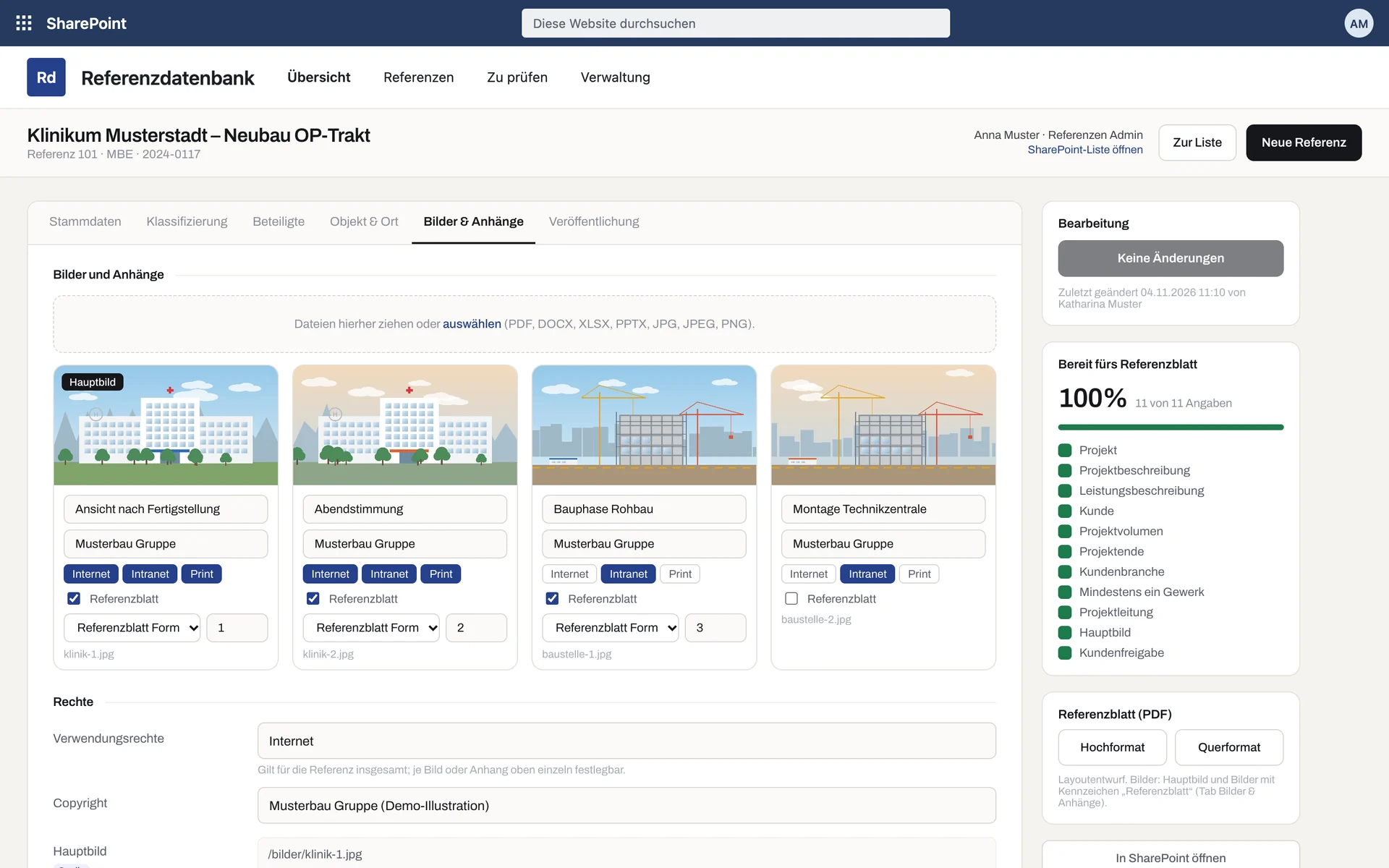
Usage rights apply per image, not to the project as a whole.
Client approval is a block of its own: has the client agreed, when, and where is the signed document? The same tab defines the channels in which the reference may appear, such as the intranet, the group website or a company website.
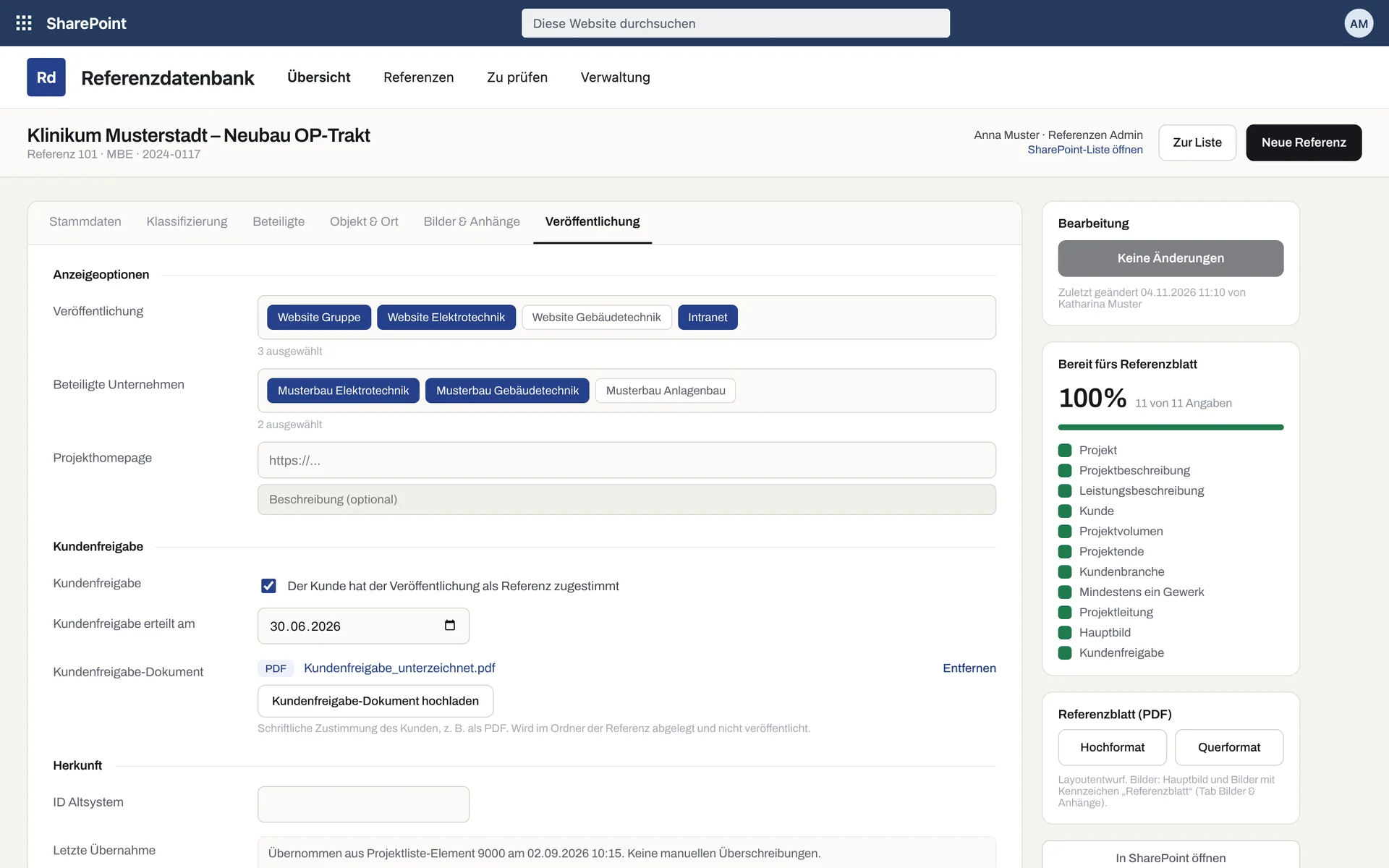
Channels and client approval in one place. The signed document stays internal.
Reference sheet as PDF, not a Word template
For the bid, the reference sheet is what counts in the end. The application generates it in the browser as a PDF, in portrait or landscape, for one reference or for a whole selection. Logo, colours, slogan and the fields on the sheet can be set per company. The sheets of each company look the way they always have and still come from the same data.
Several companies, one reference database
In a group, each company maintains its own references, and everyone searches across all of them. Each company has its own area with its own rights: editors work on the references of their company, key users manage the editors, everyone else reads. Mandatory and hidden fields can be set per company. New companies, logos and columns are set up by the administrators in the application.
Technology in brief
- Interface: an SPFx web part on a SharePoint page.
- Data: SharePoint list and document library in your own tenant.
- Transfer from the project list: an Azure Function reads the project data and detects deviations.
- PDF and Excel: created in the browser, without an additional server.
- Legacy data: references from the legacy system were imported by script.
What remains open
Publishing to websites is prepared, but it is project work per channel: the database knows which reference with client approval may appear in which channel and which images are cleared for it. How a website collects that selection depends on its system.
Experience shows three things need adapting: fields and choice values, the connection to your own project source and the layout of the reference sheets. The solution is not a downloadable template for a reference list. It replaces the template with maintained data.
The reference database is an extension to Smarter Project Portal and builds on its project list. If you manage many site photos, our article on EXIF data in SharePoint image libraries is a useful complement.
Still keeping your reference list in Word or Excel? Show us one of your reference sheets. We will assess what can be carried over.
All parts of the series:
- Provisioning SharePoint project workspaces automatically: where templates end
- Folder structure for projects in SharePoint: template, not copy
- Teams template with Planner: project teams with standard tasks
- SharePoint permission concept for projects: roles, not names
- Project data from ERP and SAP in SharePoint: four patterns
- SharePoint OCR: making scanned PDFs searchable
- Drawing management in SharePoint: drawing code, index and versions
- Project phases in SharePoint: from quotation to project closure
- Managing SharePoint permissions in Excel: the permission matrix of a project workspace
- Reference list and reference sheet for construction projects: maintaining reference projects in SharePoint (this article)
- Digital safety induction on the construction site: site-specific, with a signed record