A drawing is revised twenty times, and every revision is kept as a version. For a 40 MB file, that is 800 MB for a single drawing. In project filing structures with thousands of drawings and minutes, version history quickly becomes the largest item in SharePoint storage, often larger than the current files themselves. The storage metrics of a site show it in black and white.
For a plant engineering company with a very large number of project workspaces, we automated the deletion of old versions. This post shows what SharePoint provides out of the box, why we still built our own solution and how it works at its core, with code.
What SharePoint provides
Version history limits. Per organisation, site or library you can define how many major versions are kept or after how many days they expire. With the “Automatic” setting, SharePoint thins out older versions itself. Important: these limits apply to new versions. Existing history only shrinks when a file is edited again. Files in completed projects are never edited again, so their history stays.
Delete jobs for existing versions. For existing versions there are batch jobs that clean up a site or library in the background (New-SPOSiteFileVersionBatchDeleteJob, New-PnPSiteFileVersionBatchDeleteJob and the per-library variants). They run asynchronously, are started per site by an administrator, and according to Microsoft the deleted versions cannot be restored from the recycle bin.
Storage metrics. Under Site settings → Storage metrics, SharePoint shows per folder how much space versions take up. A good starting point for the question of where it pays off.
Why our own automation
For individual sites, the batch job is enough. With a very large number of project workspaces, three things are missing:
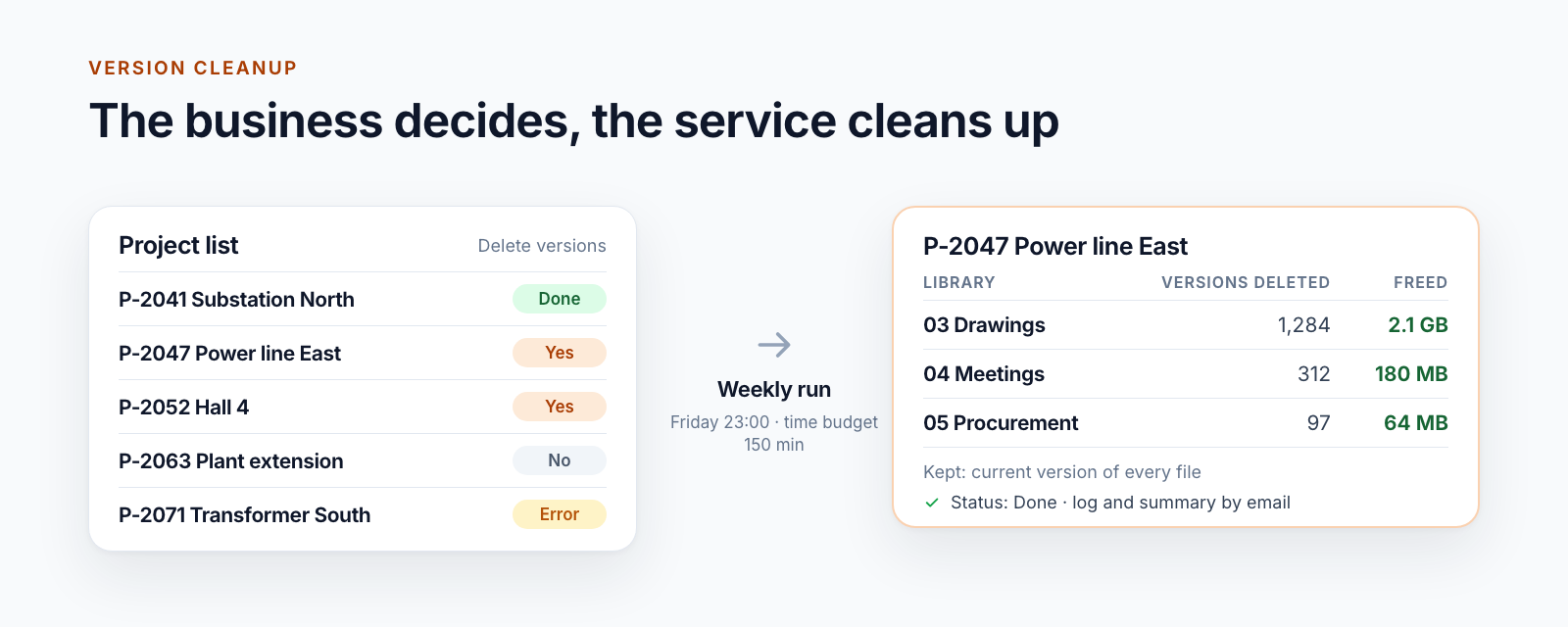
- The business decides, not IT. The project management knows which projects can be cleaned up. It should decide where it works anyway: in the project list.
- A service without a user account. The cleanup runs at night as an Azure Function with a certificate. In our tests, the batch delete job rejected such an app-only account.
Remove-PnPFileVersionper file, on the other hand, works app-only. - Traceability. For each project, it should be recorded when what was deleted and how much space was freed, with a summary in the mailbox at the end.
Then there is the lifecycle: version cleanup is the first step before a completed project is archived. What goes into the archive should not carry twenty revisions of every drawing.
Driven by the project list
The project list gets two fields: a choice whether the versions should be deleted, and a multi-line log.
# Create control field and log in the project list (PnP PowerShell)
Add-PnPField -List "Projektliste" -InternalName "DeleteVersions" -DisplayName "Delete versions" `
    -Type Choice -Choices "No", "Yes", "Erledigt", "Fehler" -AddToDefaultView
Set-PnPField -List "Projektliste" -Identity "DeleteVersions" -Values @{ DefaultValue = "No"; Indexed = $true }

Add-PnPField -List "Projektliste" -InternalName "DeleteVersionsLog" -DisplayName "Delete versions – log" `
    -Type Note
The project management sets “Yes”. The service processes only these entries and then sets “Erledigt” (done) or “Fehler” (error). If a run is interrupted by the time budget, “Yes” stays, and the next run continues.
Finding candidates, even in large lists
A project list with many thousands of entries is above the list view threshold of 5,000. A query on the control field then only works with an index, and SharePoint refuses to add an index to such lists afterwards. That is why there is a fallback: load page by page and filter in the script.
$caml = "<View><ViewFields><FieldRef Name='Title'/><FieldRef Name='URL'/><FieldRef Name='DeleteVersions'/></ViewFields>" +
        "<Query><Where><Eq><FieldRef Name='DeleteVersions'/><Value Type='Choice'>Yes</Value></Eq></Where></Query></View>"
try {
    $candidates = @(Get-PnPListItem -List "Projektliste" -Query $caml -Connection $root -ErrorAction Stop)
}
catch {
    # Without an index the query fails at the list view threshold: load page by page, filter in the script
    $candidates = @(Get-PnPListItem -List "Projektliste" -Fields "Title", "URL", "DeleteVersions" -PageSize 1000 -Connection $root |
        Where-Object { [string]$_["DeleteVersions"] -eq "Yes" })
}
The core: deleting versions per file
For each project workspace, the service goes through the document libraries, excluding system libraries such as Site Assets or Form Templates, and there through the files. Files with only one version are skipped without any further query; that keeps follow-up runs cheap.
function Remove-OldFileVersions {
    param($Connection, $Library, [int]$KeepHistorical = 0, [datetime]$Deadline, [switch]$DryRun)

    $deleted = 0; $bytes = [int64]0
    $items = Get-PnPListItem -List $Library -Fields "FileRef", "FSObjType", "ContentVersion" -PageSize 500 -Connection $Connection

    foreach ($item in $items) {
        if ((Get-Date) -ge $Deadline) { return @{ Deleted = $deleted; Bytes = $bytes; TimedOut = $true } }
        if ([string]$item["FSObjType"] -ne "0") { continue }          # skip folders
        if ([int]$item["ContentVersion"] -le 1) { continue }         # no old versions

        $fileRef  = [string]$item["FileRef"]
        $versions = @(Get-PnPFileVersion -Url $fileRef -Connection $Connection)   # oldest to newest
        if ($versions.Count -le $KeepHistorical) { continue }

        $toDelete = $versions | Select-Object -First ($versions.Count - $KeepHistorical)
        $bytes   += ($toDelete | Measure-Object -Property Size -Sum).Sum

        if (-not $DryRun) {
            if ($KeepHistorical -eq 0) {
                Remove-PnPFileVersion -Url $fileRef -All -Force -Connection $Connection
            } else {
                $toDelete | ForEach-Object { Remove-PnPFileVersion -Url $fileRef -Identity $_.Id -Force -Connection $Connection }
            }
        }
        $deleted += $toDelete.Count
    }
    return @{ Deleted = $deleted; Bytes = $bytes; TimedOut = $false }
}
The current version of a file does not appear in Get-PnPFileVersion; it is always kept. KeepHistorical defines how many older revisions stay as well; for the plant engineering company it is none.
A time budget instead of being cut off
An Azure Function has a fixed time limit. Instead of being cut off in the middle of a file, the service works with a budget of its own, 150 minutes by default with a function limit of three hours. Once it is reached, it writes the log, leaves the status on “Yes” and stops cleanly. Because files already cleaned up have only one version left, the next run costs almost nothing for them.
{
  "bindings": [
    { "name": "Timer", "type": "timerTrigger", "direction": "in", "schedule": "0 0 23 * * 5" }
  ]
}
The weekly run starts on Fridays at 23:00 UTC, a second run for group sites early on Saturday, each with its own time budget.
Log, status and summary
For each project, a log entry is created with time, libraries, deleted versions and freed storage. It is written together with the status in one step:
$log = @"
=== $((Get-Date).ToUniversalTime().ToString('yyyy-MM-dd HH:mm:ss'))Z - Weekly run ===
Keep: current version + $KeepHistorical old version(s) per file
  OK     03 Drawings - versions deleted: 1284, freed: 2.1 GB
Status: Erledigt
"@
$previous = [string](Get-PnPListItem -List "Projektliste" -Id $itemId -Connection $root)["DeleteVersionsLog"]
Set-PnPListItem -List "Projektliste" -Identity $itemId -Connection $root -Values @{
    DeleteVersions    = $status            # "Erledigt", "Fehler" or unchanged "Yes"
    DeleteVersionsLog = ($log + "`n`n" + $previous).Trim()
} | Out-Null
After every run, a summary goes to the business department: project, freed storage, status. If the run fails, an error mail is sent instead.
A dry run before the real thing
Deleted versions are gone. That is why, alongside the weekly run, there is a manual call over HTTP that processes individual entries of the project list and, with dryRun, only calculates what would be freed:
{
  "onlyListItemIds": [109],
  "runLabel": "Dry run project 109",
  "maxRunMinutes": 5,
  "dryRun": true,
  "skipLogWrite": true
}
For the question beforehand of where cleanup pays off, there is also a report script that writes the size of old versions per library to a CSV file.
Prevent rather than only clean up
Some libraries do not need versions at all: import libraries, into which a service files orders or daily reports as PDFs, are never edited. When new project workspaces are created, provisioning switches versioning off there. What is never created never has to be deleted.
What to settle beforehand
- Retention. If a retention policy or legal hold applies to the site, retention obligations take precedence. Clarify with compliance which projects may be cleaned up.
- How many revisions stay. Only the current one, or the last approved one as well? For drawings with index logic, the current file is often enough.
- Who decides. Project management, the business department or a fixed criterion such as “project phase archive”.
- When. At project closure as a step before archiving, or regularly for running projects.
How a project workspace moves through its phases from quotation to closure is described in the post Project phases in SharePoint. The next step, the verifiable archive in your own Azure, is handled by Smarter Archiving. Version cleanup is a building block of Smarter Project Portal.
- Smarter Archiving
- SharePoint Online
- PowerShell
- PnP PowerShell
- Azure Functions
- Versioning
- Storage