Update 2026: This post describes our signature solution as it was in 2021, using the Austrian mobile phone signature, which was replaced by ID Austria at the end of 2023. Today, a signature profile of the signature service determines where the signature appears. How we sign documents with a qualified signature today, individually, in sequence and as a batch, is described in the post Signing documents in SharePoint: single and batch signature.
We’ve already introduced our solution for a digital signature for SharePoint documents. In this article, we’ll show how to define the exact signing position. If you want signatures at specific spots in a PDF, our solution lets you set them precisely. A workflow creator can predefine positions for all participants. If no positions are predefined, the signer can choose the spot when it’s their turn to sign.
Assigning the signature position
Workflow creators can assign signature positions for each participant in advance. In the workflow view, select “Assign position” for a user. A document preview opens, and a click on the page sets the desired position for that user.
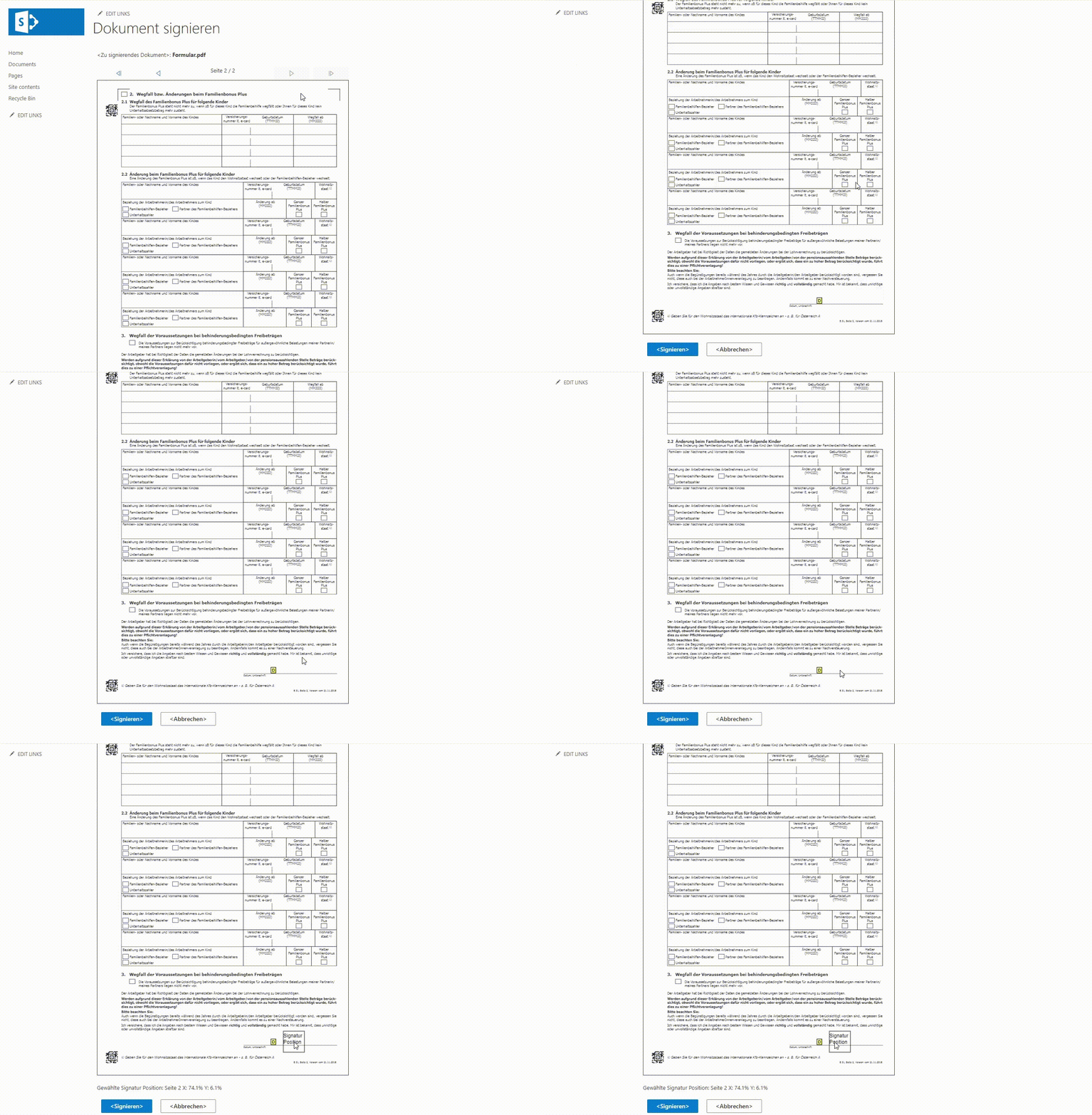
This way, the creator can set a position for every participant. Already assigned positions are displayed directly in the preview.
If the creator doesn’t specify positions, each participant can choose their own position when it’s their turn to sign.
Calculating the position
We render the document preview in an HTML canvas. We attach a click handler to the canvas to capture the click and compute the coordinates of the chosen position.
Capture coordinates by click
<canvas id="canvas" onClick="markPosition(event)"></canvas>function markPosition(event: any) {
const canvas = document.getElementById('canvas') as HTMLCanvasElement;
const rect = canvas.getBoundingClientRect();
const templateWidth = getTemplateWidth();
const templateHeight = getTemplateHeight();
const x0Percent = ((event.layerX - templateWidth / 2) / rect.width) * 100;
const y0Percent = ((rect.height - event.layerY - templateHeight / 2) / rect.height) * 100;
// height - value -> because 0/0 in PDF is the bottom-left corner
const x1Percent = x0Percent + (templateWidth / rect.width) * 100;
const y1Percent = y0Percent + (templateHeight / rect.height) * 100;
const newMarkedPosition: SigningPosition = {
pageNumber: pageNum,
x0: x0Percent,
y0: y0Percent,
x1: x1Percent,
y1: y1Percent,
};
renderPage(pageNum, newMarkedPosition); // Re-render with the new marked position
}Draw a marker on the canvas
function drawMarkAtPosition(markedPosition: SigningPosition, participantTitle?: string) {
  const canvas = document.getElementById('canvas') as HTMLCanvasElement;
  const ctx = canvas.getContext('2d')!;
  const markText: string = participantTitle ? `Signature ${participantTitle}` : 'X';

  const rect = canvas.getBoundingClientRect();
  const x = (markedPosition.x0 / 100) * rect.width;
  const y = rect.height - (markedPosition.y0 / 100) * rect.height;

  ctx.fillStyle = '#000000';
  ctx.font = '12px Arial';
  ctx.beginPath();
  ctx.strokeStyle = 'black';
  ctx.lineWidth = 1 as any;
  const templateWidth = getTemplateWidth();
  const templateHeight = getTemplateHeight();
  const y1 = rect.height - (markedPosition.y1 / 100) * rect.height;
  ctx.strokeRect(x, y1, templateWidth, templateHeight);

  // Write text into the canvas – one word per line
  const lines = markText.split(' ');
  for (let i = 0; i < lines.length; i++) {
    ctx.fillText(lines[i], x, y - templateHeight + (i + 1) * 15);
  }
}
A-Trust service with position control
For mobile-signature-based digital signing, we use the A-Trust service. With this API, we can pass the exact signature position.
Prepare signature with position (C#)
public PrepareSignResponse PrepareSignWithPosition(string filename, byte[] content, SigningPosition signingPosition)
{
    var client = new HandySignaturPdfClient();

    uint page = (uint)signingPosition.PageNumber;
    client.StartSignatureTemplateEx(
        ApiKey,
        content,
        filename,
        SuccessUrl,
        ErrorUrl,
        string.Empty,
        4633,
        "NoLocation",
        "NoReason",
        signingPosition.X0,
        signingPosition.Y0,
        signingPosition.X1,
        signingPosition.Y1,
        page,
        out string ticket,
        out string redirectUrl
    );
}
You need to provide the coordinates for the bottom-left and top-right corners. The bottom-left corner comes from the user’s click; the top-right corner is computed by adding the signature template size to the bottom-left corner. The API allows you to query the template size.
Get template size (C#)
public TemplateSize GetTemplateSize()
{
    TemplateSize templateSize = null;

    var client = new HandySignaturPdfClient();

    client.GetTemplate(ApiKey, 4633, out byte[] template);
    string xmlTemplate = Encoding.Default.GetString(template);

    XmlDocument doc = new XmlDocument();
    doc.LoadXml(xmlTemplate);
    var positionNodes = doc.GetElementsByTagName("Position");

    if (positionNodes != null && positionNodes.Count > 0)
    {
        var positionNode = positionNodes[0];
        templateSize = new TemplateSize()
        {
            Width = Convert.ToDouble(positionNode.Attributes["w"].Value),
            Height = Convert.ToDouble(positionNode.Attributes["h"].Value)
        };
    }

    return templateSize;
}
Interested in more details about our digital signature solution for SharePoint documents? Feel free to contact us.