For many organisations, SharePoint Online has long been the document management system, even if it was never called that. Versioning, metadata, permissions and search are in place and paid for. For project files and team documents, that is enough.
Controlled documents are a different matter: work instructions, procedures, policies, rulebooks. What counts there is which version applies today, who approved it and whether the people affected know it. This post shows how far the built-in tools take you and where they end.
What SharePoint comes with
A document library can do more than the default setting shows:
- Major and minor versions: Drafts run as 0.1, 0.2, 1.1. Only “Publish a major version” creates 1.0 or 2.0.
- Draft visibility: You define whether drafts are visible to all readers, only to editors or only to approvers.
- Content approval: Documents carry the status Draft, Pending, Approved or Rejected.
- Check-out: While a document is being edited, nobody sees half-finished interim states.
- Metadata and search: Document type, process or scope as columns, plus full-text search.
- Retention: Retention labels in Microsoft Purview can be used to define retention periods and deletion locks.
For a team with a manageable set of documents, this is a fully fledged system. Readers see the last published major version, while the editors work on the next draft. If your documents apply as soon as they are published, you need nothing beyond that.
The case that does not fit
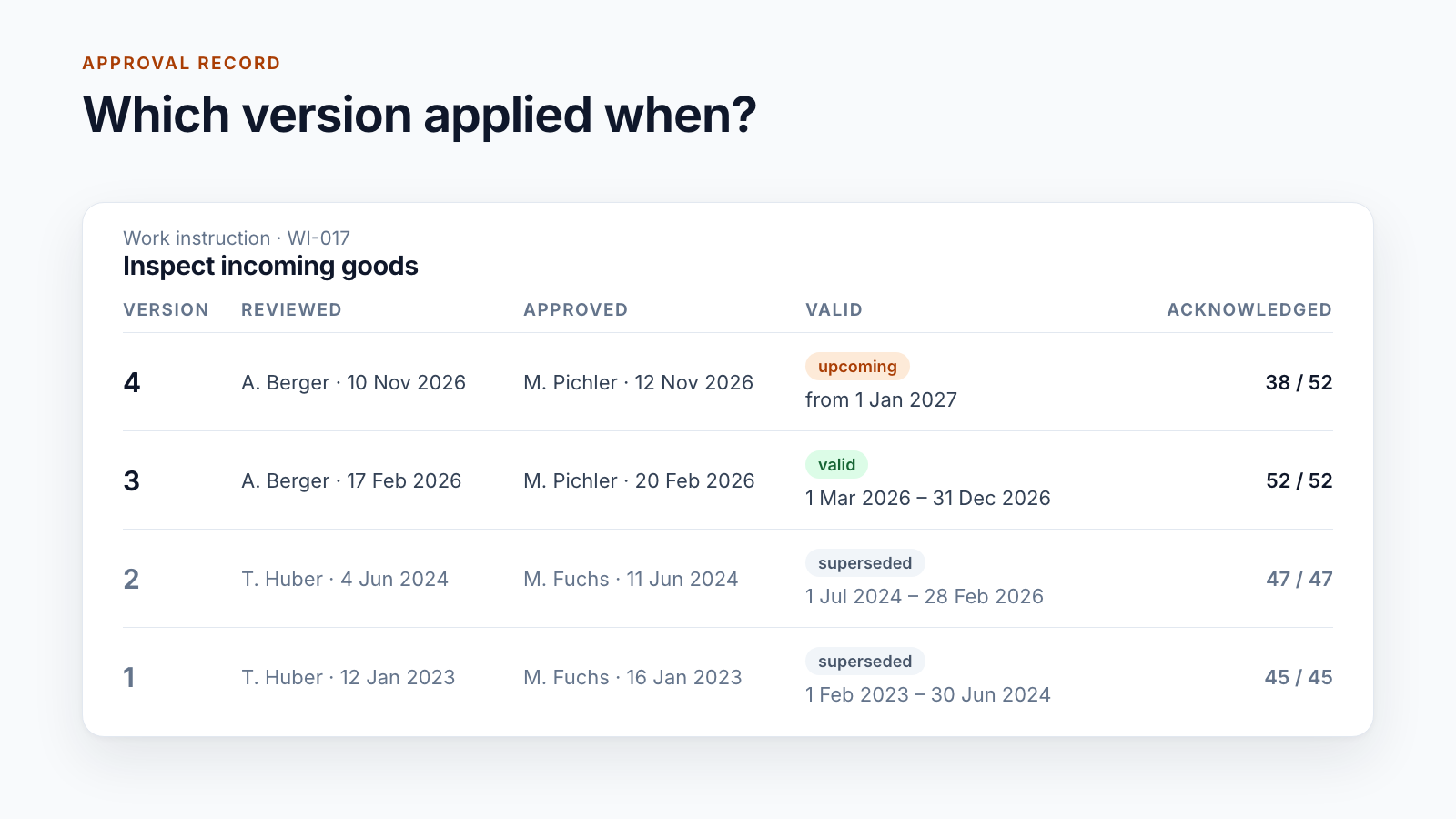
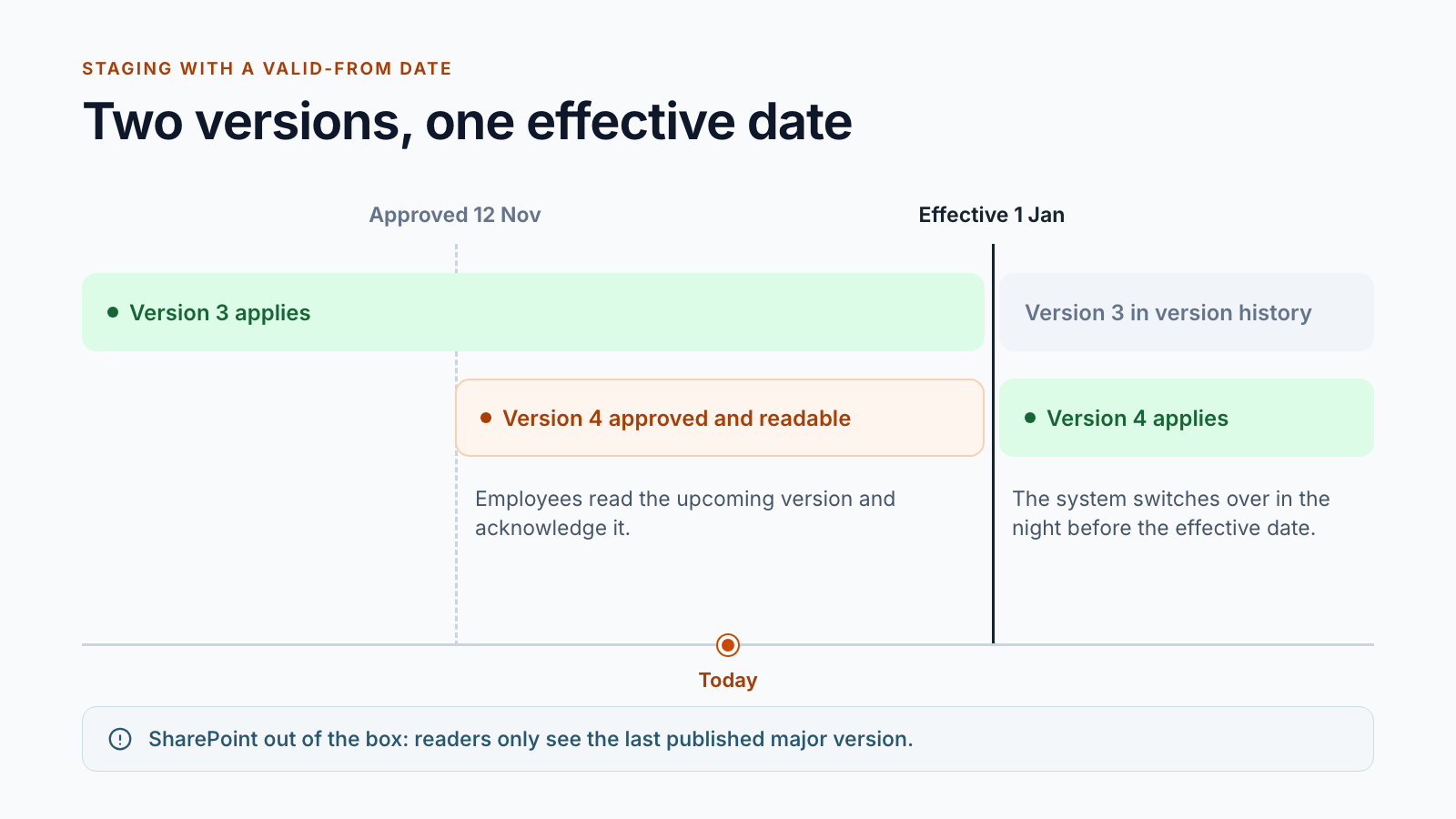
A work instruction is revised in November. The new version applies from the turn of the year because a machine is being changed over by then. Until the effective date, the current version has to remain valid. At the same time, everyone affected should read the new version, ask questions and confirm their acknowledgement.
For a file, SharePoint knows exactly one view for readers: the last published major version. A version that is approved but does not yet apply does not exist in this model. Each of the usual workarounds has a catch:
| Workaround | Consequence |
|---|---|
| Publish the new version early and note in the text that it only applies later | Anyone who looks it up today reads the future rule. The valid version is now only in the version history. |
| Publish only on the effective date | No lead time. Acknowledgements begin when the rule already applies. |
| Store a second file “WI-017 new” next to it | Two files, two links, two version histories. Search finds both, and on the effective date someone has to rearrange things by hand. |
| Make drafts visible to all readers | Readers then see every draft, not only the approved one. What applies is no longer unambiguous. |
Scheduled publishing, which SharePoint offers for pages, does not help here either: until the scheduled date, the new version remains invisible to readers. What is needed is the opposite.
Three more places where things get tight
Approval with roles. Approval in a library knows one stage and people with the right to approve. In practice, who reviews and who approves depends on the organisational unit. Often there are several stages; sometimes all reviewers have to agree, sometimes one person is enough. Some of this can be built with Power Automate. But the effort rises quickly as soon as deputies, deadlines and locks during approval are added.
Acknowledgement. SharePoint shows who has opened a file. That is not evidence that a specific person has confirmed a specific version.
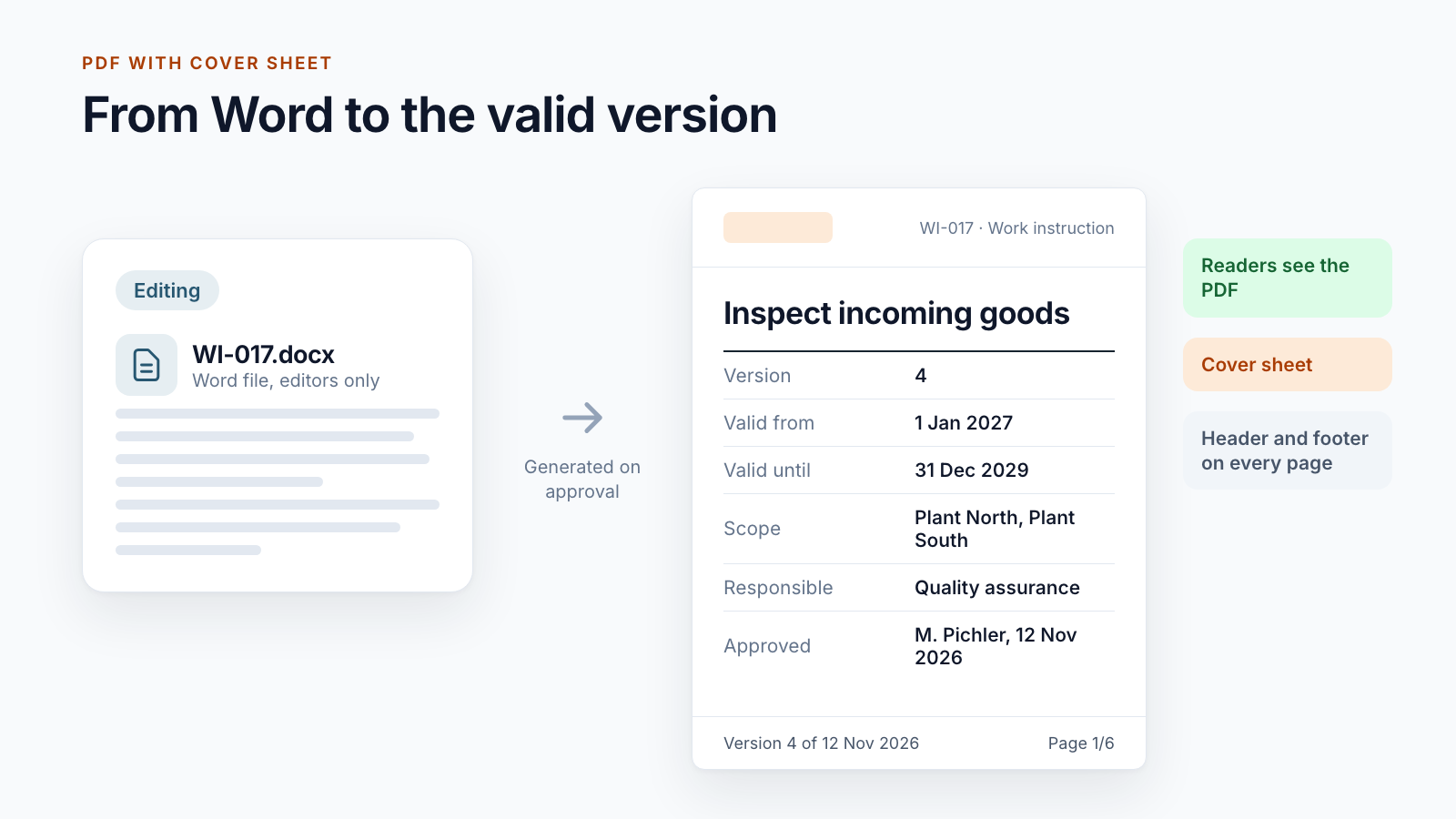
Reader version. Readers should not be able to edit a Word document; they should see a fixed version with the version and approval date stated on every page. Out of the box, converting to PDF remains manual work.
Each of these points has its own post in this series: the approval workflow, the read confirmation and the path from Word to the valid PDF.
When the built-in tools are enough
An honest rule of thumb:
- Documents apply as soon as they are published.
- One person or a small group approves.
- The readership is manageable, and changes are discussed in the team.
- An auditor asks for the current version, not for evidence per employee.
If that is the case, set up a library with major and minor versions and content approval and save yourself any add-on product.
As soon as a valid-from date, several approval stages or documented acknowledgement are required, a different structure is worthwhile.
The different structure: stations instead of version numbers
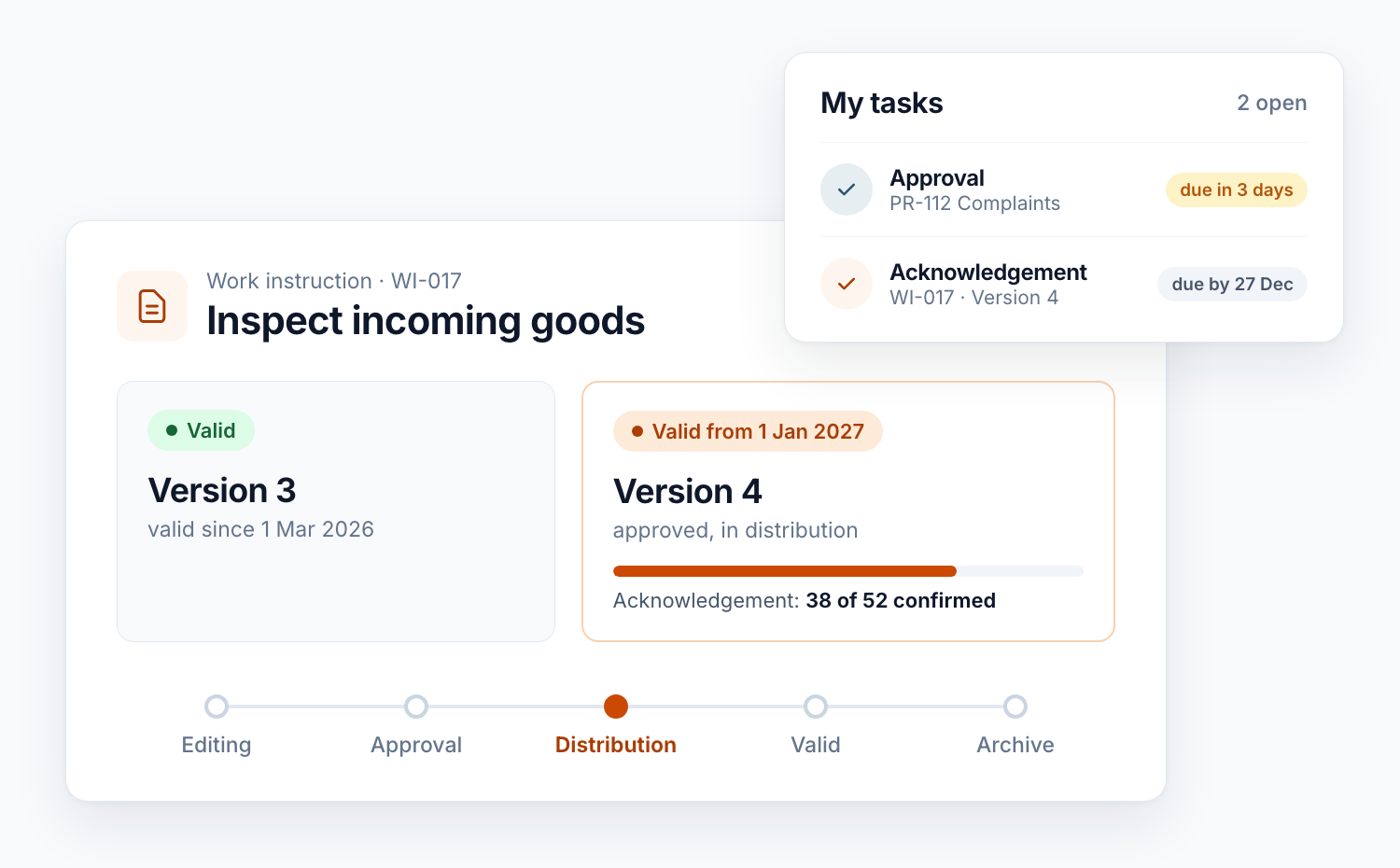
In our projects, we separate the states of a document not by version numbers but by libraries:
- Editing: Word file, drafts, feedback. Visible to the editors.
- Distribution: approved version that does not yet apply. Readable by everyone affected.
- Valid documents: exactly one version per document, read-only.
- Archive: expired and withdrawn documents.
A continuous document ID links the copies. Where a document sits determines who sees it and what may happen to it. On the effective date, the version moves during the night from distribution to the valid documents. The previous version is retained in the version history.
This principle is behind Smarter DMS. It is in use at customers, each with its own approval workflow.
Are you wondering whether SharePoint is enough for your controlled documents? Show us your workflow. You will receive an assessment of what works with the built-in tools and where a DMS core makes sense.
All parts of the series:
- SharePoint as a DMS: where major and minor versions end (this article)
- Valid from: distributing documents before the effective date
- SharePoint document approval workflow: five real-world examples
- Read confirmation in SharePoint: proving acknowledgement
- ISO 9001 document control with SharePoint
- Building an integrated management system in Microsoft 365
- Controlled digital work instructions: from Word to the valid PDF
- Is SharePoint audit-proof? What a DMS must prove
- Smarter DMS
- Document control
- SharePoint Online
- Versioning
- Document management