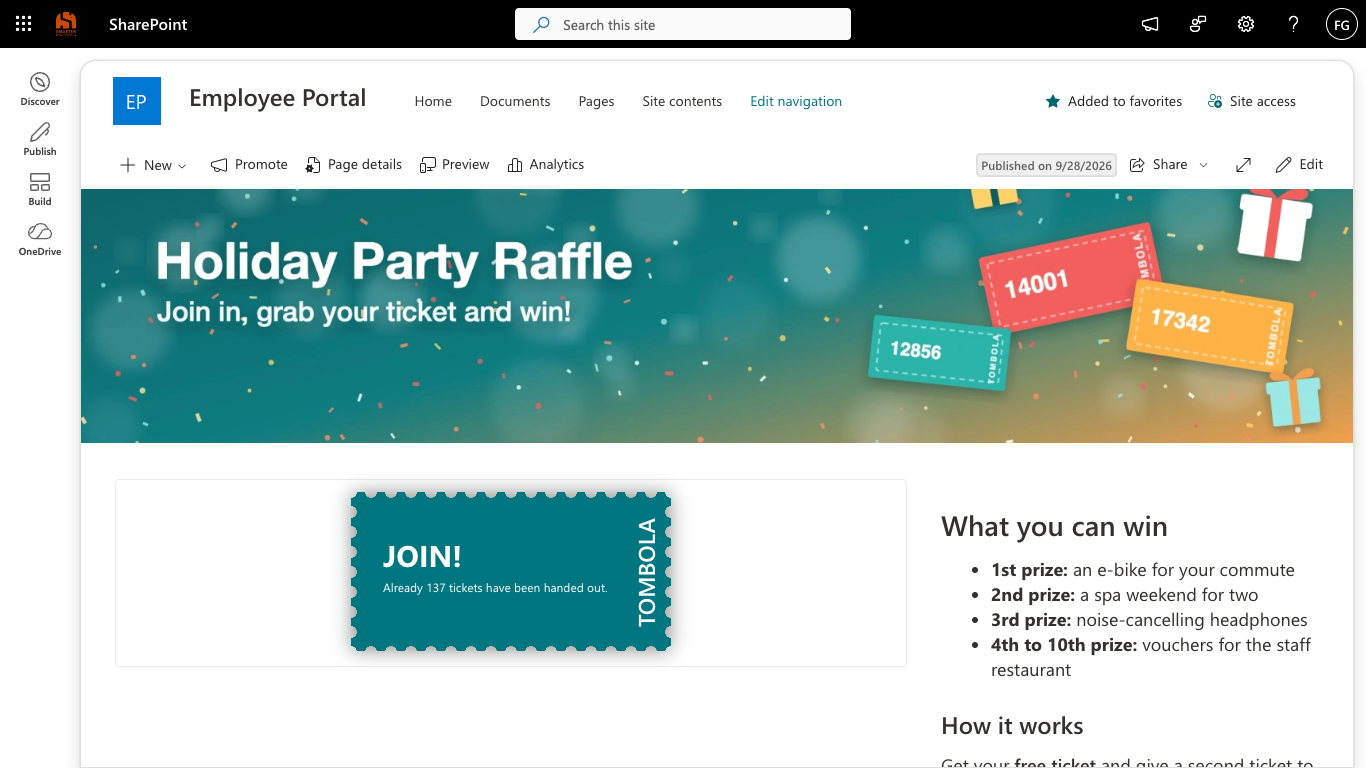
With version 1.2, Smarter Tombola becomes easier to set up and easier to manage. An assistant guides you through the setup, all settings live right in the raffle, emails are sent via Microsoft 365, and the prize draw considers every ticket.
Here is what is new – and what admins of existing installations should do after the update.
Ready in a few minutes: the setup assistant
When you add the web part to a page, you start the setup assistant. It takes you to a ready-to-use raffle in five steps:
- Mode: how tickets are handed out (see below).
- People: tombola admins and participants, pre-filled with the site’s owner and member groups.
- Appearance: the ticket colour – from your site theme or a custom colour, with a warning when the contrast is too low.
- Emails: a test email for the Mail.Send permission and, optionally, a shared mailbox.
- Finish: a summary of all settings.
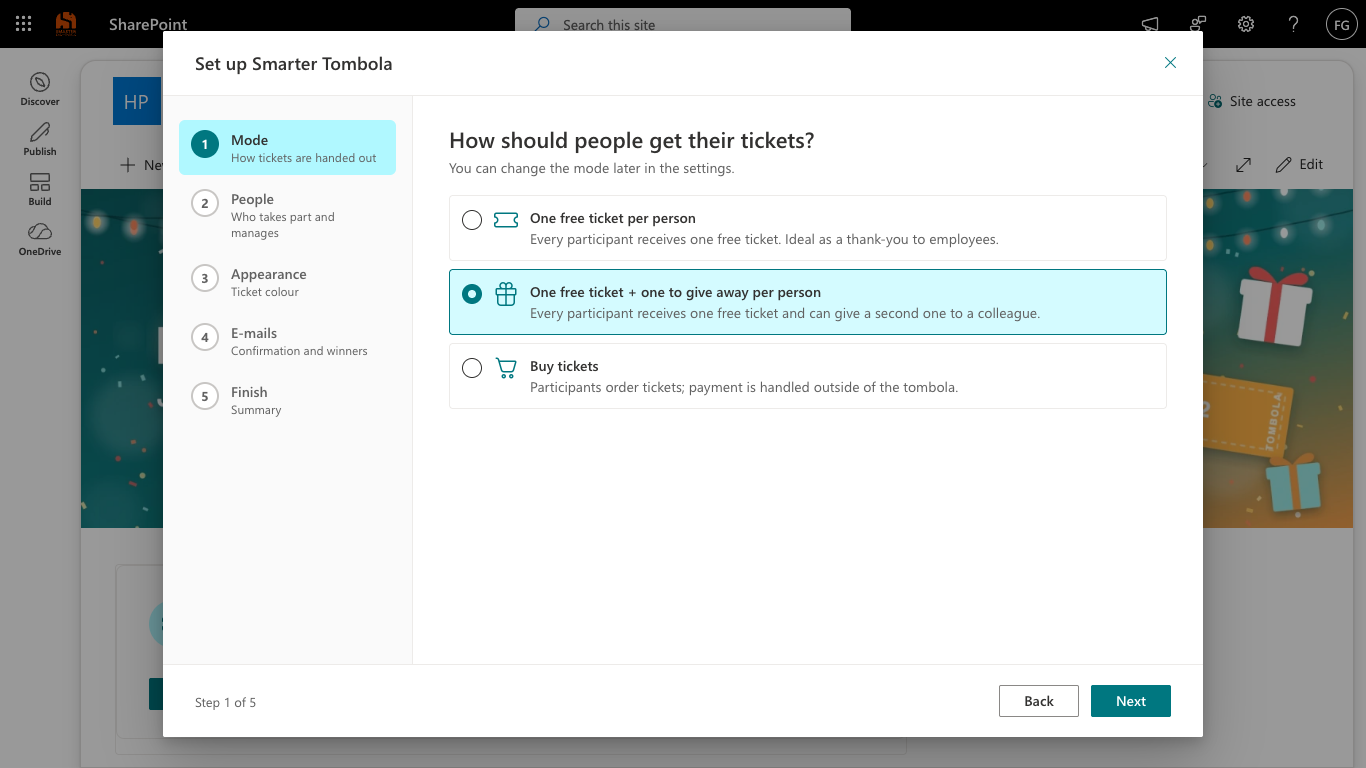
The assistant only creates lists and permissions when you confirm the summary. Until then, nothing on the site is changed.
Three modes
- One free ticket per person – for example as a thank-you to your staff.
- One free ticket plus one to give away: participants choose a colleague and write a personal message. The ticket is delivered by email.
- Order tickets: payment is handled outside the raffle. Depending on the country, selling tickets may count as gambling – the app points this out as well.
Settings right in the raffle
Until now, admins had to edit the page and configure the raffle in the property pane. From version 1.2, an admin bar above the raffle offers Tombola · Prize Draw · Lists · Settings. Only tombola admins see it.
The settings are split into tabs:
- General: the mode.
- Appearance: the ticket colour.
- Emails: test email, shared mailbox, the email texts as HTML with the placeholders
[tickets]and[ticket], and a summary of who sends which email. - Permissions: tombola admins and participants.
- Lists: links to the lists and “Repair setup”.
- Licence: free or Pro edition.
Changes apply as soon as you save; the page does not need to be edited. The web part’s property pane only points to the settings.
Admins also get a checklist: “… % ready to start” shows what is still open before the start – for example whether sending emails has been verified. Open items can be fixed directly from the list.
Emails via Microsoft 365
Microsoft has retired the SharePoint SendEmail API that version 1.1 used to send its emails. Version 1.2 therefore sends confirmation, gift and winner emails via Microsoft Graph with the delegated permission Mail.Send.
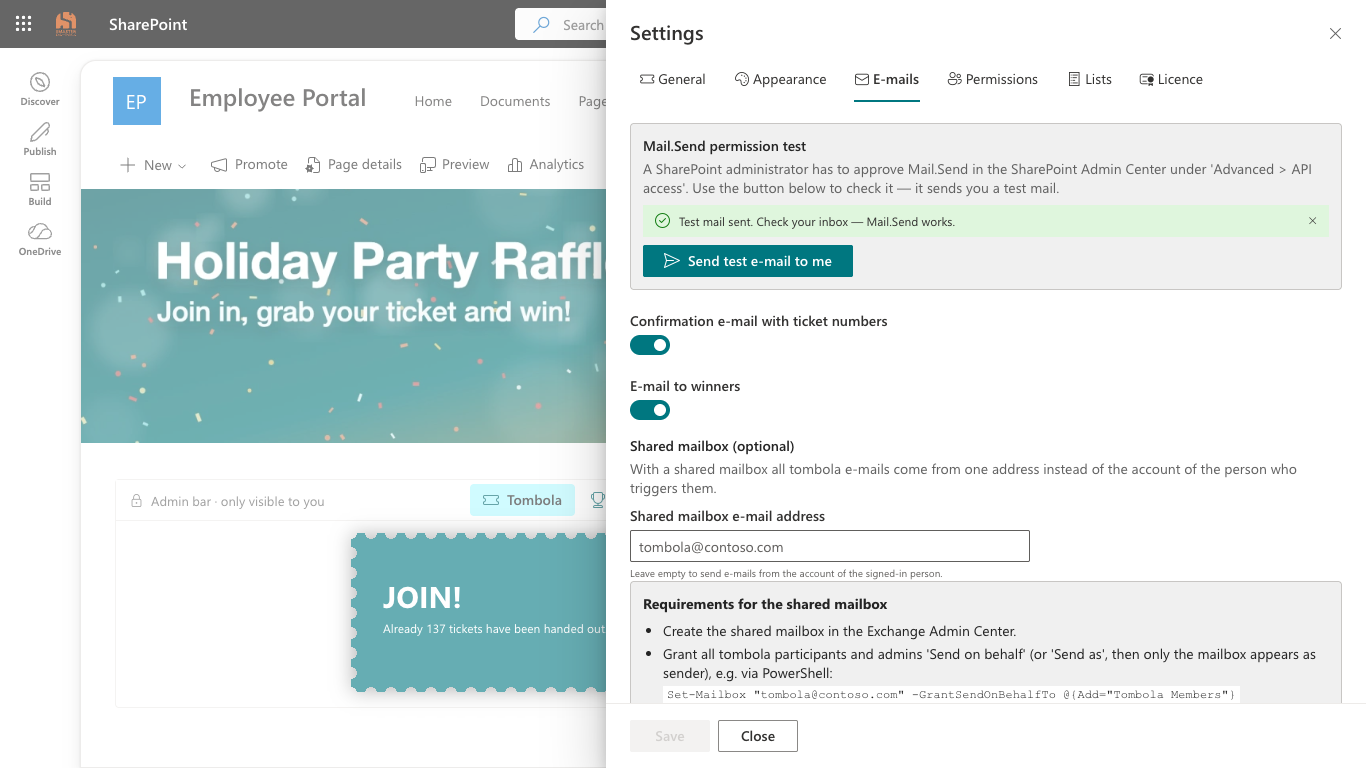
A SharePoint administrator approves Mail.Send once in the SharePoint admin center under Advanced › API access. The test email in the assistant or in the settings shows whether it worked.
If you like, all emails come from a shared mailbox. Participants and admins need the “Send on behalf” or “Send as” right for it. Without a shared mailbox – or if the right is missing – the email is sent from the signed-in user’s account.
A fair prize draw across all tickets
In version 1.1 the prize draw only considered the first 100 tickets. This is fixed: the draw now picks from all tickets.
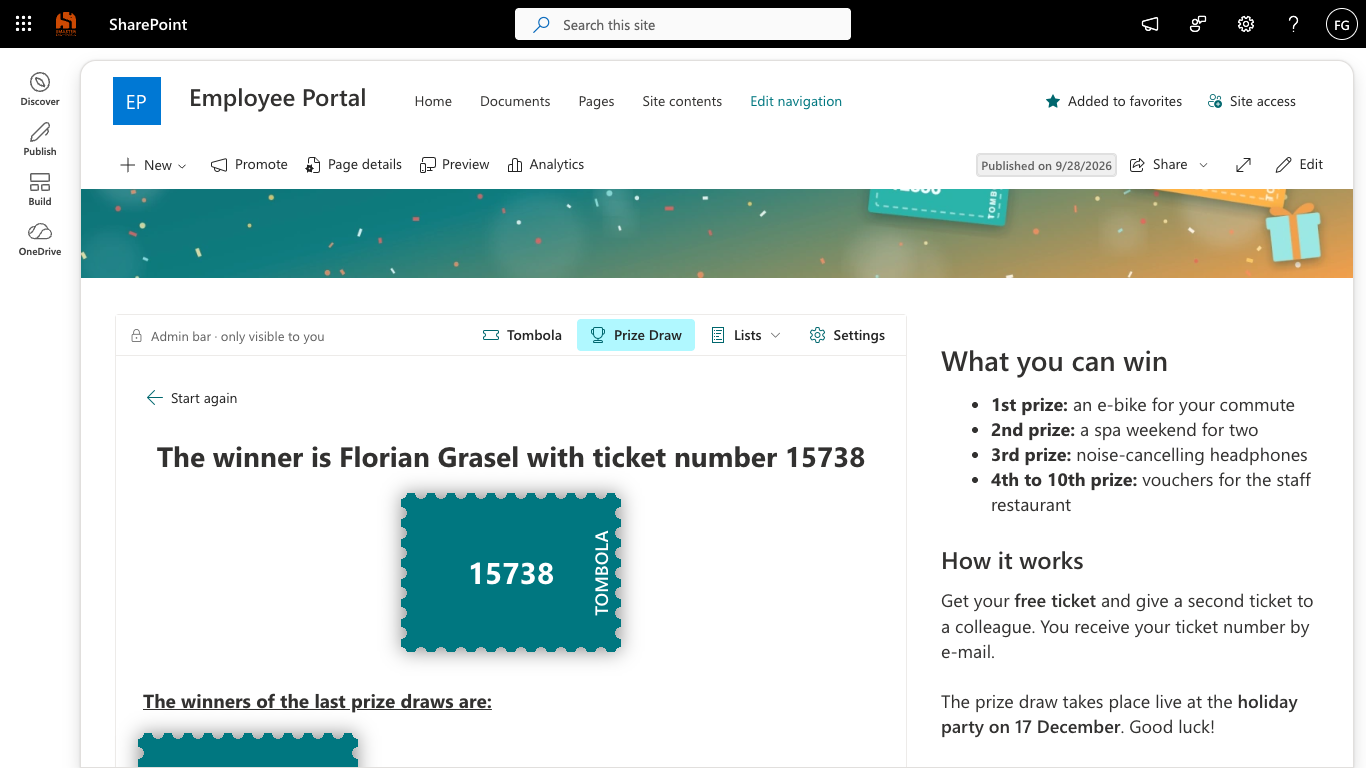
An animation runs through the ticket numbers and stops at the winning ticket, and the winner receives an email. A ticket that has already won is not drawn again, and a list shows the winners of earlier draws.
More privacy
Participants now only see their own tickets. On the lists they get the “Contribute” permission instead of “Edit”. All data is still stored in three hidden SharePoint lists on your site.
Now in French and Italian, too
The user interface is available in English, German and – new – French and Italian. The raffle appears in each person’s SharePoint language.
Free and Pro
- Free and unlimited: handing out, gifting and ordering tickets.
- Pro: the prize draw with animation and winner email, plus priority support. You buy the Pro edition as a subscription on Microsoft AppSource. The licence covers every site collection in your tenant.
Existing installations: three steps after the update
The update arrives through the app catalog. Tickets and lists are kept. Afterwards, admins should:
- Approve Mail.Send (SharePoint admin center › Advanced › API access). Without the approval the raffle sends no emails. With version 1.1, sending emails has already stopped working since Microsoft retired SendEmail.
- Open the page once as an admin. The previous settings – mode, colours and people – are taken over automatically.
- Save the permissions once (Settings › Permissions › Save). Participants then get “Contribute” instead of “Edit” and only see their own tickets.
Availability
Version 1.2 has been submitted to Microsoft for validation and will be available in the Microsoft Marketplace shortly. Until then the Marketplace installs the previous version; the update then follows through the app catalog.
Read more
- Smarter Tombola at a glance – modes, features and licensing.
- Getting started – from installation and the assistant to the prize draw, including the upgrade from version 1.1.
Questions about the update? Get in touch.
- Smarter Tombola
- SharePoint
- Update
- Employee Engagement
- Microsoft Graph
- Microsoft Marketplace