
Smarter O2S · User guide
Working with Smarter O2S
File emails and documents in SharePoint, complete metadata, and find and use documents directly in Outlook.
For Smarter O2S from Microsoft Marketplace · Updated September 23, 2026. This guide covers the web add-in, not the previous Windows/COM product. Screenshots show real test workflows; language and available actions can vary by Outlook client.
The print view hides the website navigation. You can also save the guide as a PDF from the print dialog.
Set up once, then connect normally
Your IT team handles installation and organisation approval for the first team pilot. Employees then connect with their Outlook business account.
- Open Smarter O2S under Apps in Outlook. Start with Outlook on the web and suitable test data.
- If approval is missing, an authorised administrator starts Approve O2S for my organisation directly in the O2S pane. They review the standard permissions together in Microsoft’s dialog.
- Allow the separate Microsoft window if Outlook asks. After approval, O2S automatically connects the same account and checks SharePoint and personal OneDrive. Microsoft may still require sign-in or MFA.
- Other users choose Connect Microsoft 365 account. Organisation approval covers them too; their own SharePoint access rights still apply.
Installation, permissions and trial setup
Good to know
The installation guide includes the Marketplace link, central and personal deployment, permission details, and the shared 14-day organisation trial.
An O2S window opened directly in a browser does not currently support the administrator dialog. Start it in Outlook. If access still fails after approval, check the account, SharePoint and provisioned OneDrive; do not repeatedly approve the same permissions.
File one or several emails
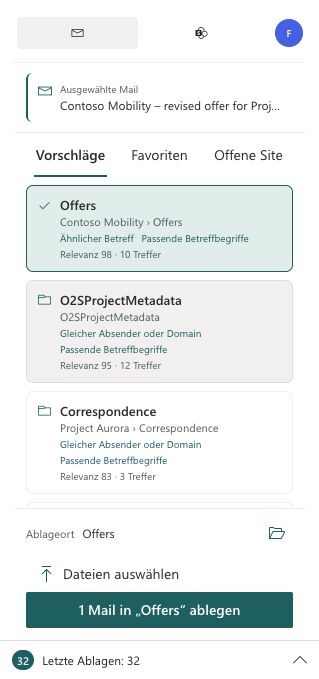
Mail saves selected Outlook messages as EML files. A location recommendation is a suggestion — check the destination yourself.
- Open or select the emails in Outlook. Check the selected count shown in O2S.
- Choose a suitable location under Suggestions. Alternatively, a site favorite loads that site under Open site; choose a library or folder there.
- Check the destination shown beside the filing action. Start filing only when the selection and destination are correct.
- Review any duplicate or filename conflict. Open the existing match or deliberately choose an available action such as File anyway, Replace or Cancel.
- Wait for the result. Complete any requested metadata and check the saved file through Active or Recent filings.
Good to know
Several emails are processed individually at the one destination you confirm. For two to ten emails, O2S shows only plausible shared suggestions. For larger selections or missing suggestions, choose the destination manually.
Already filed indicates previous filings; it cannot guarantee that every duplicate is detected. You can deliberately file an email again. Outlook actions such as categories or moving run only after a successful upload and according to your settings.
Choose files or drag them in
File selection and drag & drop prepare the same upload queue. Ready to upload means the transfer has not started yet.
- Open the destination folder in Work in SharePoint. Choose files is the first action in the sticky document toolbar; a narrow pane shows its upload icon. You do not need to select a document.
- Choose one or more files. Alternatively, drag files or supported Outlook emails into the open folder area — including empty space — or onto a navigation folder.
- Under Active, check the files and each item’s destination. In Mail, any suggested email context is initially unconfirmed: only Use context copies that email’s metadata. Upload independent files without confirming that context.
- Confirm Upload items to SharePoint. Resolve any conflicts and wait for the folder contents to refresh.
- Complete missing required metadata in the same workspace. Standard libraries with no relevant missing required fields do not open a form.
Good to know
Files in the SharePoint workspace and its navigation do not inherit context from an unrelated email open in Outlook. The document area in expanded Mail view is also isolated. A filed EML uses its own email metadata.
Closing a folder with X closes only the content view. Dropping onto a navigation folder reopens that destination and stays in SharePoint. Browsing another folder later does not change the destination of already prepared items.
Cancel in the file picker uploads nothing. If the account or destination changes during selection, choose the files again. Entire file-system or Outlook folders and creating new folders are not supported. Drag & drop availability depends on the Outlook client.
Complete metadata and reuse values
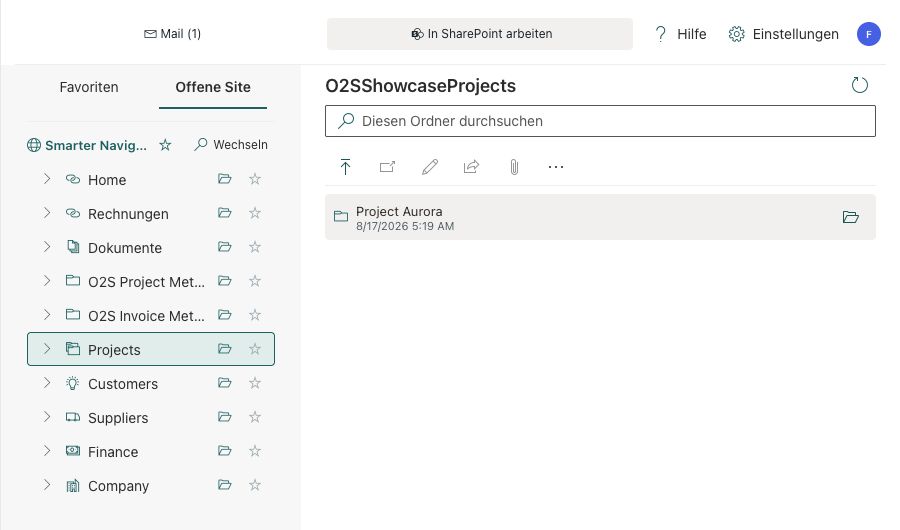
Metadata means the additional columns in your SharePoint library, such as project number or department. The file has already uploaded when the subsequent metadata step appears.
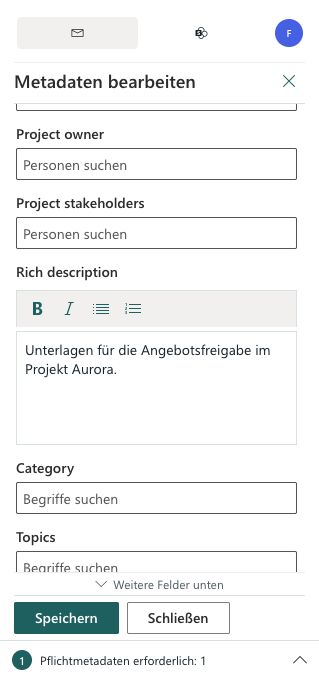
- If O2S automatically opens the form after upload, relevant required values are still missing. Choose the content type when several are available, then review the prefilled values.
- Complete required fields. Scroll inside the form; More fields below indicates hidden fields. Save and Close remain accessible.
- Open Metadata values to apply a named template or the last successfully saved values to the current or remaining drafts. Review the prefilled values before saving.
- Save writes the current item’s values. With several files, the arrow beside it offers options for the next or all remaining items. Apply to all remaining confirms and saves the current compatible business values for those items — use it deliberately.
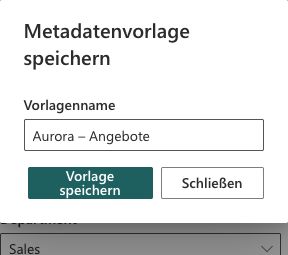
- Choose Metadata values → Save as template, enter a name, then choose Save template. Using the same name updates that template. Use Metadata values → Manage templates to delete templates. Saving a template does not save the document values yet.
- For current uploads, return to Edit metadata through Active. If only metadata saving fails, retry that step without uploading the file again.
Good to know
Prefilling and saving are different: a template or last values changes drafts first. They are not written automatically. The explicit bulk action, however, can save several items.
Bulk actions cover only compatible items from the same upload batch: the same library, current content type and compatible fields. Other items keep their own email fields, titles, and technical or protected fields. A different content type is never switched automatically. Last values update only after SharePoint saves successfully.
Optional metadata does not block upload. Closing the form returns to the filing sources in Mail; in SharePoint mode, the open document folder stays available. The internal editor covers current uploads, not arbitrary existing documents or entries under Recent filings. Open those files or their library in SharePoint.
Edit in browser opens a document for editing; it is not a general metadata editor. Use SharePoint directly for unsupported field types or additional permission requirements.
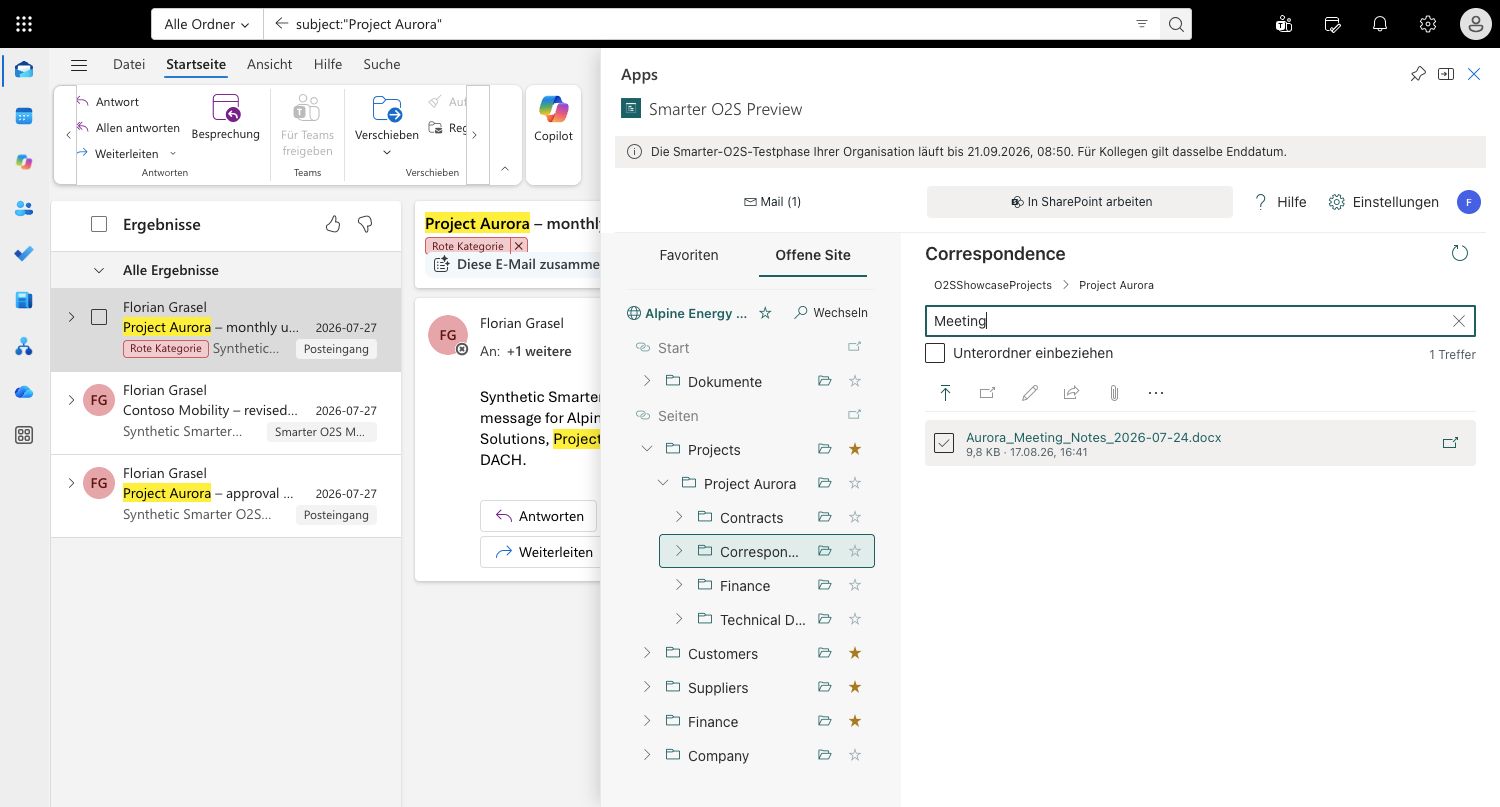
Search folders and inspect documents
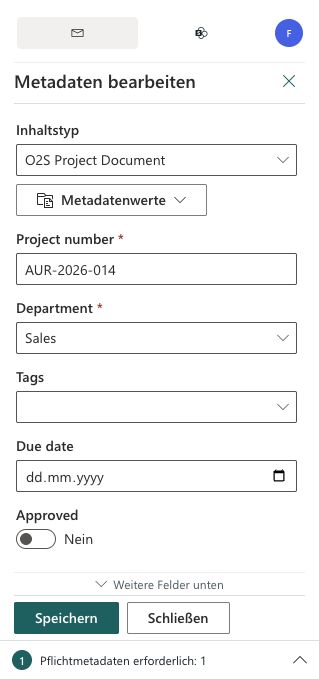
Work in SharePoint shows documents independently of the selected Outlook email. The expanded Outlook Apps pane provides room for navigation and contents side by side.
- Switch to Work in SharePoint, shortened to SharePoint at narrow widths. Open a site, library and folder. The folder icon beside a filing destination opens its contents in this workspace.
- Enter at least two characters in Search this folder. Search covers the open folder; Include subfolders appears only during a search. Use Load more for additional results.
- Clear the search term to return to folder contents. Check this list first for recent uploads because SharePoint search indexing can be delayed.
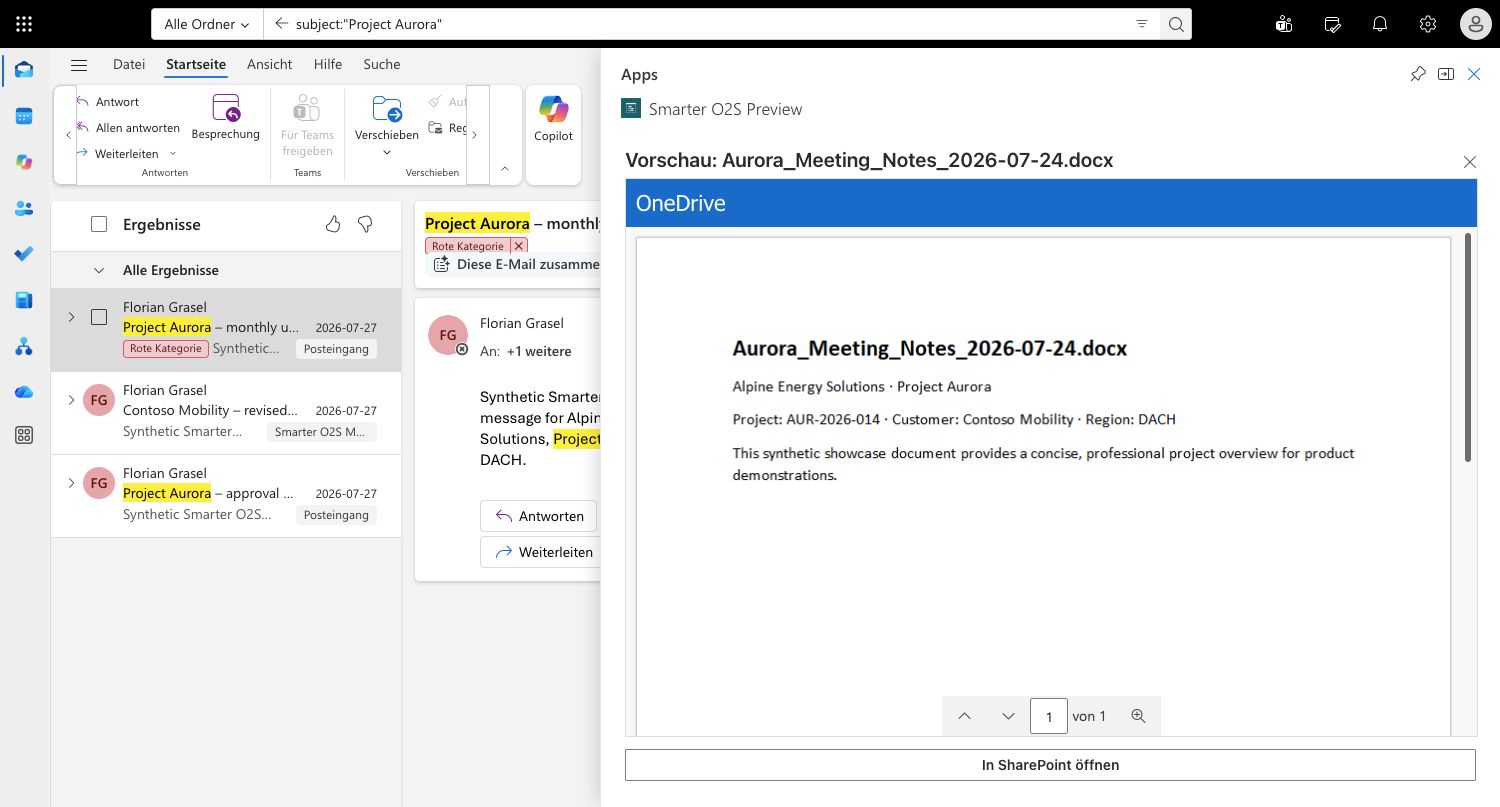
- Select exactly one document and choose Preview, under More when needed. Microsoft 365 decides whether that file can be displayed inside O2S. Expand the Outlook Apps pane for a larger preview.
- Use Open in SharePoint if preview is unavailable. Open and Edit in browser are separate actions; not every action supports every selection.
Good to know
Search uses searchable SharePoint content and metadata and respects your access rights. Folder search is not a tenant-wide search and never changes the confirmed email filing destination.
PDF, image, Office, EML, MSG and text files can be displayed depending on Microsoft’s viewer, the file and tenant policy. O2S does not guarantee preview based on the filename extension alone. Single-file preview is unavailable for a multiple selection.
In the compact pane, document contents replace navigation. X closes this view, not the SharePoint library. The document toolbar remains visible while scrolling: the compact view shows icons with tooltips; in the expanded view, additional actions appear under More.
Understand Active and Recent filings
The bar at the bottom opens current work and successful filings. You can expand or collapse it at any time.
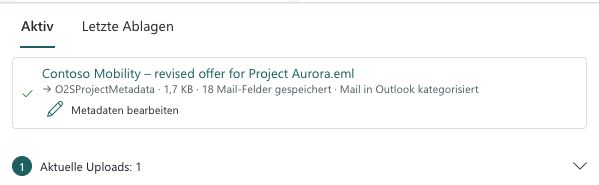
- Open Active for prepared or running uploads, conflict decisions, errors and metadata work from the current session.
- Choose Recent filings for previous successful filings. The first ten entries appear initially; Show complete history opens the rest. When no current action needs attention, the activity bar opens this tab directly.
- Choose a filename to open the file in SharePoint. The destination opens that location inside O2S.
- Edit metadata for current uploads through Active. For older entries in Recent filings, use SharePoint instead of the internal metadata editor.
Good to know
Recent filings is a history, not a second copy of your documents or a compliance audit log. Up to 1,000 entries are stored in your personal OneDrive partition.
Active is not a persistent task list. Finish pending metadata work before reloading. If history cannot load, use Retry; a temporary read error does not mean earlier filings were deleted.

Settings, storage and trial
In the compact pane, your profile avatar opens Help and Settings. With more space, these actions can appear directly in the header.
- Choose automatic, light or dark appearance and check the Outlook post-filing action. Categories and destination folders come from the connected mailbox.
- Keep the original email unchanged for initial tests. Choose a category, move, archive or delete only when that follow-up action is intended.
- Check the displayed Microsoft 365 account before switching. Favorites, history, templates and the post-filing option are stored in your OneDrive, separated by environment, tenant and account.
- Start the free 14-day organisation trial in O2S if none exists yet. Only the initiator confirms a contact address and the terms; product news is optional. Colleagues in the same tenant use the remaining time without another contact registration.
Good to know
Reinstallation, another domain or another user does not start a new trial. There is no automatic purchase or paid renewal. After expiry, use the displayed contact link. The Outlook add-in is available in Microsoft Marketplace; the trial still starts inside O2S.
Appearance and the current site are stored locally; business preferences and history synchronize with personal OneDrive. Another browser profile or account can therefore show a different state. Technical diagnostic logs are not stored in that OneDrive partition.
OneDrive provides personal O2S storage here. The current version does not include a separate OneDrive tab as a filing destination for emails or files.
Files and email contents are transferred to the selected SharePoint destination. Trial registration stores the initiator’s contact address and confirmations separately. The privacy notices in O2S and the installation guide explain this processing.
If something does not work as expected
Read the status on the affected operation first. A successful file upload and a failed metadata step need different next actions.
- If a site or file is missing, check access directly in SharePoint with the same account. New content may not be indexed yet; open the folder without search.
- For connection errors, check the business account, organisation approval, popup permission, and SharePoint and OneDrive access. After successful approval, use Connect instead of granting the same permissions again.
- For upload errors, read Active and check the destination folder before uploading again. If only metadata remains incomplete, save the metadata again without creating another file.
- Open Help through the profile avatar for contextual topics. For support, note the short O2S error reference, time, app version, Outlook client and the steps you took.
- Start support mode in advanced settings only when needed. Explicitly copy or download the sanitized diagnostic package, then clear it. Never send tokens, passwords or confidential email content.
Good to know
Do not trigger several uploads or shares when a problem repeats. Use only the offered Retry action and wait for pending work. Support mode expires after at most 30 minutes and never uploads a package automatically.
Feature limits: SharePoint Online and existing libraries/folders. No SharePoint on-premises, importing entire Outlook folders or creating new folders. Use SharePoint directly for unsupported previews or field types.
Questions about this product?
Our support team is happy to help with any questions about Smarter O2S.
Support: support@smarterbusiness.at