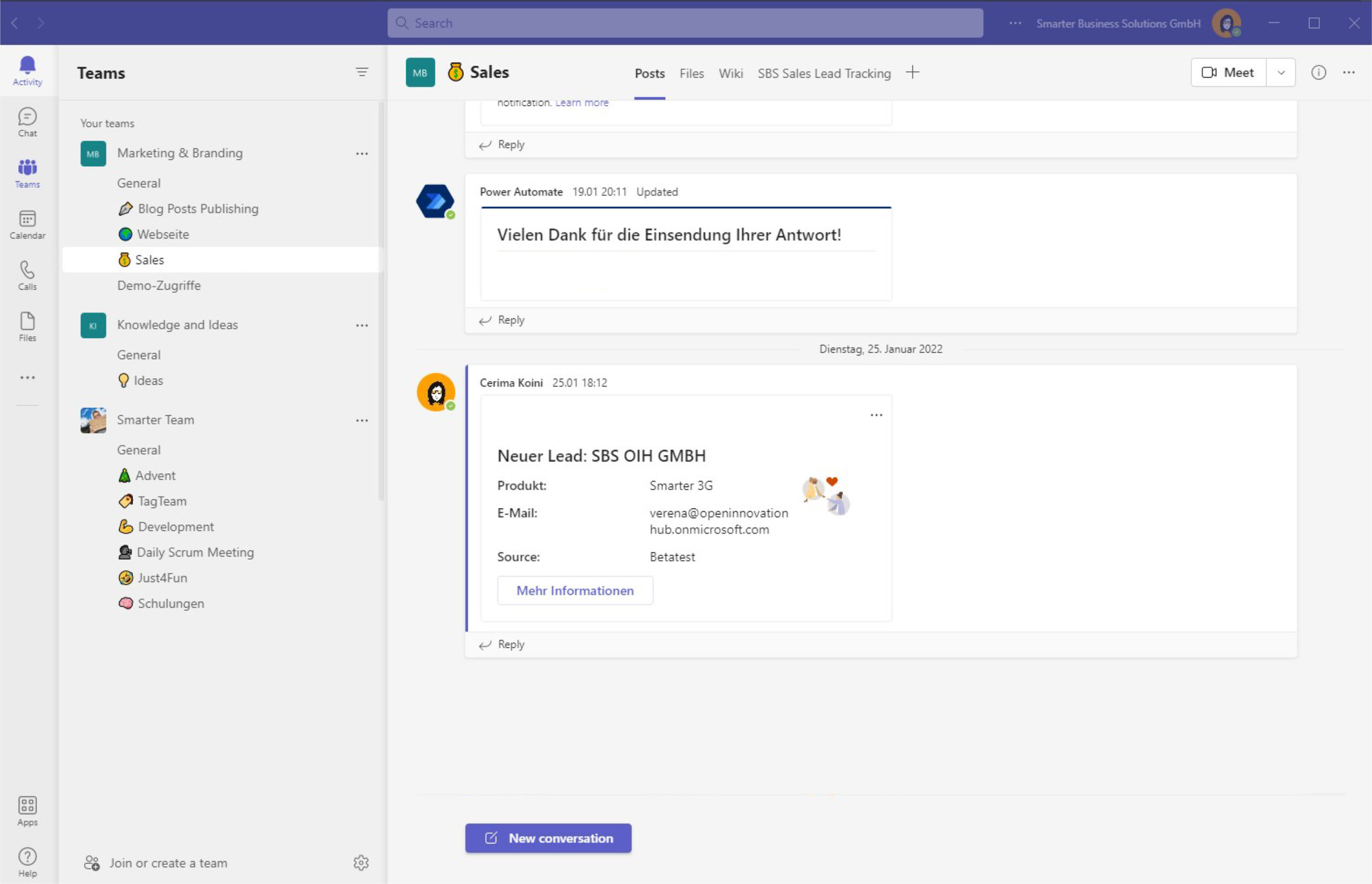
In the first part of our CRM automation series we explained how we combine leads from multiple sources in a single Microsoft List. This article builds on that foundation and shows how we move AppSource sales automatically from Azure Tables into the same CRM list.
Initial setup: capturing AppSource leads
Whenever a customer buys one of our apps such as Smarter Event Booking or Smarter Tombola through AppSource, the transaction lands in an Azure Table in our tenant. We want a single list that acts as the hub for every lead, so we move each entry from the Azure Table into our Microsoft List without touching it manually.
Why Azure Functions won out
Our first article described a Power Automate flow that files email leads in Microsoft Lists. We could have repeated that approach for Azure Tables, but there is no ready-made action and the HTTP request connector would add extra licensing costs. Logic Apps offer the necessary connectors, yet the consumption-based billing model turned out to be too expensive for our volume. Azure Functions, on the other hand, give us full control over schedules, scaling, and cost, so we built the integration there.
The function executes three concise steps:
Step 1: Retrieve unprocessed entries
We use an OData query to request every lead that has not yet been synchronized.
Step 2: Parse and normalize the payload
We map the Azure Table entity to a clean object, making sure mandatory CRM fields and optional metadata (language, product interest, reseller) are available for downstream logic.
Step 3: Create the Microsoft List item
For each new lead we add a fresh row to the Microsoft List and flag the Azure Table entry as processed. That prevents duplicates and gives us a quick audit trail.
Because the function runs on a timer trigger, the list stays current without anyone kicking off a flow manually.
Automated welcome email
To round out the experience we also send every fresh lead a welcome email. It contains setup guidance so new customers can install and configure the product without waiting for a consultant.

Ready for the next step? Continue with the third part of the series to learn how we notify the team about new leads using list conversations and deep links.