Historical article: the setup and features below describe the version available at publication. See the current Smarter Engagement Calendar (formerly Smarter Advent Calendar) and current installation guide for today’s product.
This article is the second part of our series. If you missed the introduction, start with A smarter Advent calendar for more user adoption in Microsoft 365 and SharePoint.
Architecture at a glance
The Smarter Advent Calendar runs on SharePoint and Microsoft 365. It is available for SharePoint Online as well as for on-premises environments. Under the hood it is powered by:
- Two SharePoint lists
- A SharePoint Framework (SPFx) web part
- A Power Automate flow (or a PowerShell script for on-premises)
SharePoint lists for content and participation
We use a SharePoint site pages library to store the content behind each door. You can draft the text, embed videos, add imagery, or drop in a Microsoft Forms survey – all inside the modern page experience. Metadata such as the publication date controls when the door unlocks. Another field decides whether the day includes a raffle, enabling a participation button for that door.
Participation entries are tracked in a separate list. It logs who entered which raffle on which day, making it easy to draw winners later.
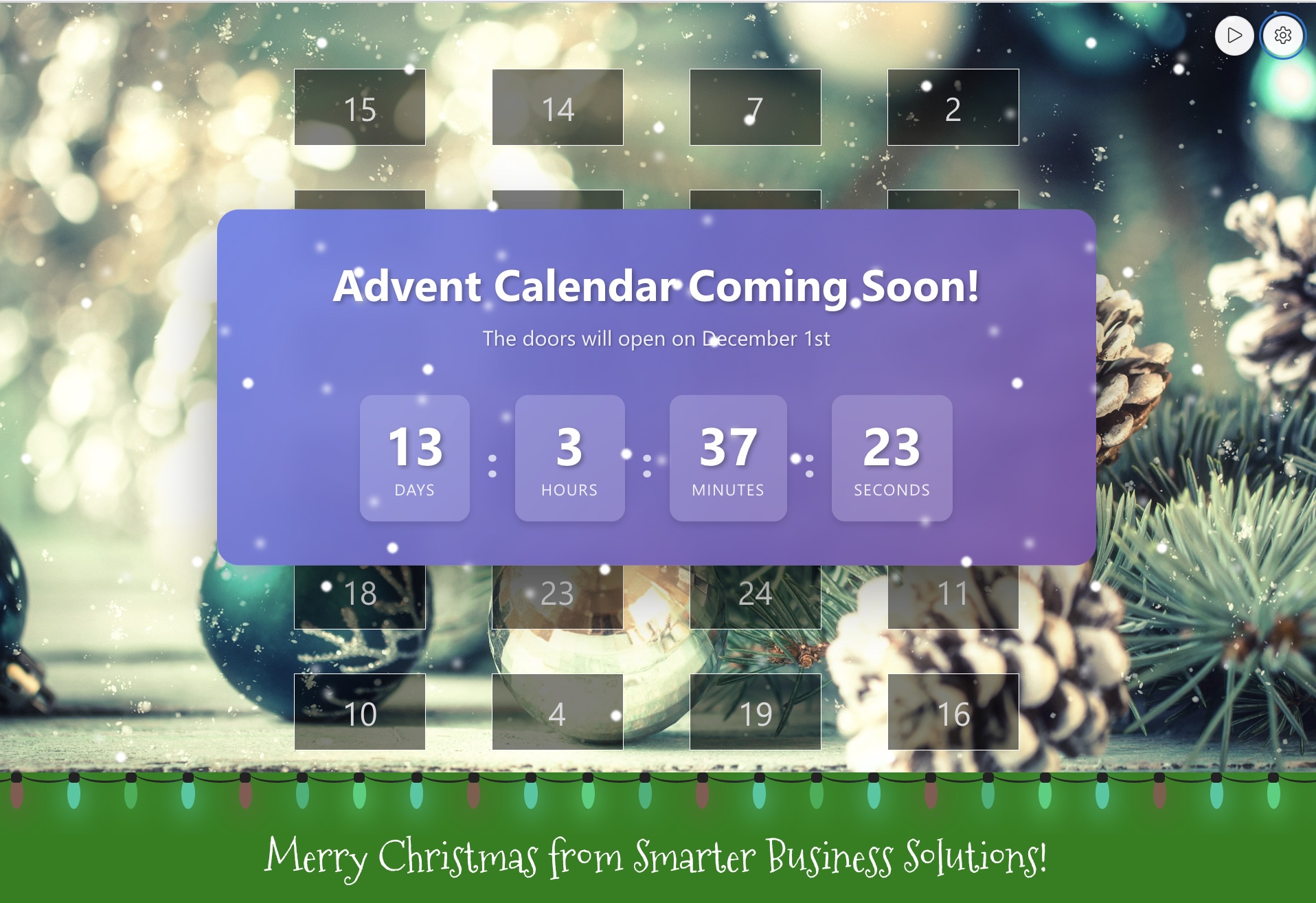
SPFx web part for the 3D doors
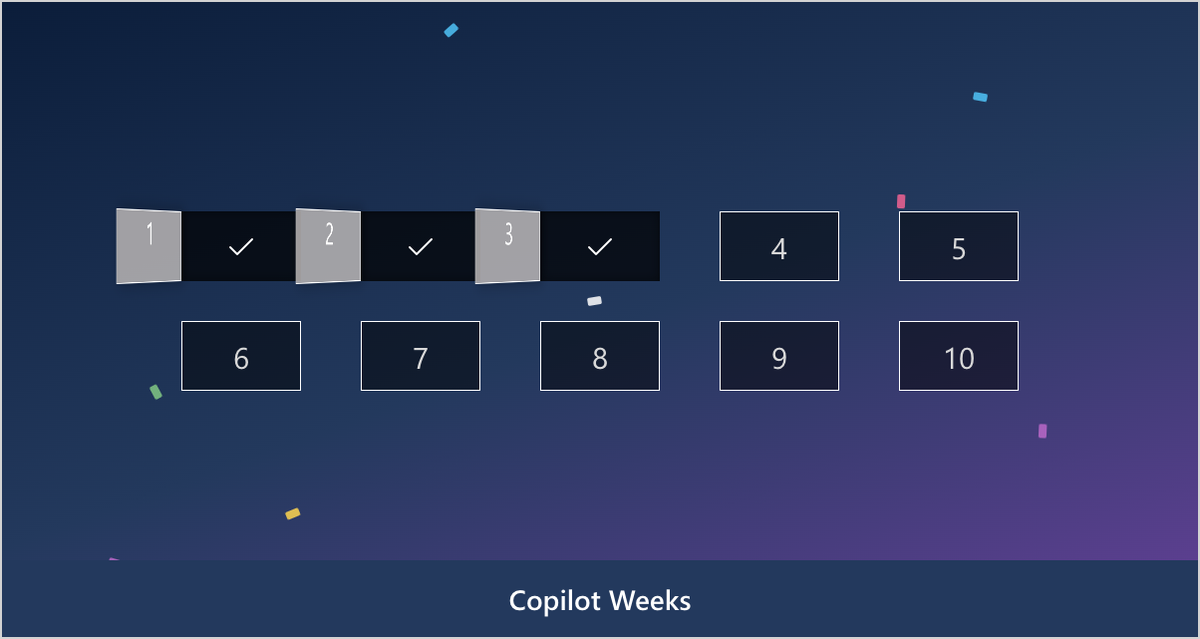
The highlight of any Advent calendar are the doors. We wanted them to look and behave like a 3D flap that swings open. The implementation spans the scene with a wrapper <div> that sets the perspective. Each door contains the frame as well as the front and back of the flap. When the door rotates, the back is flipped 180° on the Y-axis so only the visible part of the content shows through.
We will dive deeper into the exact implementation in one of the next articles.
Power Automate flow for the raffle
When a raffle is enabled, a flow picks the winners from the participation list. You define how many people can win on any given day, the automation fetches that number, and notifies the lucky colleagues about their prize. On-premises installations can run the same logic via PowerShell.
Want to learn more?
We will continue to share code snippets and best practices around the Advent calendar. Sign up and stay tuned so you never miss an update. We are excited to help you bring the Smarter Advent Calendar to your organisation and make users love SharePoint even more.