Updating SharePoint Framework (SPFx) apps from the Microsoft Marketplace should be straightforward – but unfortunately, it’s not. Microsoft has not yet integrated update functionality into the new App Management interface, which presents a challenge for many administrators.
In this post, we’ll show you step-by-step how to update your SPFx products without any hassle.
The Problem: Missing Update Function in the New Interface
Microsoft has modernized App Management in SharePoint Online and introduced a new user interface. This new interface is cleaner and more user-friendly – however, it currently lacks the ability to update installed apps from the Marketplace.
This means: You need to temporarily switch to the classic interface to perform updates.
Step-by-Step Guide: Update SPFx Apps
1. Open SharePoint Admin Center
Log in to the SharePoint Admin Center:
https://[YOUR-TENANT]-admin.sharepoint.com2. Navigate to “More features”
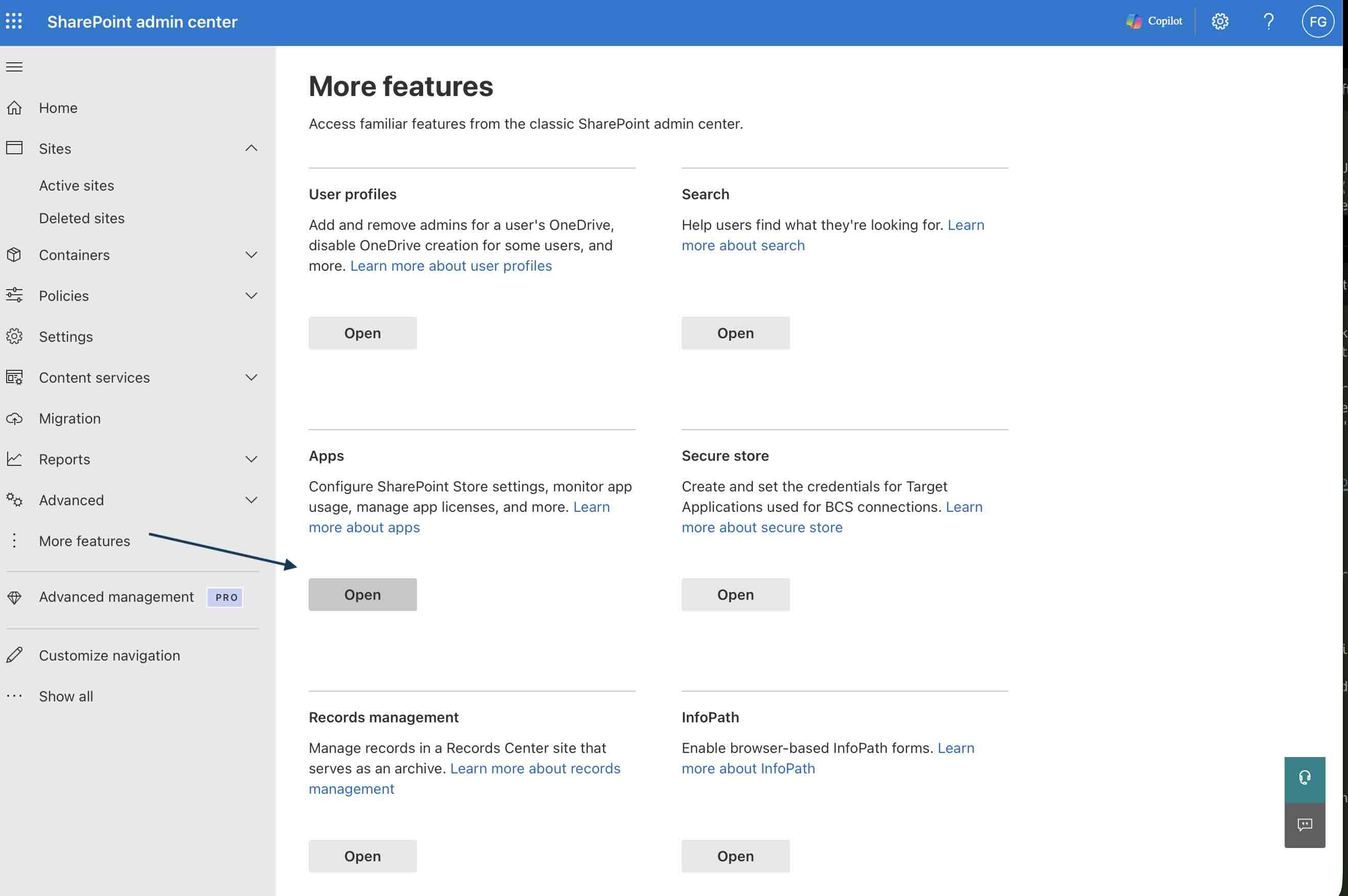
Click on “More features” in the left navigation.
3. Open the Apps section
Find the “Apps” section and click “Open”.
4. Switch to Classic Experience
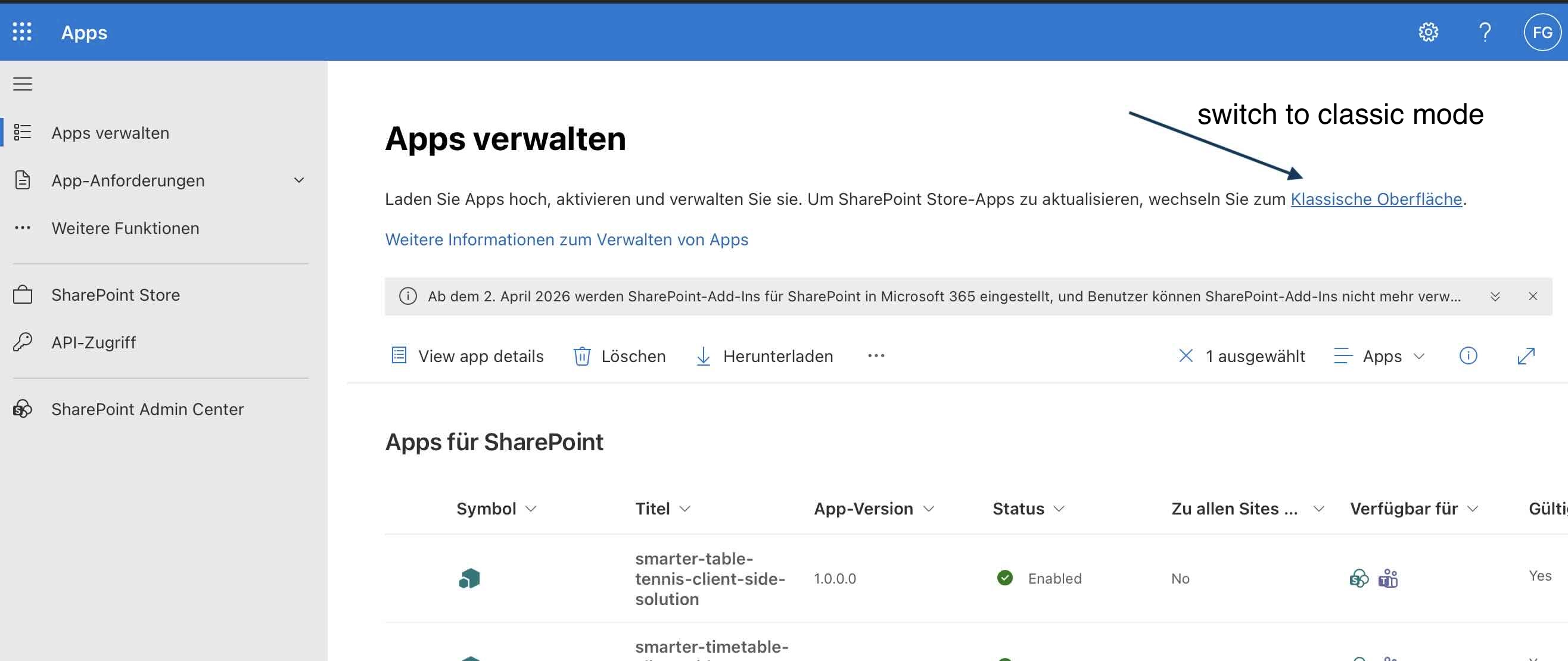
Here’s the crucial step: In the new App Management interface, you’ll find a link or button labeled “Switch to classic experience”.
Click it to access the classic App Management view.
5. Open App Catalog
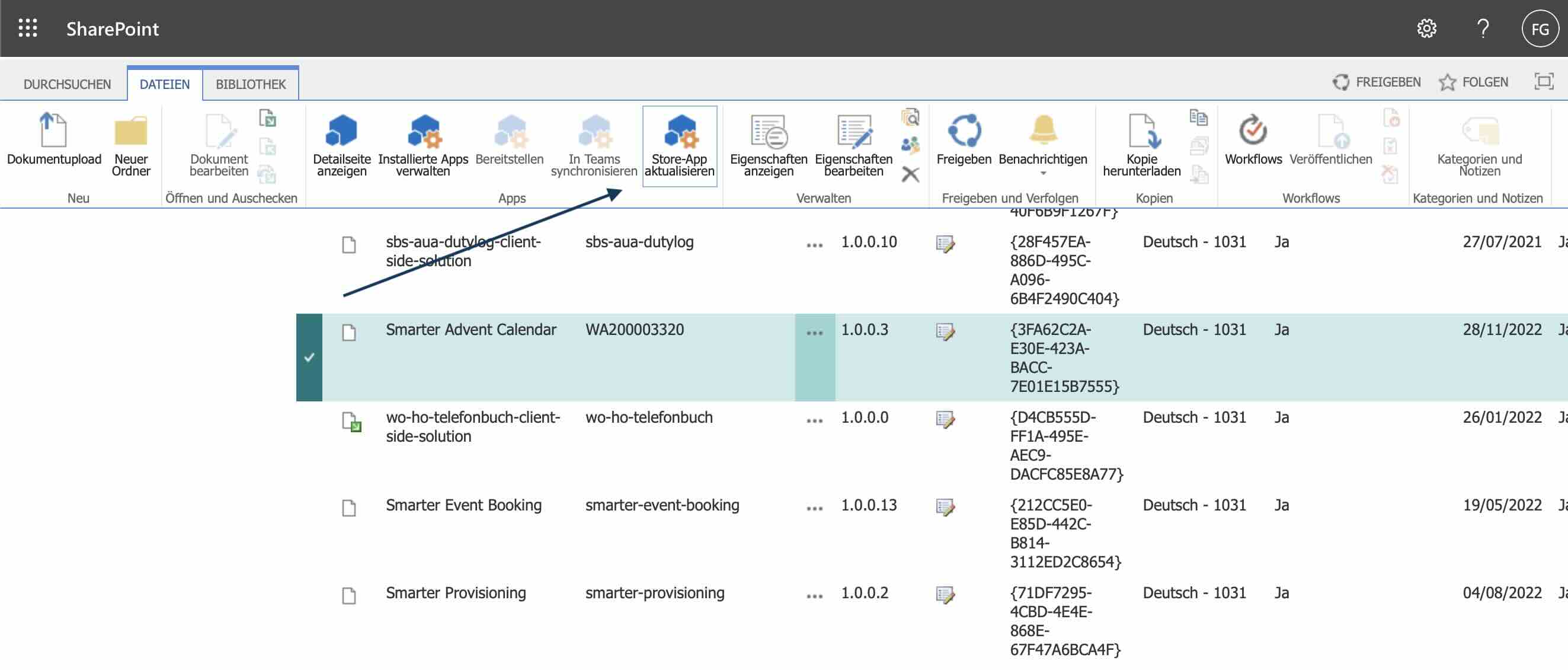
In the classic view, click on “App Catalog”.
If you have multiple App Catalogs (e.g., a Tenant App Catalog and Site Collection App Catalogs), select the appropriate catalog.
6. Update Apps
In the App Catalog, you’ll see all installed apps. Apps with available updates will be marked accordingly.
To update an app:
- Click on the app you want to update
- Click “Update” or “Get it” (for new versions)
- Confirm the update
7. Confirm the Update
After the update, apps will automatically be updated on all sites where they are installed. This may take a few minutes.
Why Is Updating Important?
Regular updates provide you with:
New Features and Functionality — Benefit from the latest developments Bug Fixes and Stability Improvements — Fewer errors, better performance Security Updates — Protection against vulnerabilities Compatibility — Support for the latest SharePoint and Microsoft 365 versions Performance Optimizations — Faster loading times and better user experience
Frequently Asked Questions (FAQ)
When will Microsoft integrate the update function into the new interface?
Microsoft has not yet published a specific timeline. It’s expected that this functionality will be added in the coming months.
Will I lose data during an update?
No, all configurations and data are preserved during an update. The app is simply updated to the new version.
Do I need to update the app on each site individually?
No, the update in the App Catalog is automatically propagated to all sites where the app is installed.
What happens if an update fails?
In most cases, you can simply retry the update. If the problem persists, contact our support.
Can I roll back an update?
Yes, in the classic interface you can revert to an earlier version under certain circumstances. Contact us if you need assistance with this.
Summary
Updating SPFx apps from the Microsoft Marketplace is currently somewhat cumbersome, but easily manageable with this guide:
- Open SharePoint Admin Center
- More features → Apps → Open
- Switch to classic experience
- Open App Catalog
- Update apps
- Done!
We recommend regularly checking for updates to benefit from new features and improvements.
Need Help?
Our support team is happy to assist you with updating your SPFx apps. Contact us:
Additional Helpful Resources: