SharePoint Spaces, announced at MS Ignite 2018, is finally available in preview for SharePoint Online. Boring, flat lists make room for immersive experiences: with Windows Mixed Reality you can explore content in 3D and boost creativity during collaboration.
What Is SharePoint Spaces?
SharePoint Spaces is a web-based platform that lets you interact with site content in a spatial environment. Because it is browser-based, it works across devices. Users with MR headsets dive into a three-dimensional world, while everyone else can navigate via mouse and keyboard.
Prerequisites and Supported Devices
To use SharePoint Spaces you need SharePoint Online and Microsoft 365. Make sure the modern experience is enabled for your sites.
Microsoft recommends creating Spaces on a modern site such as a communication site:
You can build one or more SharePoint Spaces on an a new or existing site. We recommend using communication sites because you have more screen real estate to work with, but it is also possible to build a SharePoint space in a team site.
System Requirements and Headsets
For a smooth experience follow the minimum requirements from Microsoft. Use at least an NVIDIA GTX 1060 or a comparable GPU. Headsets from Samsung, Acer, Oculus (Rift / Rift S / Quest) and HTC (Vive) are supported. More details are available in the SharePoint Spaces documentation.
Create a Space
Enable the Feature
Before you build a space, enable Spaces (Preview) in the site settings.

The SharePoint Spaces feature is not active by default.
Set Up the Space
You can then create a space just like a modern page by choosing Space (Preview) under New.
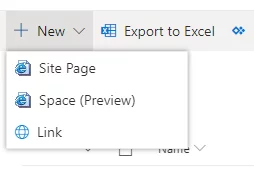
Spaces appears under the “New” menu once the feature is enabled.
Room for More Possibilities
Under Space design you define the structure, background, and styling of the environment. Add a welcome message and ambient sounds to create the right atmosphere for your visitors.
Next, populate the virtual room with web parts to showcase content. Select the blue plus icon in the upper-left corner to add one.
Available Web Parts
Nine web parts are currently available:
- 360° image
- 360° video
- 3D object
- Document library
- File viewer
- Image
- People
- Text
- Video

These web parts can be positioned anywhere in the scene. You control size, tilt, rotation, and distance to the viewer. The example below shows a file viewer web part placed in the middle of a lake. Learn more in the Microsoft documentation.
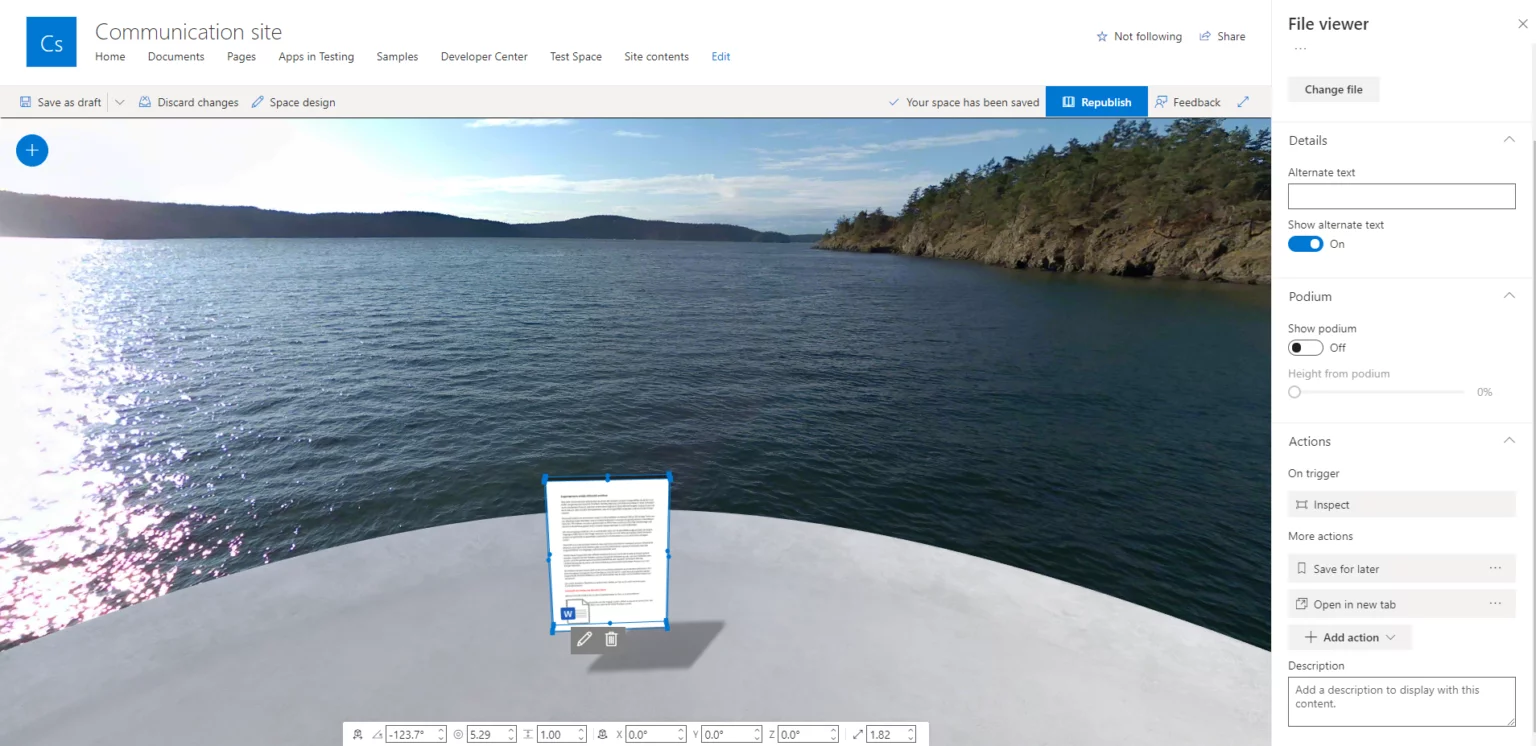
You can reposition and edit each web part at any time.
Conclusion
SharePoint Spaces brings a new way to experience SharePoint through mixed reality. Product demos or onboarding sessions can leave a lasting impression on customers and employees alike.
Companies also benefit internally: the platform creates spaces that make every team member feel present, no matter where they work from.
Update from 22 January 2021
SharePoint Spaces is now available by default, so no extra activation is required.
If you do not want Spaces to appear automatically under + New, control the behavior on the tenant level with this PowerShell command:
Set-SPODisableSpacesActivation -scope tenant -Disable $trueRe-enable the menu entry by running:
Set-SPODisableSpacesActivation -scope tenant -Disable $false