We’ve already introduced Smarter Navigation as our solution for a SharePoint Modern UI tree navigation. In this article, we show how you can adapt the SharePoint navigation to your specific needs.
Configure the navigation for Modern UI
Users who belong to a specific SharePoint group (for example, the “Admin” group) see a settings button inside our navigation. Clicking it opens the configuration dialog.
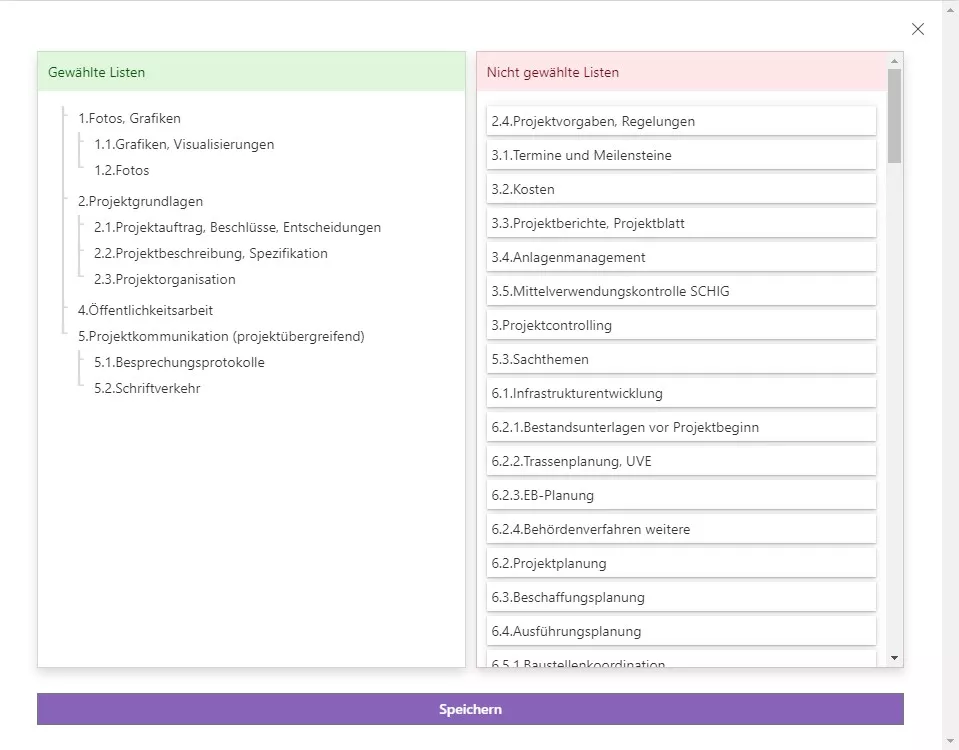
The dialog lists the available SharePoint lists. The numbers shown next to list names in the screenshots are only for visualizing the structure—similar to a work breakdown structure.
Via the configuration dialog, users can shape the list structure to match their workflows. The standout feature: they can nest lists inside other lists to create a true tree structure for the navigation. That’s a familiar pattern from Windows Explorer and delivers much better overview when projects or libraries contain many lists.
We store the configured tree in a web property as JSON. When the dialog opens again, we load the existing configuration from the web property and display it. Users can refine the structure at any time.
Add lists to the navigation
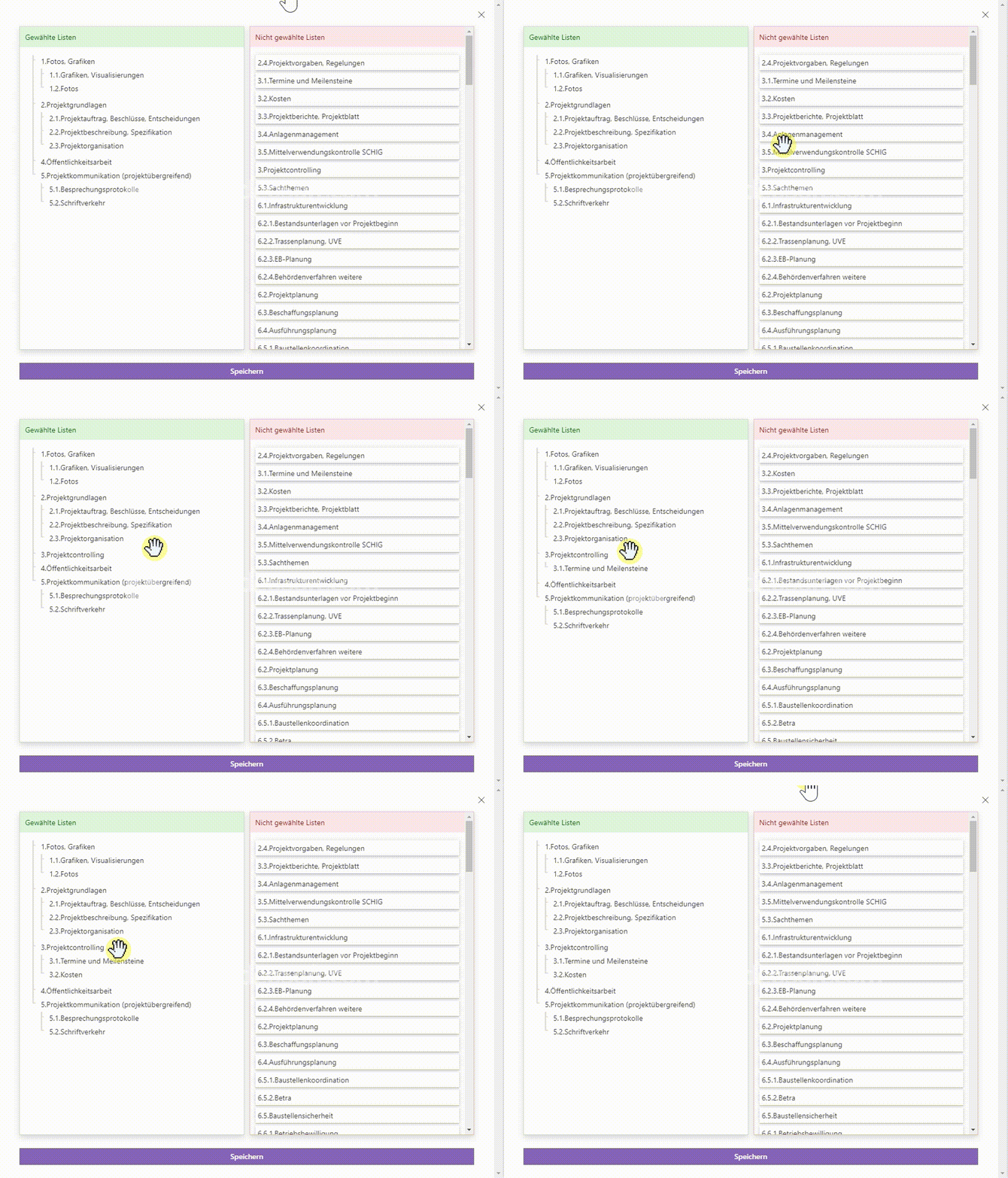
The configuration dialog is split into two areas: on the left, the current navigation structure; on the right, all lists that are not yet selected (sorted alphabetically). Users drag lists from the right to their desired position on the left. Lists can also be nested to build a hierarchical structure.
Remove lists from the navigation
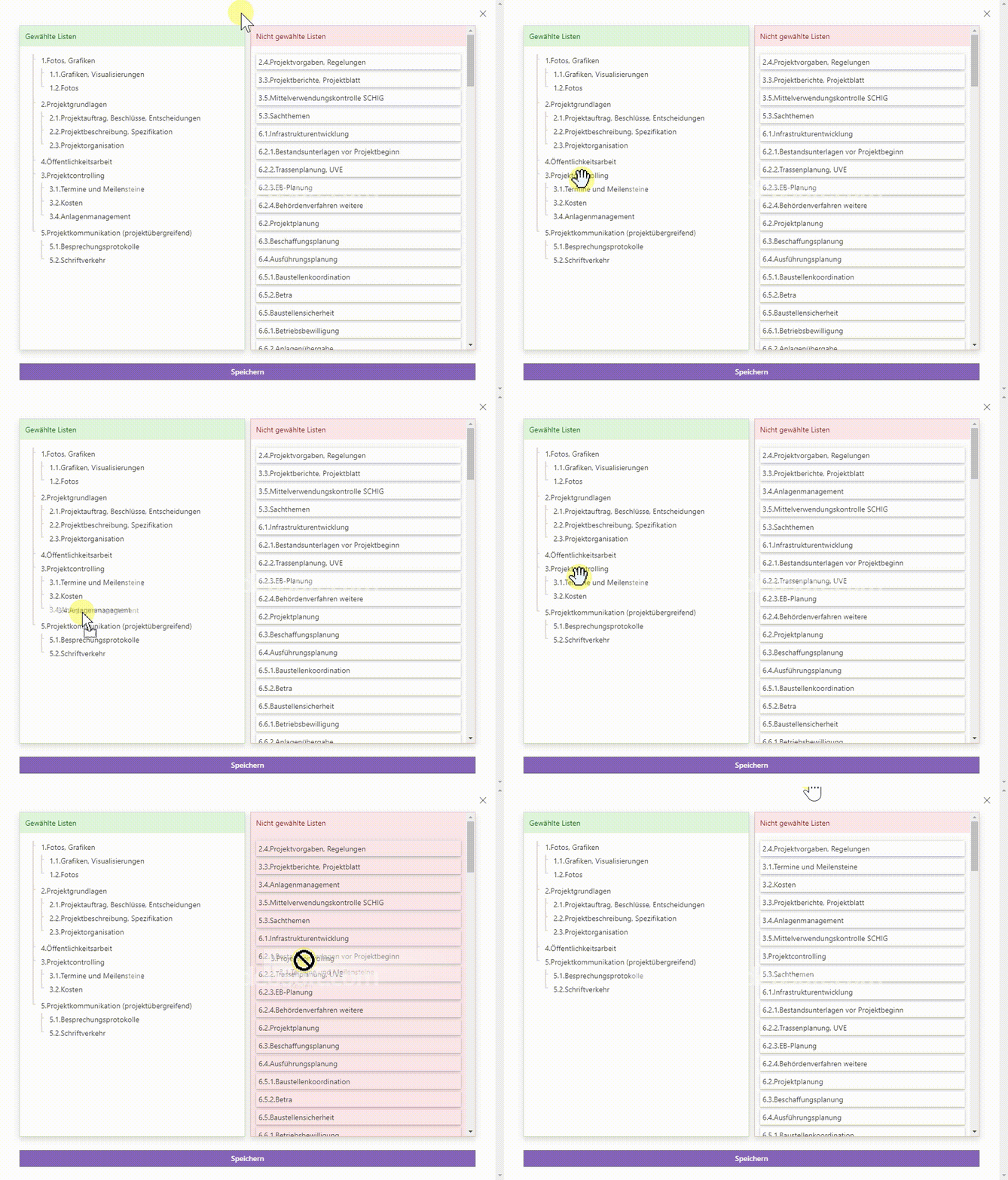
Users can also remove lists: drag a list from the left back to the right. You can remove single lists or entire subtrees; all child lists are moved back to the right as well.
Change list order
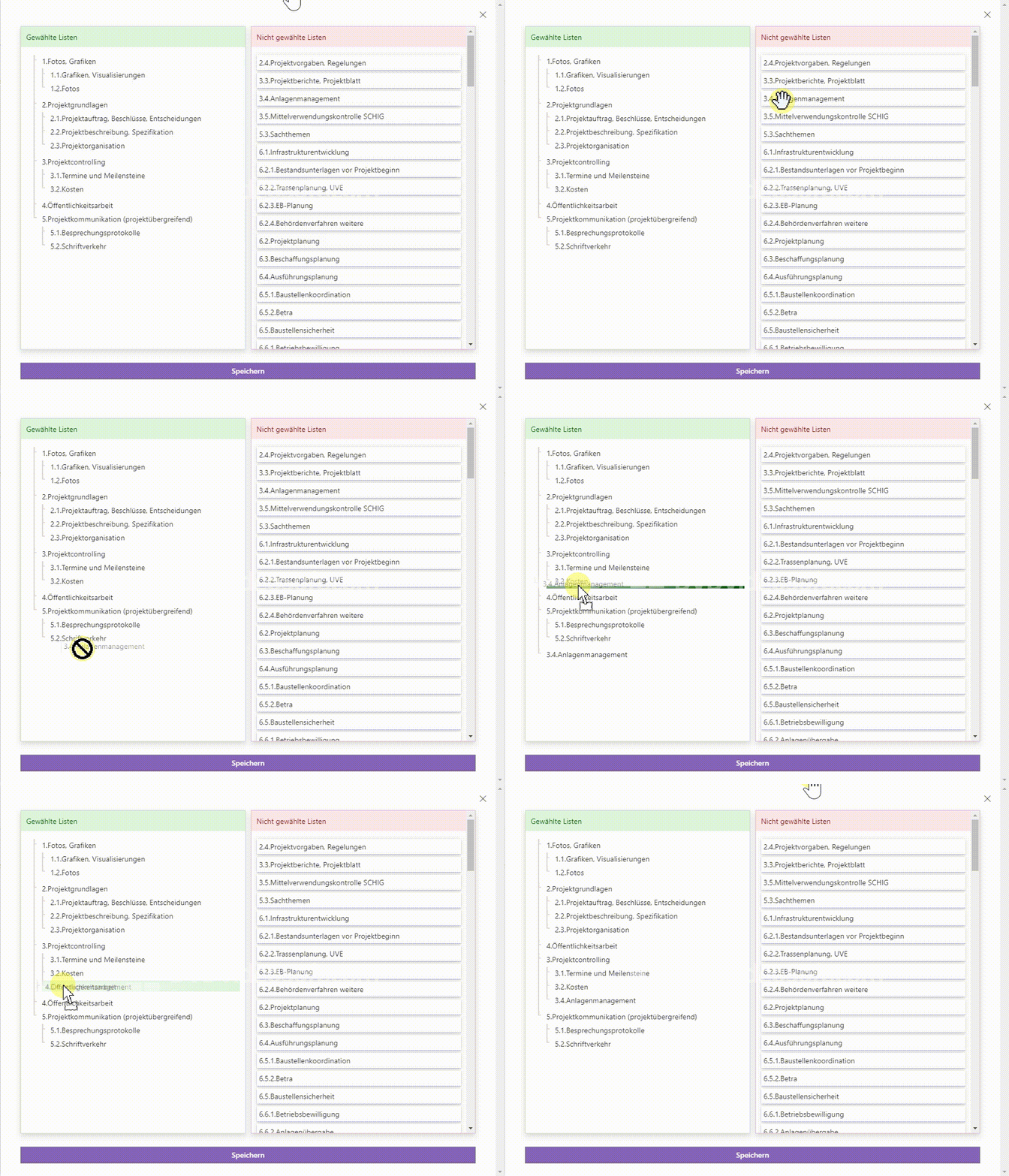
Users can reorder lists at any time to match their preferences and streamline navigation.
More features of our SharePoint navigation
Our navigation for the SharePoint Modern UI can also display all folders within SharePoint lists. Users can search for a specific folder right in the navigation. There’s also a dedicated favorites section for quick access and efficient use. You can find more details in our first article about the tree navigation for SharePoint Modern UI.
Conclusion
Interested in more details about our navigation for SharePoint Modern UI? Feel free to get in touch.
- Drag & Drop
- JavaScript
- Modern UI
- SharePoint
- Smarter Navigation
- User adoption