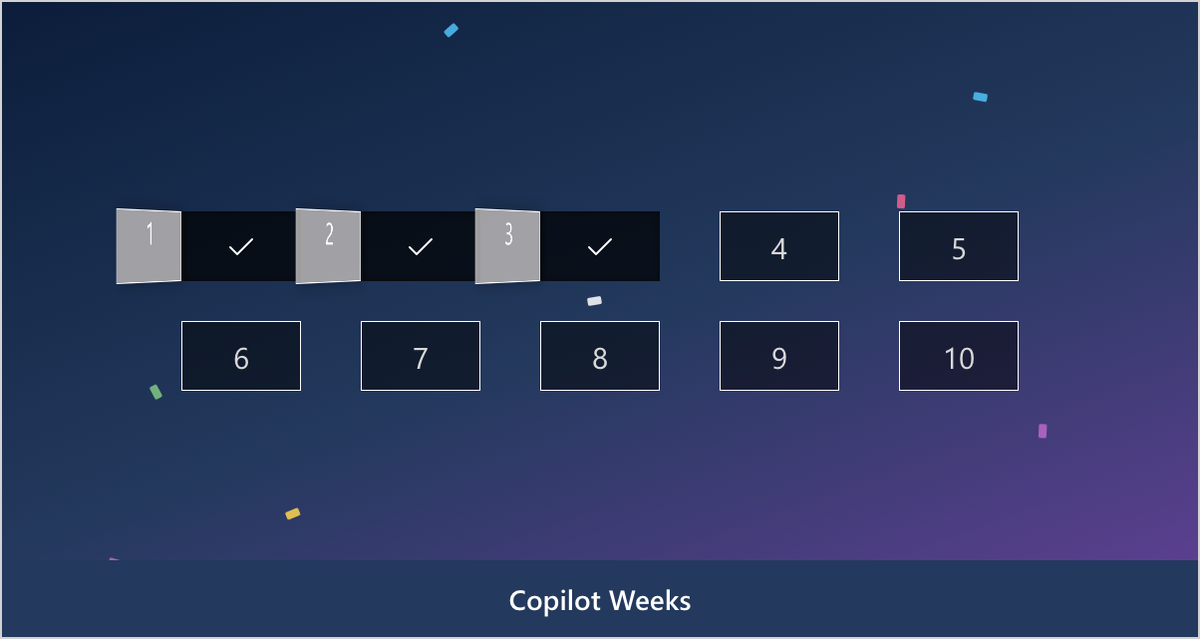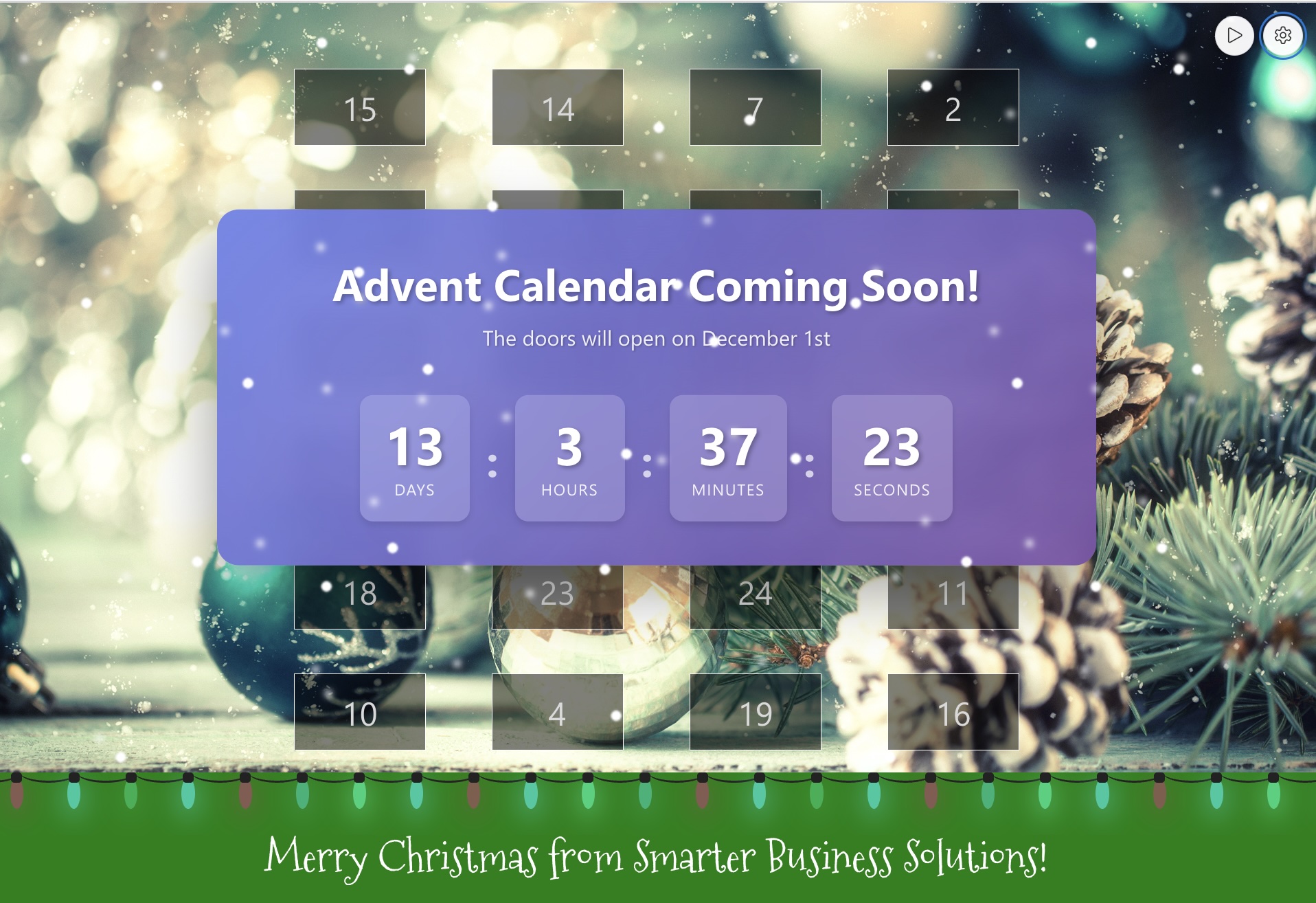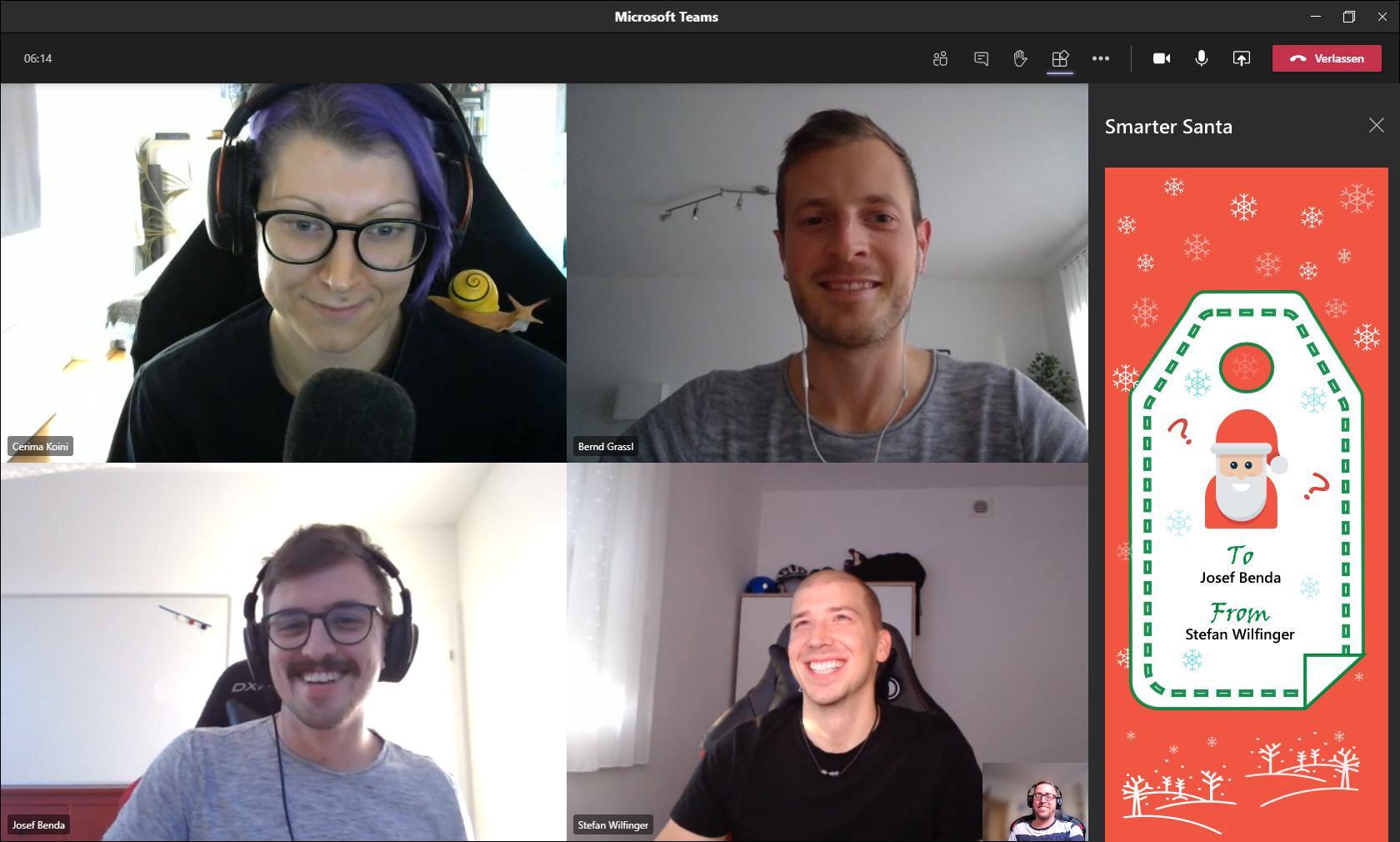
Historical article: the setup and features below describe the version available at publication. See the current Smarter Engagement Calendar (formerly Smarter Advent Calendar) and current installation guide for today’s product.
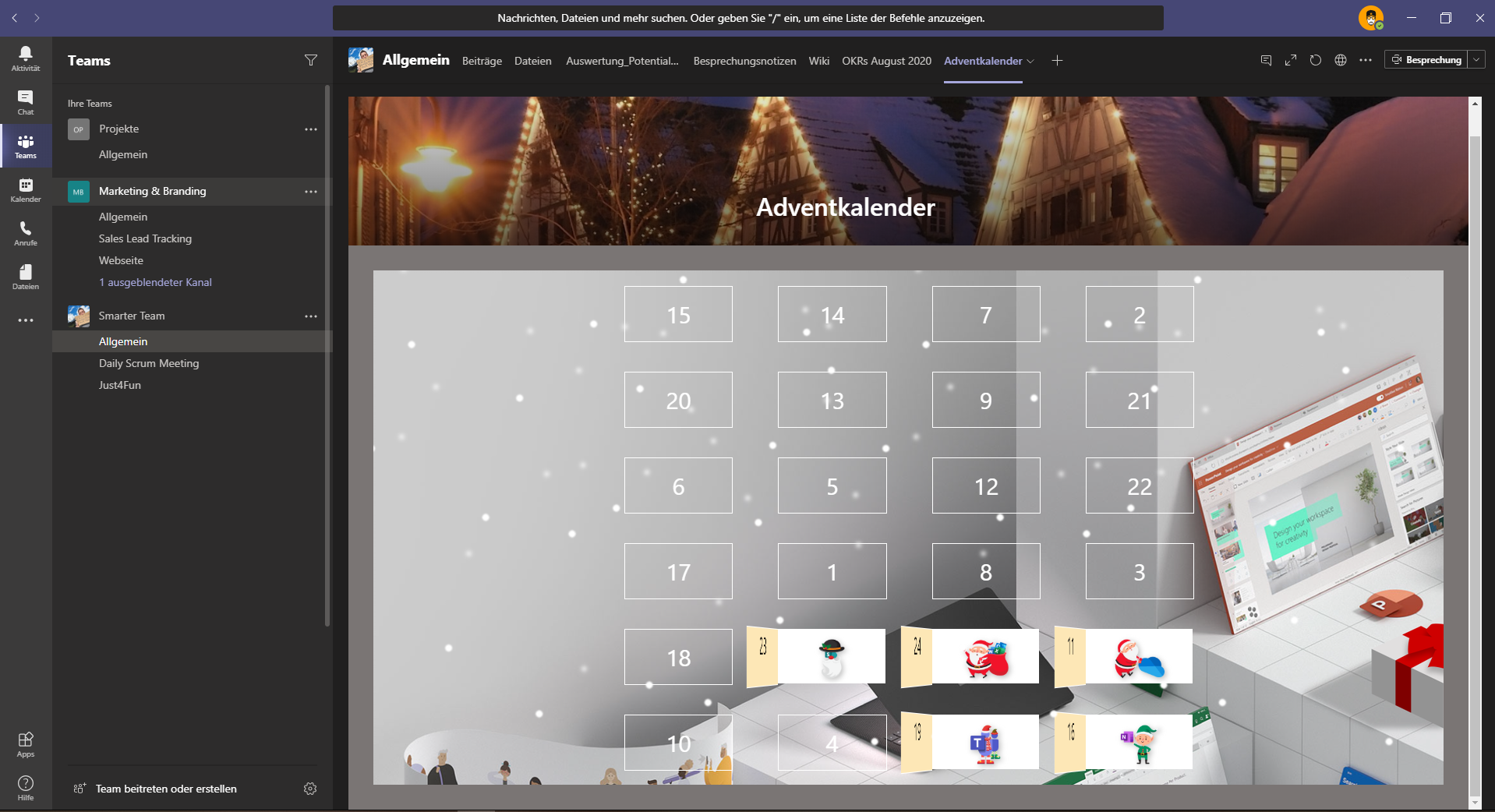
The nights are getting longer and colder again, while the smell of freshly baked cookies fills the living room. That can only mean one thing: the Advent season is quickly approaching. And what should never be missing? An Advent calendar that shortens the wait for Christmas with small daily gifts. Especially in times of hybrid work, every thoughtful surprise counts, so here is how you can embed our virtual Advent calendar directly in Microsoft Teams.
Why an Advent Calendar Works in Microsoft Teams
Many organizations — maybe yours as well — have switched to Microsoft Teams for communication and collaboration or have expanded its rollout. Adoption, however, can lag behind expectations during the transition. An Advent calendar inside Microsoft Teams is a friendly way to spark curiosity and reward regular visits during the busiest time of the year.
Explore the Smarter Advent Calendar
If you have not seen our calendar yet, browse our series that introduces the Smarter Advent Calendar.
Embed the Smarter Advent Calendar in Microsoft Teams
The setup really does take less than two minutes.
Prepare SharePoint
Add our Advent calendar web part to a SharePoint page and publish it. In our example the page is called Adventkalender.aspx. Quick tip: copy the page URL so you can paste it into Teams in a moment.
Step-by-step inside Microsoft Teams
- Open Microsoft Teams, pick the channel you want to delight, and add a new tab.
- Select SharePoint pages as the tab type so you can embed SharePoint content.
- If the Advent calendar page is not listed, click Add a page from a SharePoint site.
- Paste the URL of the SharePoint page with the Advent calendar web part and confirm with Save.
That’s it — the Smarter Advent Calendar is now embedded and ready for your colleagues to open the first door together.
Get in touch
Interested in using our Advent calendar or need help with the setup in Microsoft Teams? We are happy to support you.